There are many ways to set up Close for your unique organization or sales process. We recommend customizing some main areas within the tool before you begin to sell. Lead Statuses are one of the best ways to identify at a quick glance how a Lead is represented within your sales process.
Defining Lead Statuses
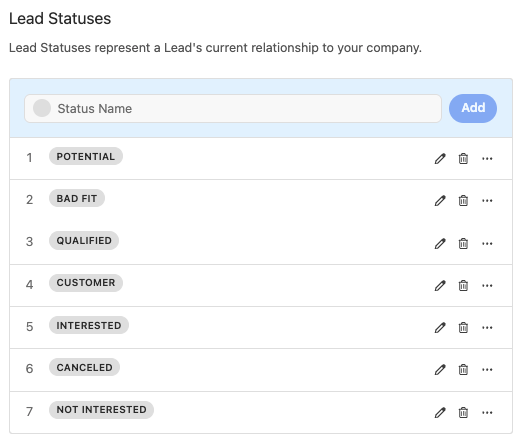
Lead Statuses represent a Lead's current relationship to your company. You will notice that we have pre-loaded some commonly-used Lead Statuses into your Close account as examples. These can be changed to reflect your team’s specific sales process.
Close Pro Tip: Learn how to Create a Sales Process
Are you still developing your sales process? If your answer is yes, we recommend starting out with high-level Lead Statuses. As you build out and refine your sales process, you can update your customizations to reflect the changes.
Check out these helpful blog articles about building a sales process:
Example Outbound Statuses
Potential: A Lead that may or may not have been contacted, but no meaningful discussion has taken place.
Interested: A Lead that has been contacted, and has expressed initial interest, but not been qualified.
Qualified: A Lead that is qualified to purchase the organization's products or services.
Customer: A Lead that had purchased your products or services
Not Interested: A Lead that has expressed a lack of interest in your product or services.
Bad Fit: A Lead that has been deemed not a good fit for the organization's products or services.
Example Inbound SaaS Statuses
Trial: Leads that are currently in a free trial for a product
Trial Expired: Leads that completed a free trial but never converted.
Customer: A Lead that is a current customer of your service.
Canceled: A previously paying customer that canceled the service.
Bad Fit: A Lead that has been deemed not a good fit for the organization's services.
For Inbound + Outbound sales, the two example Statuses can be combined.
Creating Lead Statuses
To add or edit a Lead Status in Close, click on your name in the top left corner of your account, then select Settings > Statuses & Pipelines > Lead Statuses.
You can assign colors to Lead Statuses that appear across Close, making scanning your Inbox and Smart Views even easier. This simple touch can help you stay organized and on top of your tasks with confidence.
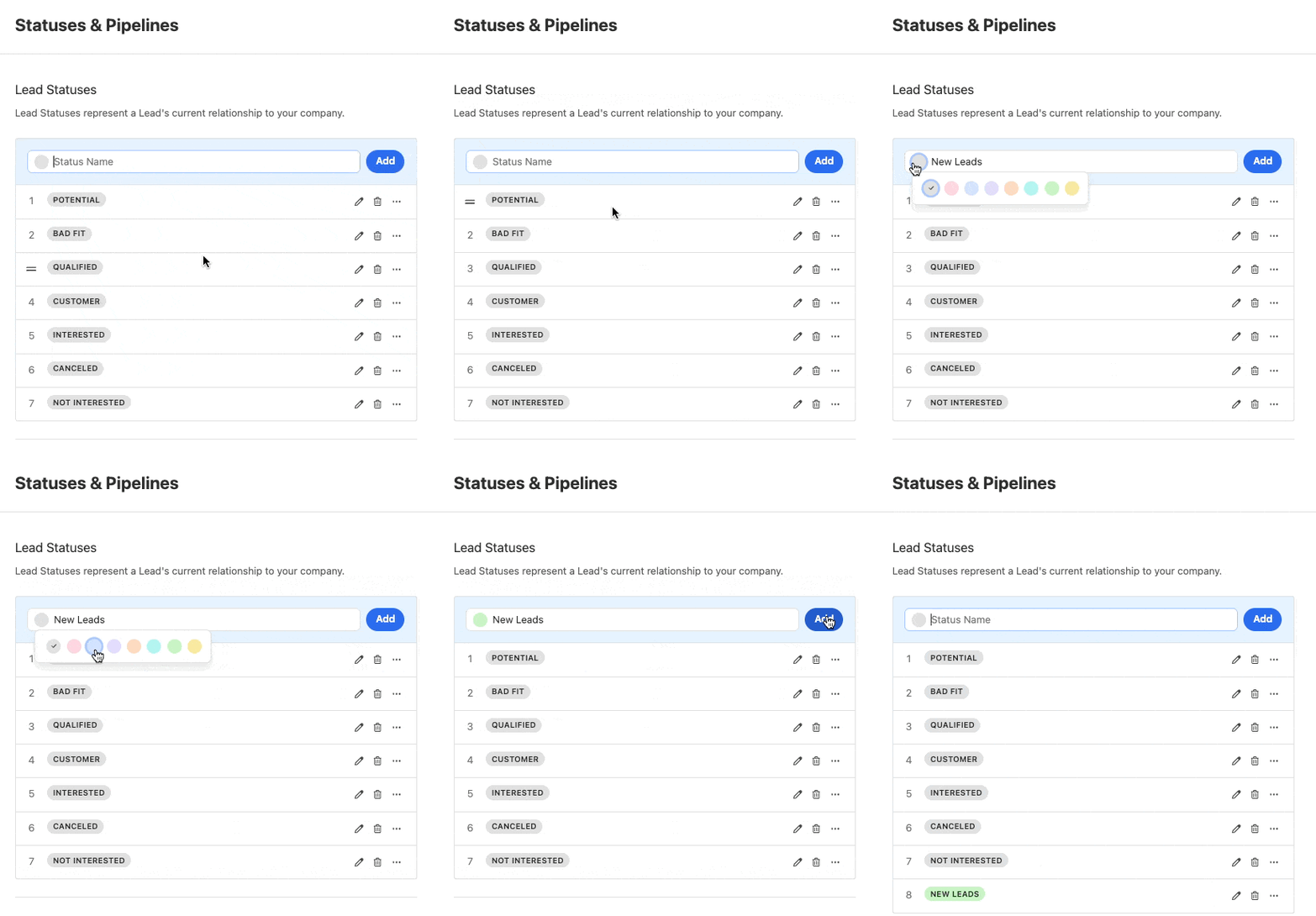
If you are renaming a Lead Status that already has Leads assigned, they will automatically be updated with the new status. Don’t forget to update your Smart View search queries to match the new Lead Status!
To reorder your list, simply drag and drop the Lead Statuses names into the correct order.
.gif)
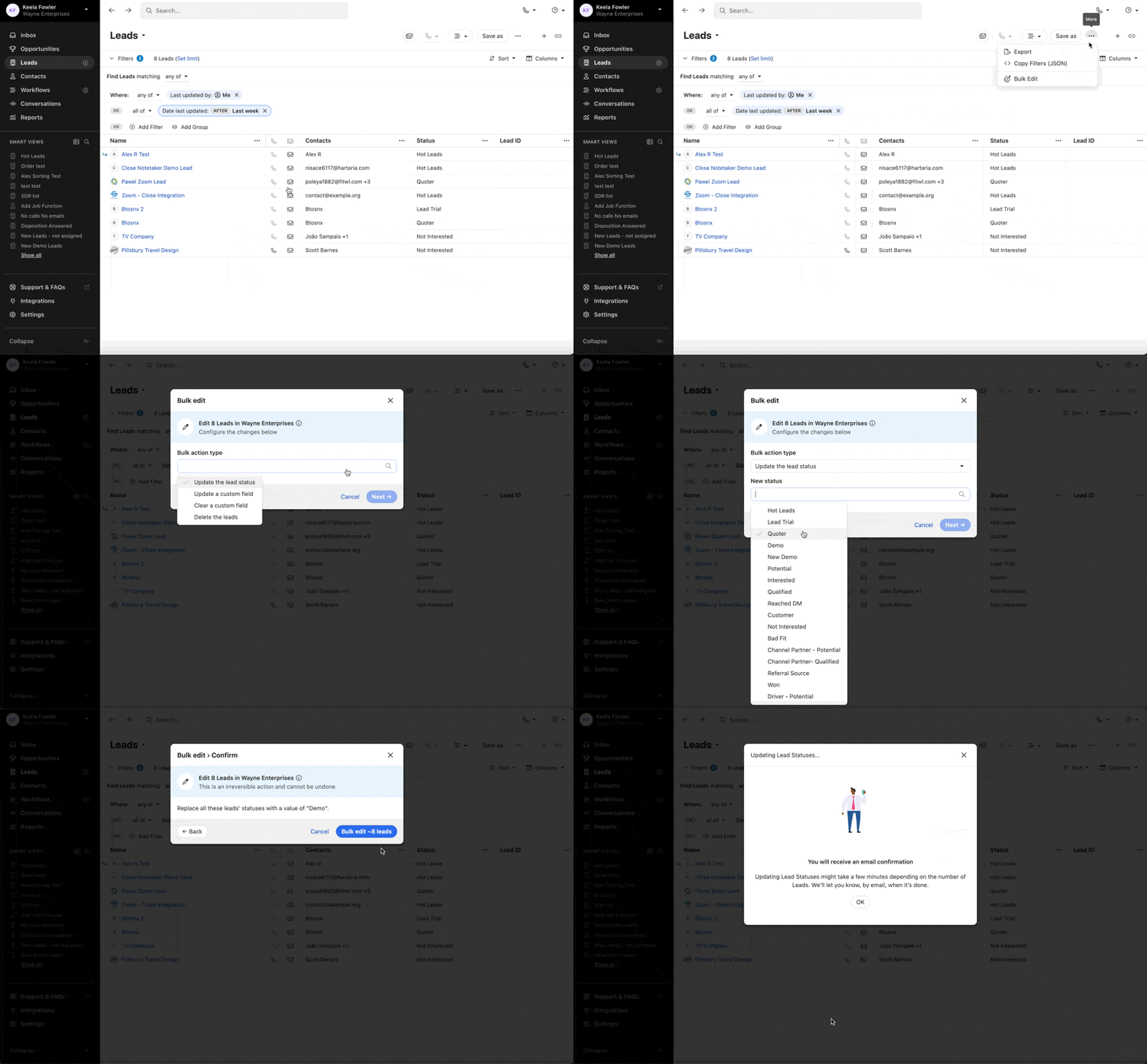
Bulk updating Lead Statuses
Update a Lead Status in bulk for a list of Leads by using the Bulk Editing tool on the Leads page as shown below:
Deleting Lead Statuses
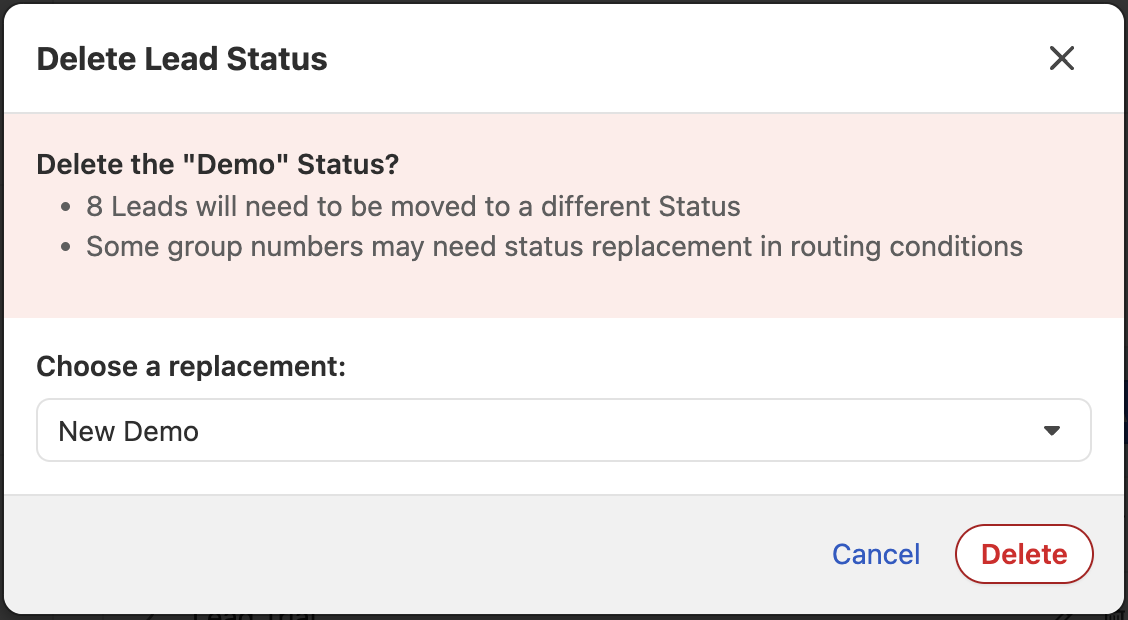
To delete a Lead Status, navigate to the Statuses & Pipelines > Lead Statuses section under Settings again. Click the trash can icon next to the Lead Status to delete.
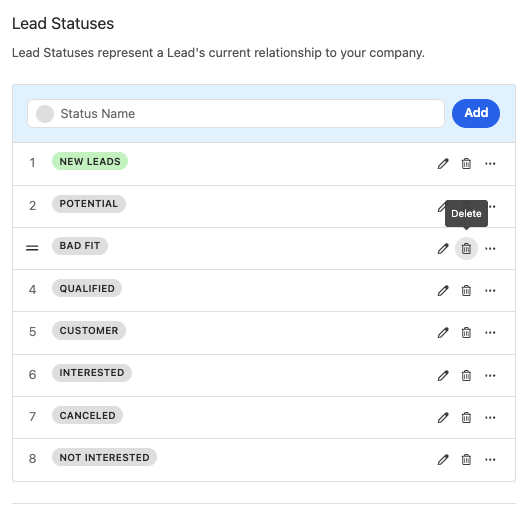
If there are Leads currently assigned to the Status you are deleting, Close will prompt you to select a new Lead Status to assign. Select the new Status from the dropdown menu and click Delete.