Want to export WordPress site content, your database, or everything? Whether you self-host WordPress or have a WordPress.com site, exporting is useful if you need to migrate to a different hosting provider, server, or from a hosted WordPress website to a self-hosted one.
When you export a WordPress website, it means you’re saving and moving your site in part or in whole to be sent elsewhere. You can save it to your computer so you can migrate your website or keep what you have saved as a redundant backup.
There are multiple ways you can export your WordPress site. Let’s dive in!
How to Export WordPress Site from WordPress.com
If you have a managed WordPress.com site and you want to know how to export WordPress site content – in part or entirely – to a new host, you can follow the steps below.
Exporting All or Specific Content
There are certain types of content you can export:
- Posts and pages
- Feedback
- Media library content
- Links (blogroll)
Step 1
When you’re ready to export your WordPress site, be sure you have logged into your WordPress.com account. Once you’re logged in, start by choosing the website where you want to export content.
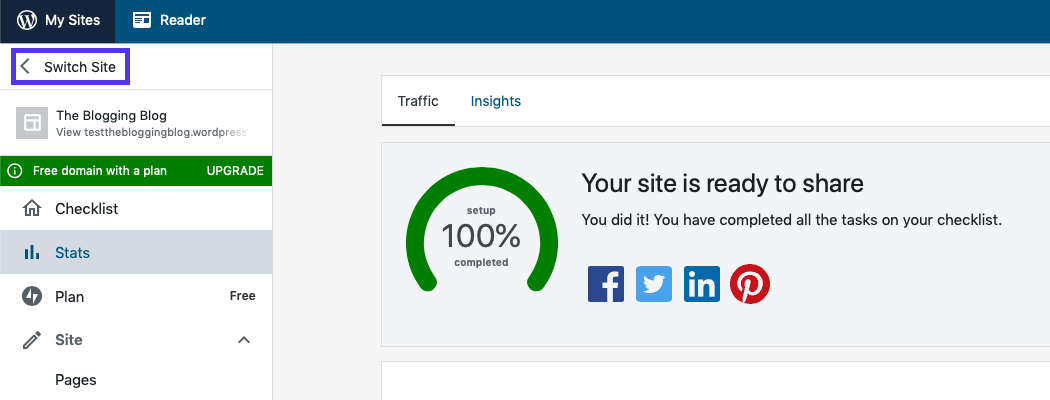
Click on My Sites at the top left-hand corner. If you have multiple sites, but don’t see the one you want to export listed toward the top of the menu on the left, click Switch Site.
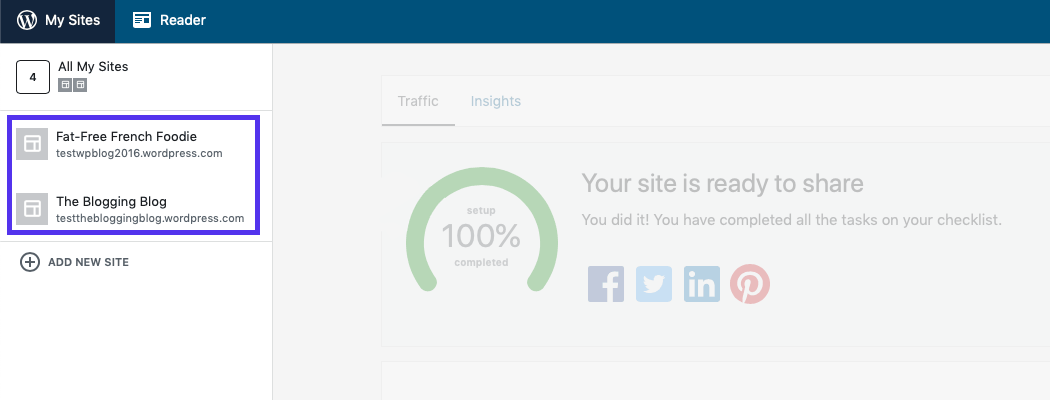
Then, click on the site listed on the left of which you want its content exported.
Step 2
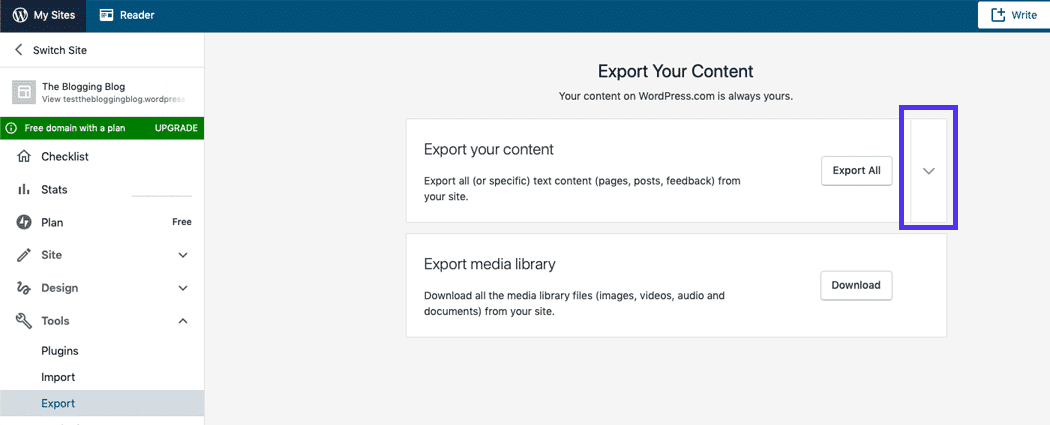
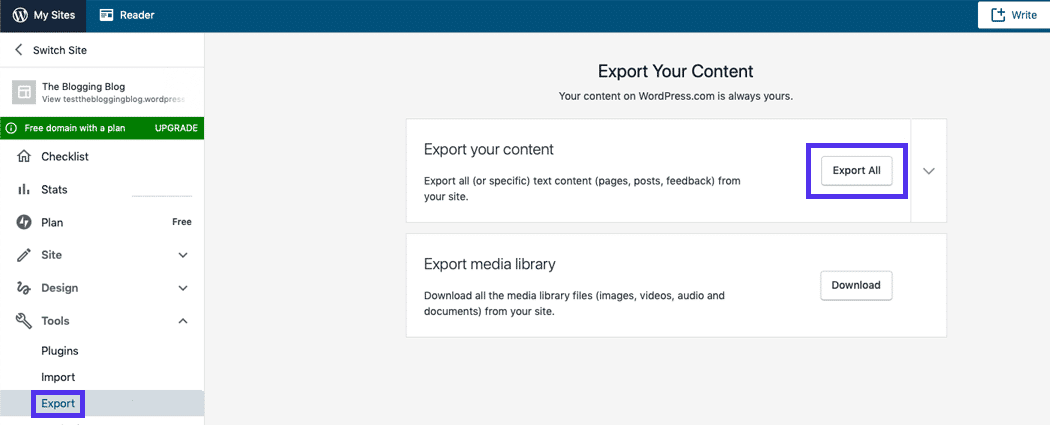
Next, go to Tools > Export in the menu on the left-hand side. Here, you can export WordPress site content.
To export all your site’s content, click the Export All button.
Or, if you only want to export certain types of content, click the arrow next to the Export All button. You’ll be able to select the specific content you want to export.