
WordPress 5.5 “Eckstine” is out, and it’s time for us to introduce the most noticeable changes and features added to Core with the second WordPress release of the year.
These days, we are used to seeing many additions to the block editor at each WordPress release. WordPress 5.5 is no exception!
This version also brings tons of changes not related to the editor that should have a great impact on the way we use the CMS.
While WordPress 5.5 brings many changes to WordPress Core, several features awaited with 5.5 have been delayed and removed from this version because of several unresolved issues. So, full-site editing, navigation block, navigation screen, and widget screen aren’t part of WordPress 5.5.
If you want to read more about WordPress 5.5 development cycle, check the links below:
- 7 July 2020: Beta 1
- 14 July 2020: Beta 2
- 21 July 2020: Beta 3
- 27 July 2020: Beta 4
- 28 July 2020: RC 1
- 4 August 2020: RC 2
- 10 August 2020: RC 3
- 10 August 2020: Dry run for release of WordPress 5.5
- 11 August 2020: Final release of WordPress 5.5 “Eckstine“
So, what’s new in WordPress 5.5?
What’s New With The Block Editor
With the final release of WordPress 5.5, ten versions of the Gutenberg plugin have been added to the core, bringing a huge number of UI improvements, features, enhancements, and bug fixes affecting every aspect of the editing experience, from usability to functionality and performance.
It’d be close to impossible to mention all these changes here, so in this post, you’ll just find a hand-picked selection of our favorite new features and improvements.
For a more comprehensive listing of improvement and features added to the block editor with WordPress 5.5, see the official announcements of the plugin releases: 7.5, 7.6, 7.7, 7.8, 7.9, 8.0, 8.1, 8.2, 8.3, 8.4, 8.5.
That being said, here we’ll cover the following additions brought to the block editor with WordPress 5.5:
- New UI Design
- Block Design Tools
- Inline Image Editing
- Block Categories and New Block Inserter Panel
- The Block Directory and Block Plugins
- Block Patterns
New UI Design
Each version of the Gutenberg plugin brings small and not-so-small improvements that are silently changing the overall editing experience. A lot of these changes are now going to be merged into WordPress core. So, when you first launch the block editor in WordPress 5.5, a slightly different interface should grab your attention. You’ll find:
- A simplified Block Toolbar
- Stronger color contrast
- New icons
- Block movers
- Surrounding elements
- Device Previews
- Improved drag and drop
- Improved and unified block focus styles across the whole UI
- Ability to format multiple blocks at once
- Better performance
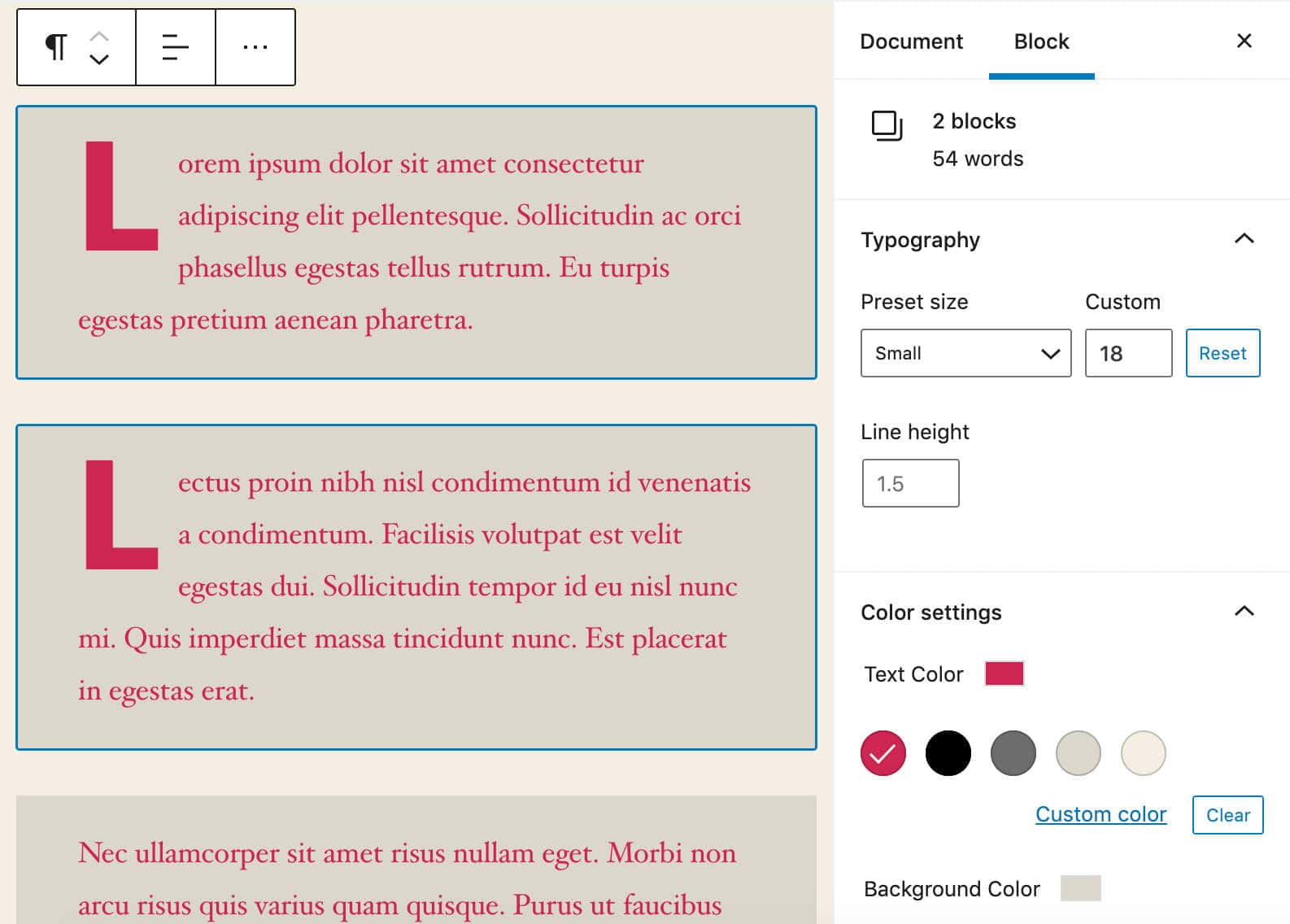
Those mentioned above are only a few of the many changes affecting the editing experience.

Additional changes also include:
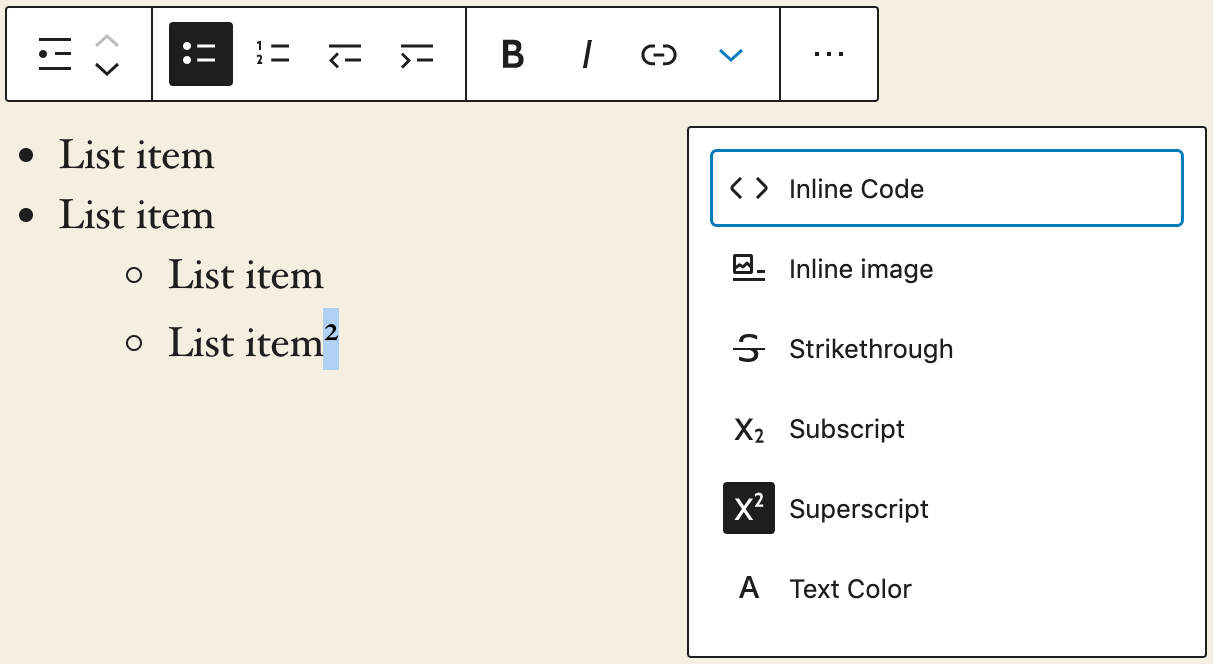
Subscript and Superscript Options
Formatting options for subscript and superscript text are now available through the Rich Text controls (Gutenberg 8.0).
Parent Block Selection
A brand new toolbar button now shows up when hovering over the left side of the block toolbar. The new button allows to select parent blocks in nested contexts (Gutenberg 8.3).

Block Design Tools
Several design tools have been added to the Gutenberg plugin over the last months and now are going to be included in the core with WordPress 5.5.
Height Control and Background Gradients
A first set of tools provide control over dimensions and background color for several blocks (Gutenberg 7.9).

Padding and Link Color Controls
Two additional features landed to the core (Gutenberg 8.3) but at the time of this writing they’re still marked as experimental:
- Padding control for Cover block.
- Link color control for Paragraph, Heading, Group, Columns and Media & Text blocks.
Padding control and link color control are off by default and developers have to explicitly declare support for them, as explained in the Block Editor Handbook.
If you want to add padding controls for the Cover block to your themes, simply add the following line to your theme’s functions.php:
add_theme_support( 'experimental-custom-spacing' );If you want to enable link color control for Paragraph, Heading, Group, Columns, and Media & Text blocks, just add the following line to your theme’s functions file:
add_theme_support( 'experimental-link-color' );Custom Units and Custom Line Heights
This new feature allows you to set px, em, rem, vw and vh height values for the Cover block (Gutenberg 7.9). % is also supported but it’s omitted because of the unpredictable rendering of percentage heights.
With the enhanced height control, you can jump values by 10 by holding down Shift while pressing up or down.
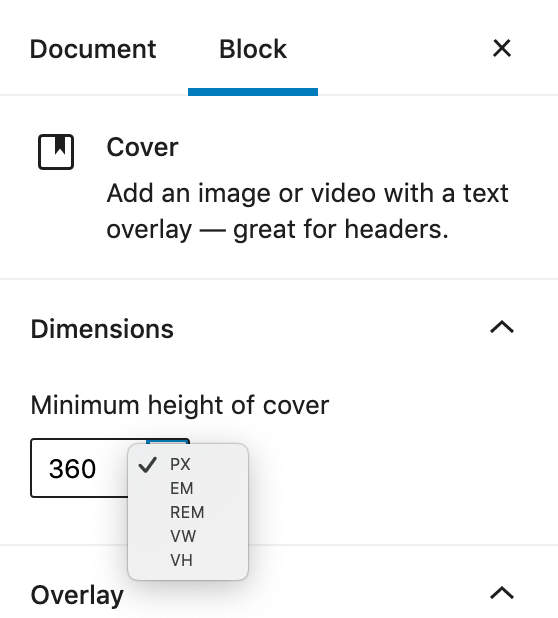
Developers can add support for Custom Units by defining the custom-units support flag:
add_theme_support( 'custom-units' );You can also set specific custom units:
add_theme_support( 'custom-units', 'rem', 'em' );Developers can also add Custom Line Heights for heading and paragraphs by defining the custom-line-height support flag:
add_theme_support( 'custom-line-height' );Inline Image Editing
A new editing feature has been added to the block editor with Gutenberg 8.4 allowing users to edit images directly from the Image block.
Now it’s been merged to core and, as of WordPress 5.5, you can crop, rotate, zoom and adjust image positions without the need to launch the Media Library resulting in a faster editing experience.
If you use to publish tons of photos, no doubt you’ll enjoy this feature.

Just click on the Crop button in the image toolbar and you’ll have access to the new editing functionalities. When you’re happy with your customizations, apply your changes and you’re done.
WordPress will save a new image as attachment in the Media Library and copy details from the original image (title, description, caption, alt text, and EXIF data). This gives you complete control over new image versions.
Block Categories and New Block Inserter Panel
A redesigned block inserter panel shows up blocks and patterns by categories, significantly improving the editing experience and making blocks and patterns easier to find (Gutenberg 8.3).

The Block Directory and Block Plugins
With the implementation of the block directory, you can find, install, and add third-party blocks directly from the block inserter.
When you search for a block, if you haven’t it already installed, you’ll be prompted a list of plugins available in the Plugin Directory. Those plugins are called “block plugins” and you can add them to your editor with a single click.

Thanks to this new awesome feature, you can now build your own blocks and publish them to the Plugin Directory making your creations available to the whole WordPress community.
The good news is that, to create your custom blocks, you don’t need to be a PHP guru. You’d just need some working knowledge of JavaScript.
Not sure how to get started developing your own blocks? The awesome WordPress community got you covered with an easy step by step tutorial.
The first version of the block tutorial is already available in the official Block Editor Handbook to help you learn the basics of block development. You can read more about the block directory and block plugin development on the Make WordPress Plugins blog.
Block Patterns
Back in March 2020, Gutenberg 7.7 and Gutenberg 7.8 introduced block patterns and the block patterns API for themes and plugins.
Block patterns are predefined block layouts allowing users to quickly add complex structures of nested blocks to their pages. Their intent is to help content writers and site admins to overcome the “blank page syndrome” and build professional layouts and advanced views with ease.
We should see block patterns at their best with full-site editing.
A clear explanation of what block patterns are intended for comes from Mathias Ventura, Lead architect of the Gutenberg project:
One clarification — the “block patterns” setup is less about template parts (which are structurally meaningful) and more about general design elements made of smaller blocks. Once inserted they are not stored separately. For example, a “Cover” image that combines a few blocks to achieve a specific look that would otherwise take users some work to accomplish. Think of it more as a collection of designs that can be added anywhere without necessarily representing a reusable part of a theme template.
Different from template parts, block patterns are design elements that should help site admins and content creators to speed up and improve their editing experience.
Launched with Gutenberg 7.7, at first Block Patterns appeared in a sidebar plugin. Later, with the release of Gutenberg 8.0, they moved into a revamped block inserter now appearing as a panel placed on the left side of the editor, as shown in the image below:

In their early stage, block patterns come with a very limited set of patterns. Anyway, they bring a huge enhancement to the editing experience, and hopefully, more would be added in the near future.
Like regular blocks, patterns are searchable and come organized in the following categories:
- Text
- Hero
- Columns
- Buttons
- Gallery
- Features
- Testimonials
- Uncategorized

In addition to built-in block patterns, WordPress developers can provide their themes and plugins with custom patterns by taking advantage of a brand new API.
You can register your custom patterns using the register_block_pattern function and register_block_pattern_category for categories.
register_block_pattern takes two arguments:
- The name of the pattern.
- An array of pattern properties.
Properties include the following:
titlecontentdescriptioncategorieskeywordsviewportWidth
register_block_pattern_category takes two arguments, as well:
- The name of the pattern category.
- An array of properties.
The API also provides two functions to unregister patterns and categories: unregister_block_pattern and unregister_block_pattern_category.
The way you can build your own block patterns is pretty straightforward. For example, copy and paste the following code into a custom plugin or a child theme’s functions file, then change the name of the pattern according to your preferences.
add_action( 'init', function(){

	register_block_pattern_category(
		'kinsta',
		array( 'label' => __( 'Kinsta stuff', 'kinsta-pattern' ) ) );

	register_block_pattern(
	'kinsta-pattern/my-custom-pattern',
	array(
		'title'			=> __( 'Two Kinsta buttons', 'kinsta-pattern' ),
		'description'	=> _x( 'Two nice buttons.', 'Kinsta Buttons', 'kinsta-pattern' ),
		'content'		=> "<!-- wp:buttons {\"align\":\"center\"} -->\n<div class=\"wp-block-buttons aligncenter\"><!-- wp:button {\"backgroundColor\":\"very-dark-gray\",\"borderRadius\":0} -->\n<div class=\"wp-block-button\"><a class=\"wp-block-button__link has-background has-very-dark-gray-background-color no-border-radius\">" . esc_html__( 'Button One', 'kinsta-pattern' ) . "</a></div>\n<!-- /wp:button -->\n\n<!-- wp:button {\"textColor\":\"very-dark-gray\",\"borderRadius\":0,\"className\":\"is-style-outline\"} -->\n<div class=\"wp-block-button is-style-outline\"><a class=\"wp-block-button__link has-text-color has-very-dark-gray-color no-border-radius\">" . esc_html__( 'Button Two', 'kinsta-pattern' ) . "</a></div>\n<!-- /wp:button --></div>\n<!-- /wp:buttons -->",
		'categories'	=> array( 'kinsta' ),
	)
	);
});
The code above is simple customization of the original snippet from the Block API Reference. As you can see, no JavaScript is required.

See also Block Patterns in WordPress 5.5.
Native Image Lazy-Loading in WordPress Core
Lazy loading is an optimization technique that defers loading of non-critical resources. This means that the browser is instructed to load visible content on page load and defer the downloading and rendering of images placed below the fold until they are actually needed.
Before native lazy loading, web developers could lazily load assets via JavaScript, using the IntersectionObserver API or using scroll, resize, and orientationchange event handlers.
But since lazy loading became a standard, we don’t need to write custom code or use JavaScript libraries anymore and lazyload images can be implemented using the new loading attribute in img and iframe tags.

The loading attribute determines if the browser should load a resource immediately or wait until some conditions are met. It currently supports the following values:
lazy: wait until some conditions are meteager: load the resource immediately

At the time of this writing, native lazy loading is supported by Microsoft Edge, Firefox, Google Chrome, Opera browser, Android browser, and Chrome for Android.

Before WordPress 5.5, lazy loading was only possible in WordPress with an optimization plugin like Autoptimize, BJ Lazy Load, or others. Now it’s part of WordPress Core and won’t require additional plugins to be installed!
Native Lazy Loading in WordPress
As Felix Arntz reported in an old blog post on Make WordPress Core blog a JavaScript implementation of lazy loading in WordPress was initially proposed a couple of years ago, but it never became part of the Core. The new implementation of native lazy image loading removes any compatibility concern so the new feature could safely be merged into the Core with WordPress 5.5.
According to Felix, native lazy loading on WordPress images should have a beneficial impact on site performance and user experience for a huge number of WordPress websites that don’t make use of lazy loading plugins:
… without requiring any technical knowledge or even awareness of lazy-loading as a concept. Adopting the new loading attribute is a great chance for WordPress to lead the way for a faster web overall.
In order to prevent layout shifting, loading="lazy" will automatically be added to img tags with width and height attributes and that is only possible if the image is available for WordPress as attachment and includes a wp-image-$id class.
Lazy loading is a must-have optimization for every WordPress installation and website with a considerable amount of images. Felix notes:
This will drastically save bandwidth on both servers as well as user agents across sites where images further down the page used to be loaded right away, even in the case the user might never scroll towards them.
Native lazy loading in WordPress works with the following images:
- Images in post content (
the_content). - Images in post excerpts (
the_excerpt). - Images in text widgets (
widget_text_content). - Avatar images rendered via
get_avatar(). - Template images using
wp_get_attachment_image
With the first implementation, lazy loading only supports images, but we may expect a future enhancement of lazy load on iframe tags.
Lazy Loading for WordPress Developers
Developers can override the default behavior using several new filters. Among those filters, wp_lazy_loading_enabled and wp_img_tag_add_loading_attr are the most useful for developers:
wp_lazy_loading_enabledturns theloadingattribute on and off. This filter can be applied globally or per tag.wp_img_tag_add_loading_attrfilters theloadingattribute value and provides a way to control lazy loading per image.
The following example shows how to globally disable lazy loading:
add_filter( 'wp_lazy_loading_enabled', '__return_false' );We can also disable lazy loading for a specific tag. In the example below, lazy loading is turned off on images in the_content context (read more on Make WordPress Core):
add_filter(
	'wp_lazy_loading_enabled',
	function( $default, $tag_name, $context ){
		if ( 'img' === $tag_name && 'the_content' === $context ){
			return false;
		}
		return $default;
	},
	10,
	3
);$default: The boolean default value (true).$tag_name: The tag name of the elements to be lazy-loaded.