In recent years, Google has been moving more towards rich results (also known as rich snippets). With the advent of smart devices, having structured data on your website is more important than ever. This is where configuring Schema markup in Rank Math comes in.

In this tutorial, we will explain the Schema options in Rank Math and how you can use them to add Schema to your website.
But, before we get into this knowledgebase article, you will want to understand how rich snippets & Schema work and what they are – check out our complete Schema Markup guide.
Schema is the most recognized form of structured data, and Rank Math supports it out of the box without any external plugins. And in the article, we’re going to explain the entire process from start to finish.
Table of Contents
- Enabling Schema from Global Options
- Setting up Default Schema for Your Website
- Adding Schema on Posts and Pages
- Schema in Rank Math vs Rank Math PRO
- Variables in Rank Math
- How to Configure Each Schema Type with Rank Math
- Introducing Schema Templates – Supercharging Schema
- Display Conditions
- Importing Schema
- Custom Schema
- Advanced Schema Editor
- Code Validation
- Adding Multiple Schema To A Single Page
- Schema for Custom Post Types
- Conclusion
1 Enabling Schema from Global Options
First things first. Assuming that you’ve already installed and configured Rank Math on your website, the first thing you need to do is to activate the Schema module from the settings.
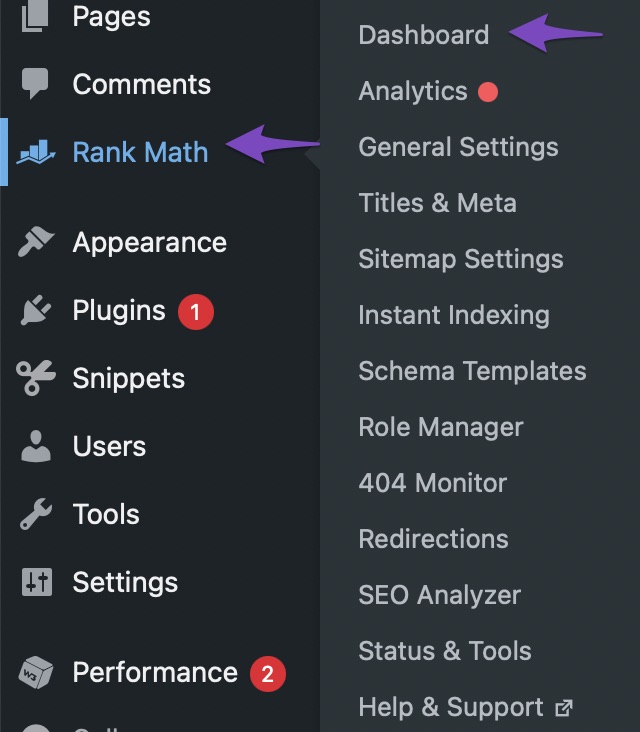
To do that, head over to Rank Math SEO → Dashboard.
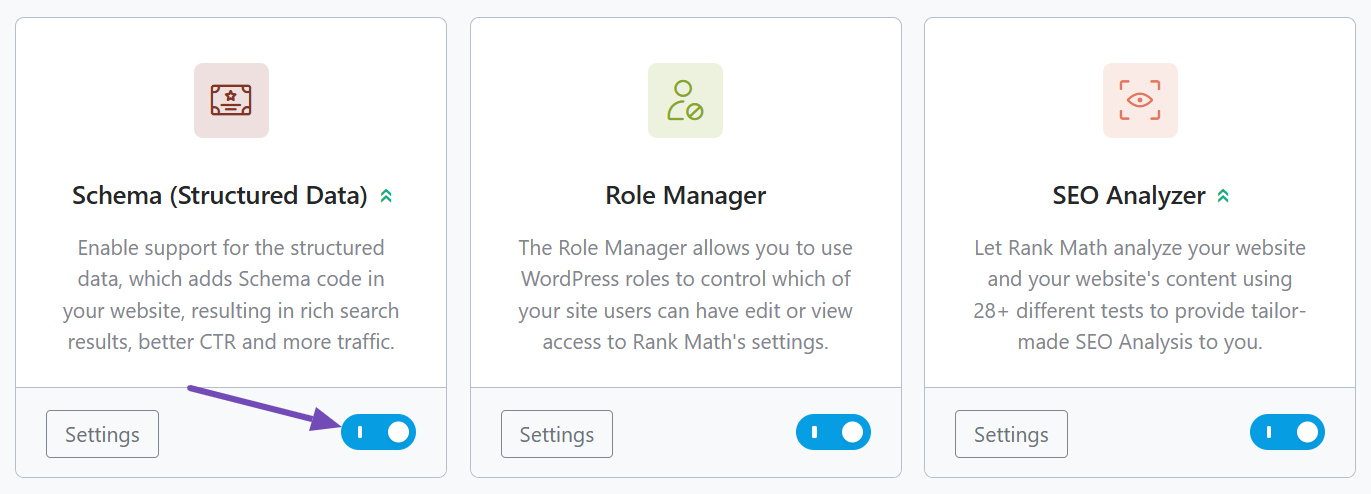
And make sure that the Schema (Structured Data) module is enabled.
2 Setting up Default Schema for Your Website
Since the Schema is more important than ever, every post or page on your website should have a Schema or structured data. With Rank Math, we’ve made it easy to select a default Schema type to appear on all your posts and pages. You’ll find the options inside Rank Math settings. Head over to Rank Math SEO → Titles and Meta.
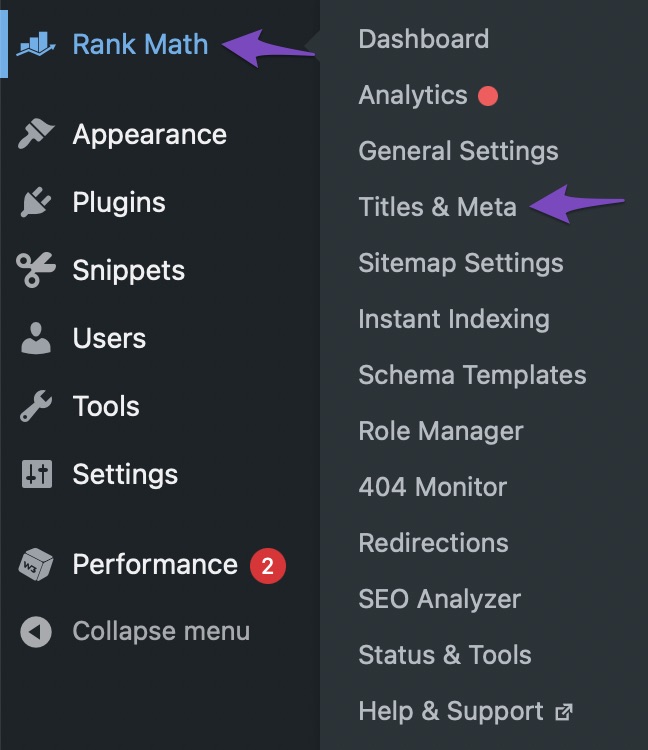
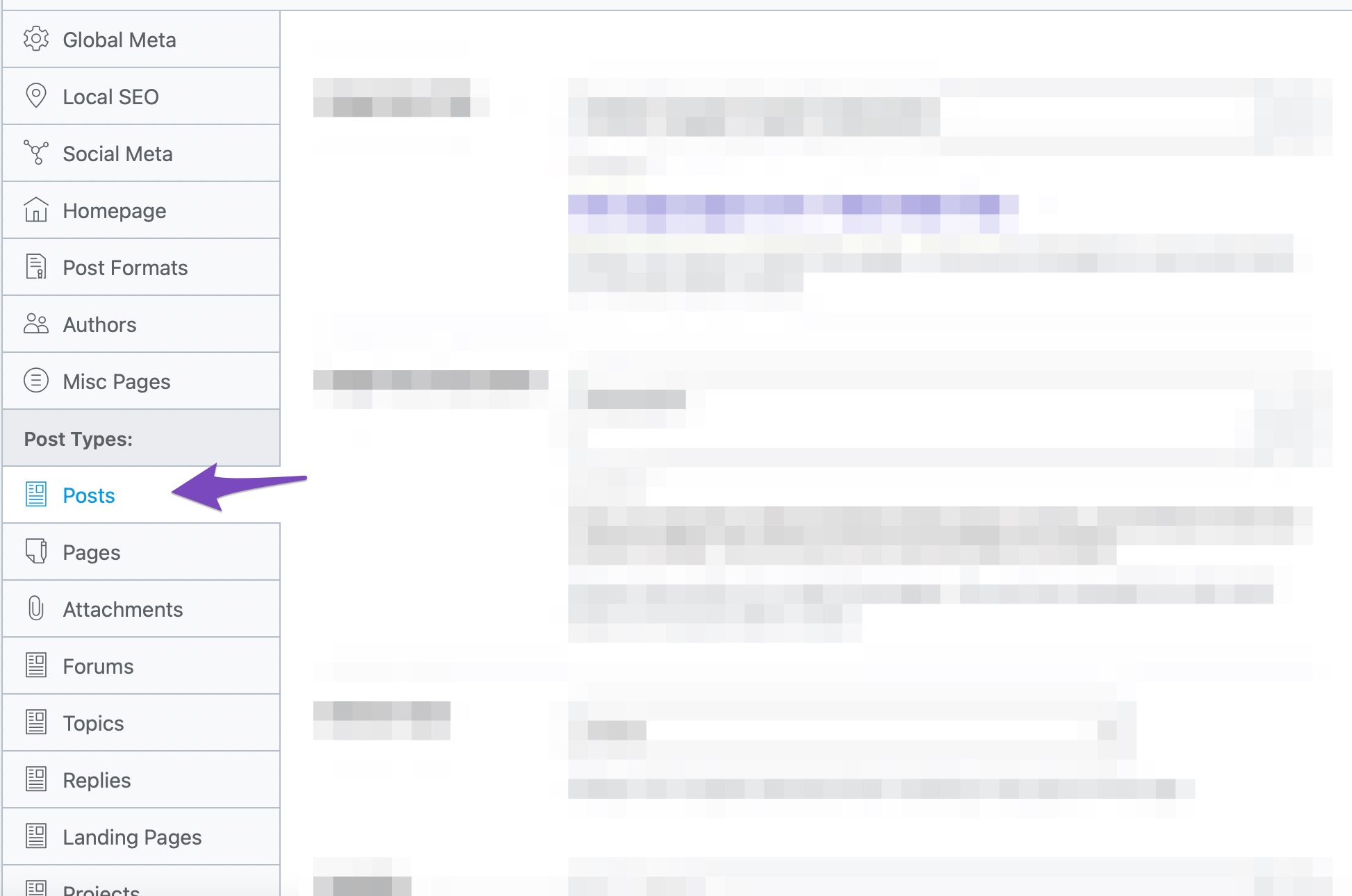
You will reach Rank Math’s Title and Meta settings. On the page that appears, click the Posts option from the left tab menu.
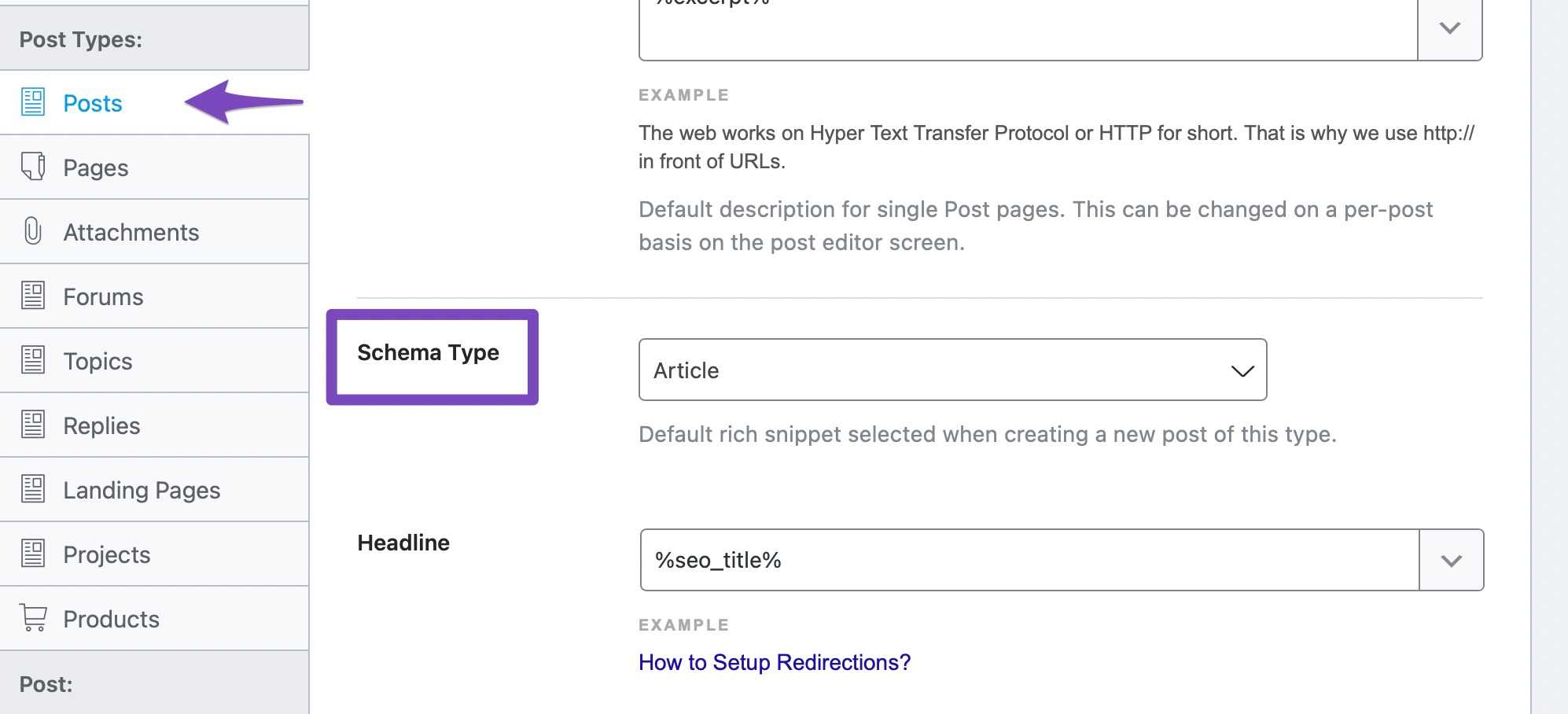
On the page, scroll a bit to find the Schema Type option.
To see all the Schema Types supported, click the drop-down menu. You can then scroll or search for all the different Schema types supported by Rank Math.
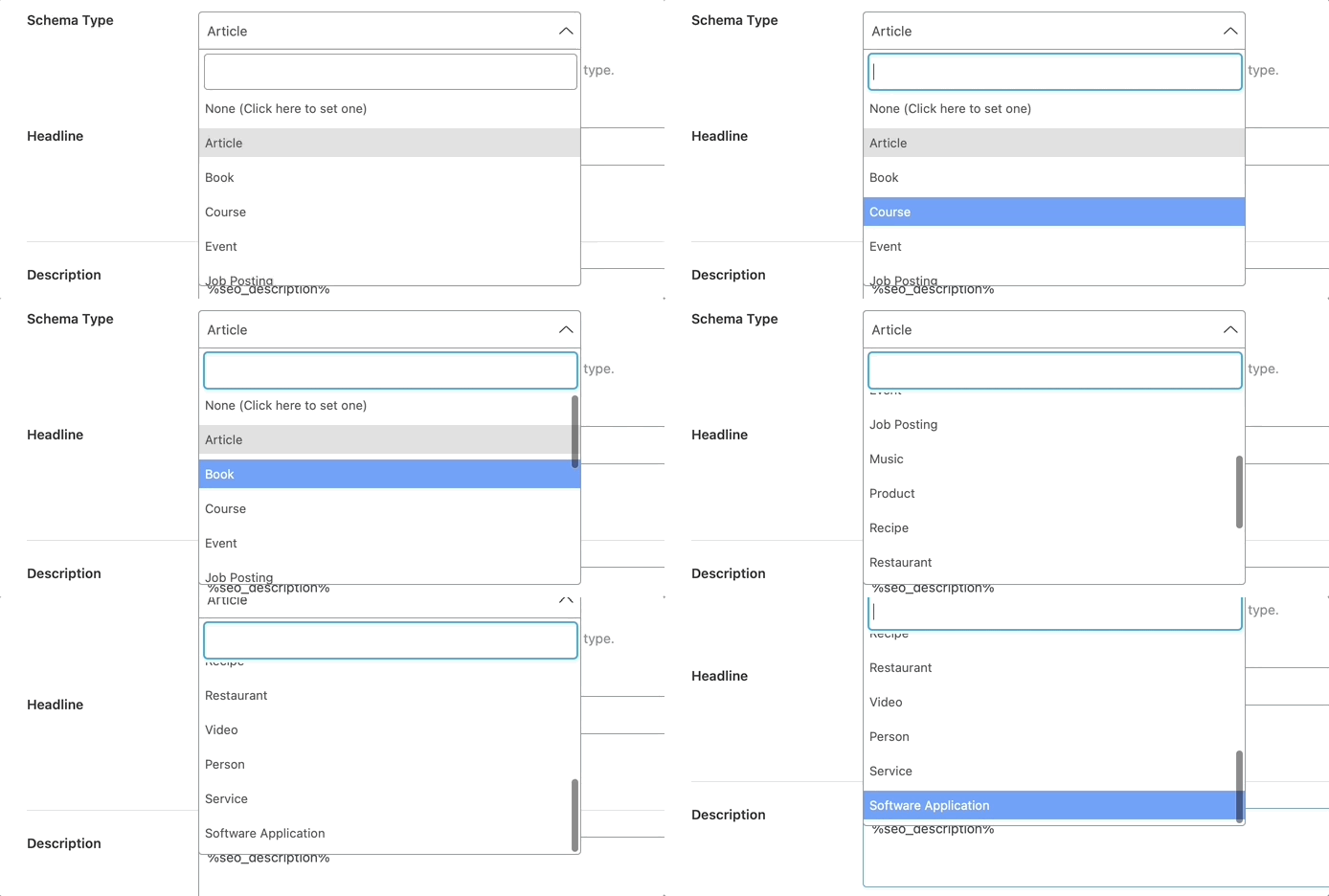
Select the Schema type that you use the most on your website, and save your settings.
After saving, repeat the process for your pages. If your website has custom post types, they will show up in the menu as well. It is recommended to do this for all post types.
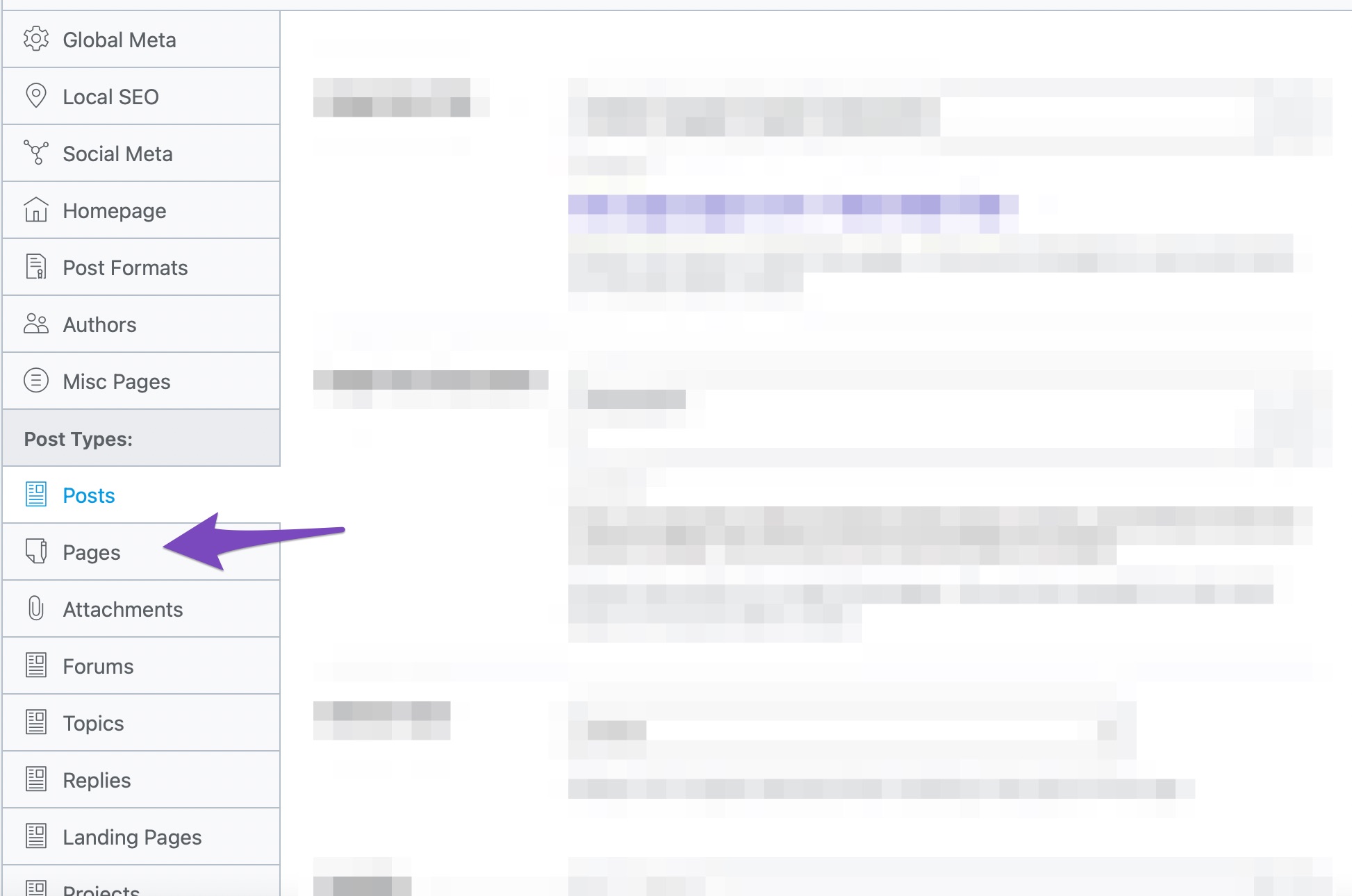
It is important to understand that till now, we’ve not added any Schema to any of our posts; we’ve just selected the default Schema type that will be added to the post, which we can then customize on a per-post or per-page basis.
3 Adding Schema on Posts and Pages
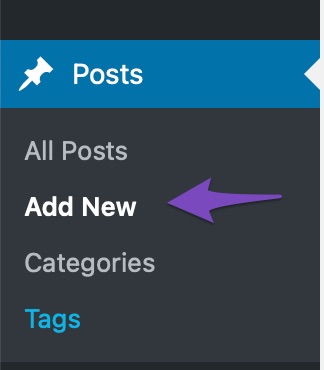
Now that we’ve selected a default Schema type to be added to your pages, we can start adding or customizing the Schema that will be added to our posts. To demonstrate, we will create a new post by going to Posts → Add New. We’ll then give our post a title and add some dummy text to it.
Classic Editor
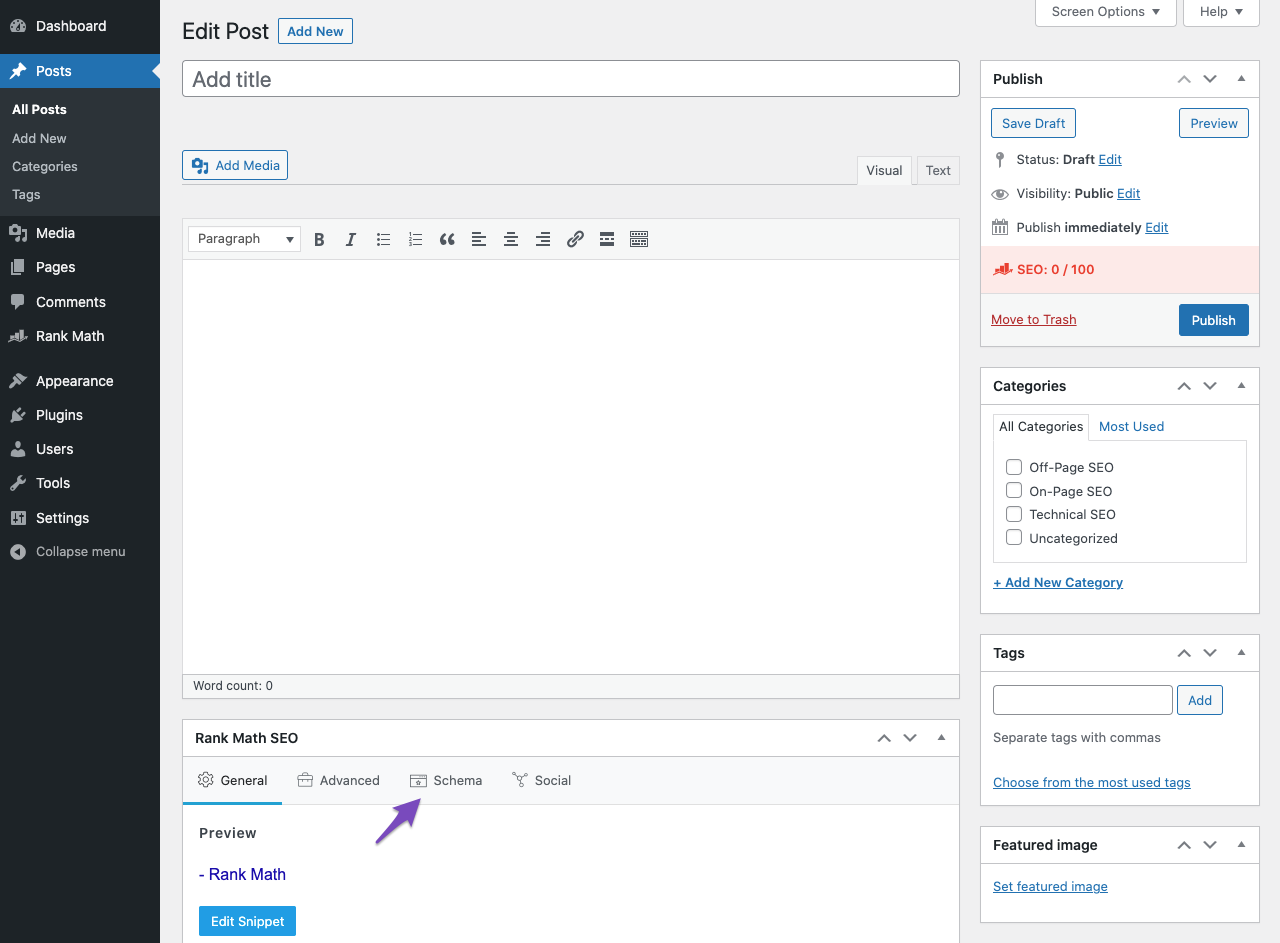
In the Classic Editor of WordPress, we’ll see Rank Math Metabox as we scroll down to the bottom of the page. If you’re unable to see the Rank Math Metabox in the Classic Editor, click the Screen Options and select Rank Math SEO from the Screen elements.
Then choose the Schema tab in the Rank Math Metabox as shown below.
Gutenberg
In the Block Editor (and the one we’ll use for the rest of the tutorial), we’ll open up Rank Math by clicking the Rank Math icon on the WordPress menu.
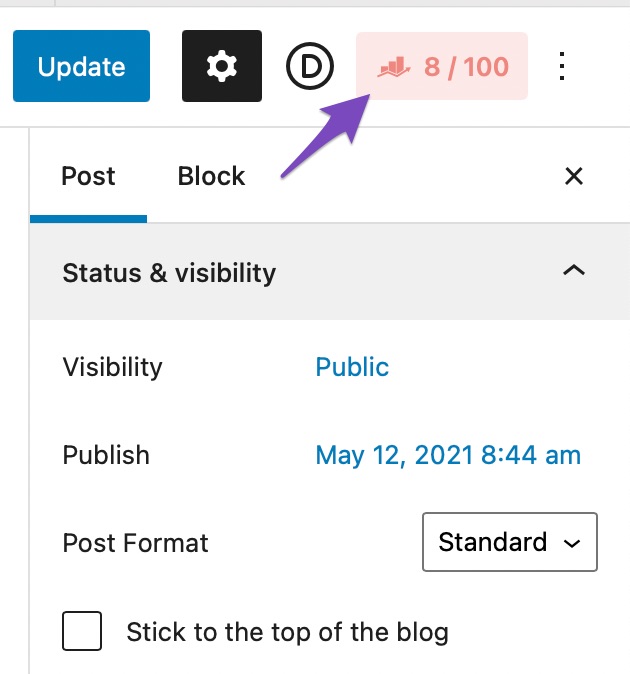
Once the Rank Math menu is open, we’ll open the Schema Tab by clicking the icon from the menu.
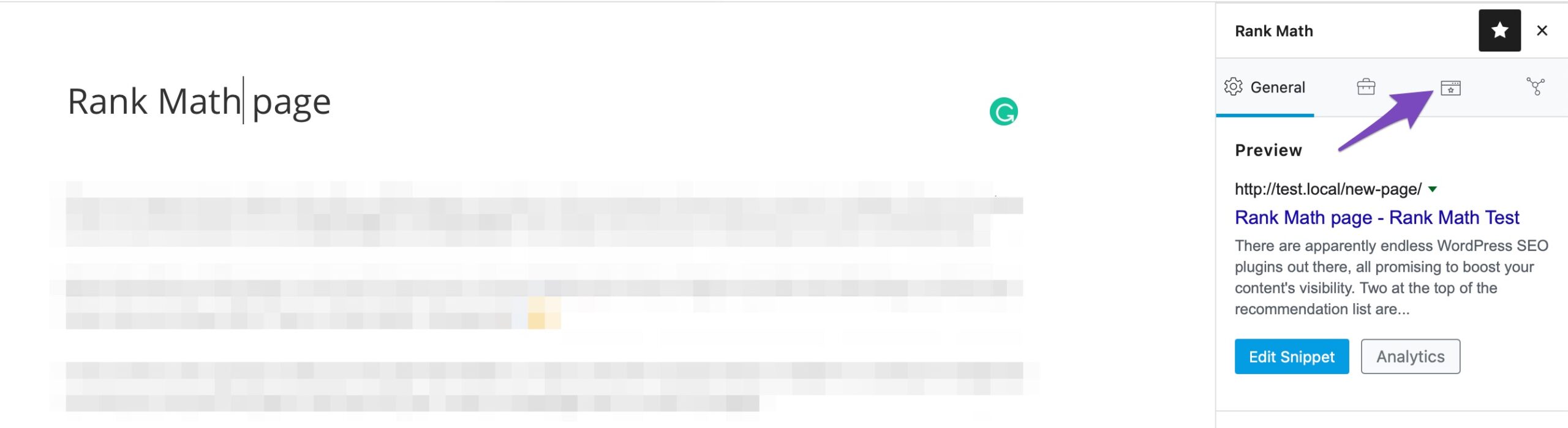
This is what the new Schema Generator will look like. If you remember, we set up a default Schema type (Article) above, which is why it shows up here. If you selected a different Schema type as default, that one would show up here.
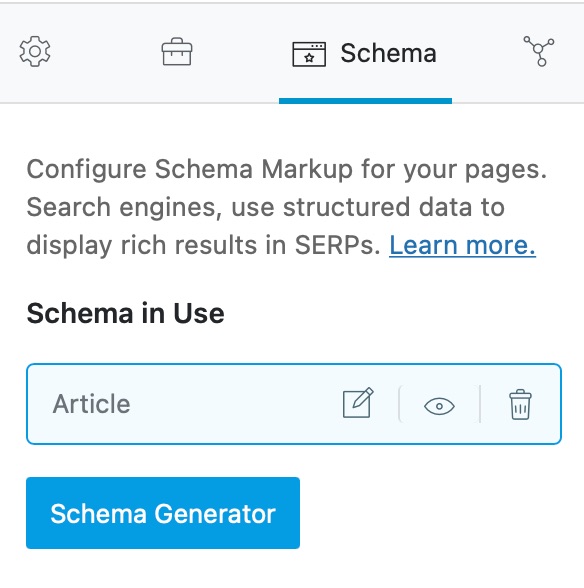
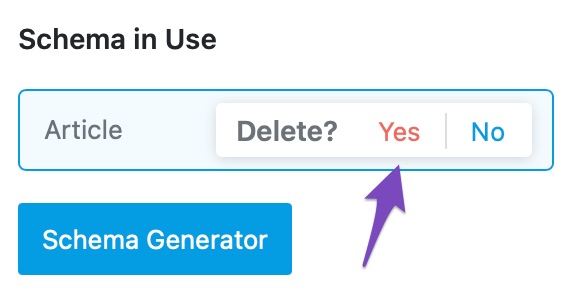
Since we will cover adding all kinds of Schema, we will delete the existing Schema by clicking the delete icon next to the Schema and clicking Yes on the confirmation dialog.
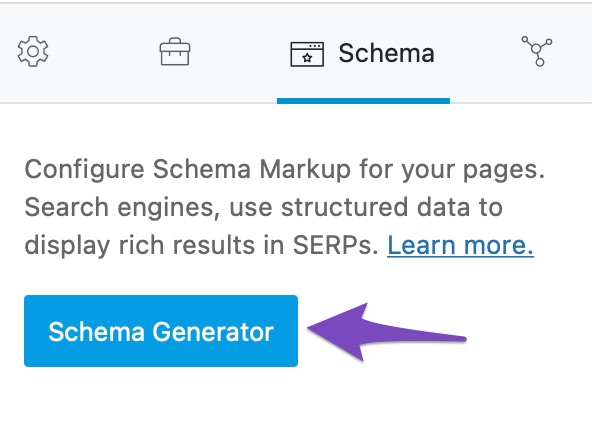
Now, we’ll start with a blank slate. Let’s add a brand new Schema by clicking the Schema Generator button.
This is what you will see on the screen. You will see all the different types of Schema that Rank Math supports and a bunch of other options that we will explain in the article.
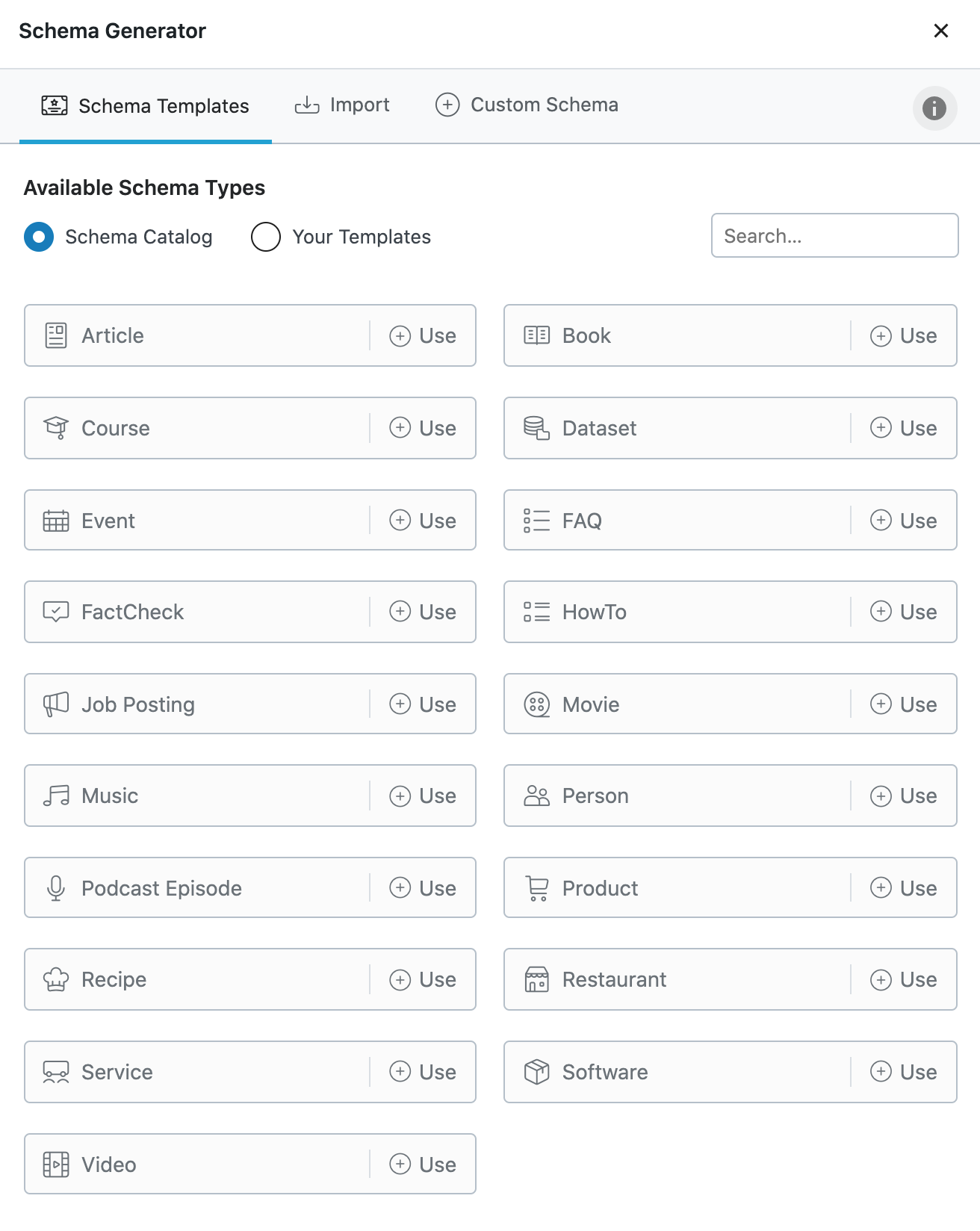
If you’re using the free version of Rank Math, you might not see some of the features. Those features will only be available in Rank Math PRO. Here is a side-by-side comparison of how the Free vs. PRO will look like.
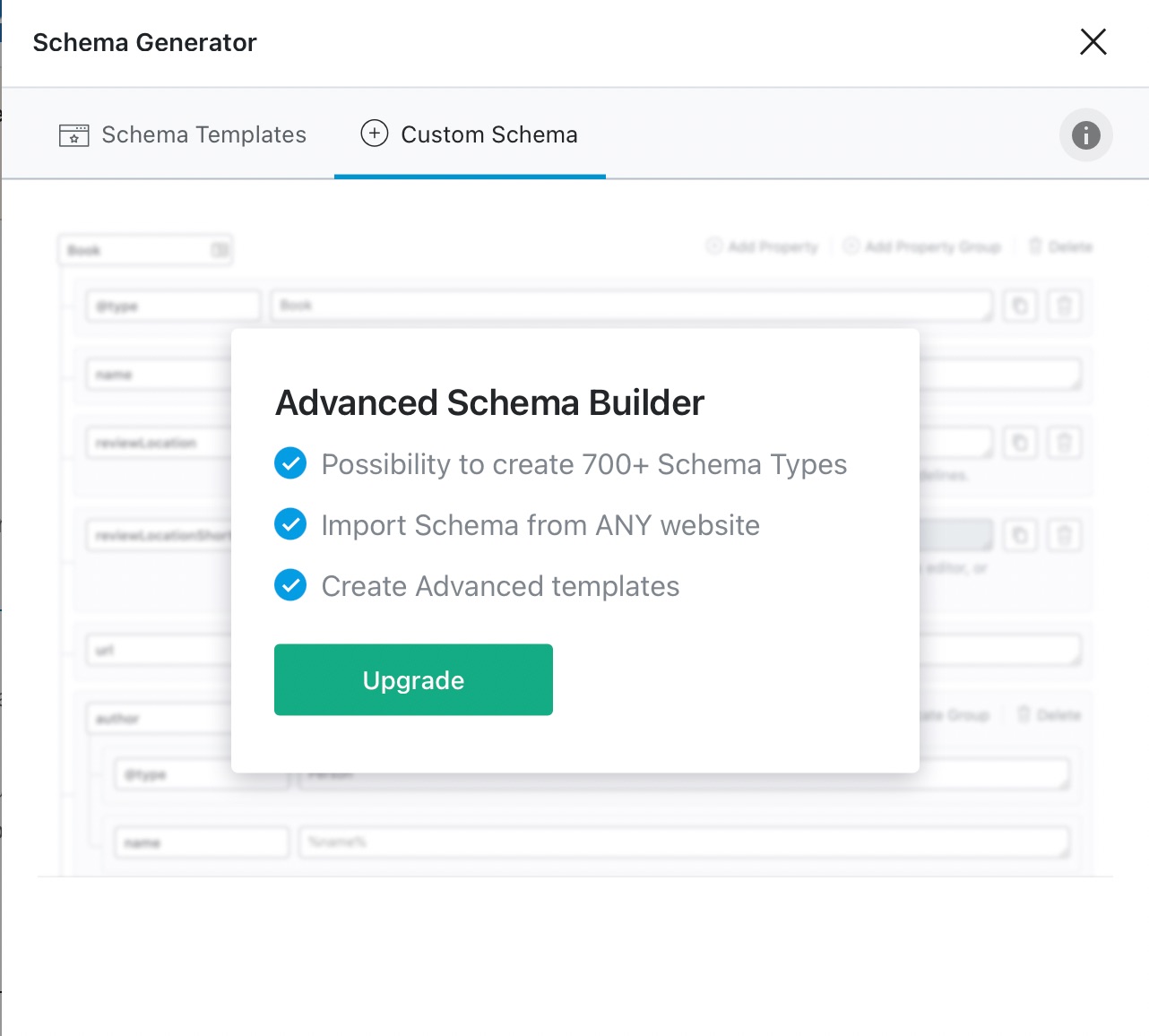
On the Free version, you do see the Custom Schema tab, but it is not operational. If you access it, it will prompt you to upgrade to Rank Math PRO.
Here is a complete list of all the Schema types supported by Rank Math.
4 Schema in Rank Math vs Rank Math PRO
Here is the text version of the Schema Types. We’ve also grouped them based on their availability in Rank Math Free and PRO versions. Click on any of the names to go directly to it.
Schema Types Available in Rank Math (Free)
- None
- Article
- Book
- CollectionPage
- Course
- Event
- FAQ Schema
- HowTo Schema
- Job Posting
- Music
- Person
- Person or Organization
- Product
- ProfilePage
- Recipe
- Restaurant
- Service
- Software Application
- Video
- WebPage
- WebSite
- Blog Posting
- Breadcrumb Schema
- Easy Digital Downloads Schema
- Local SEO Schema
- News Article
- Sitelinks Search Box Schema
- WooCommerce Schema
- SiteNavigationElement Schema
Schema Types Available in Rank Math PRO
We’ve also added a search option in the Schema Generator to find the Schema you’re looking for quickly. In this article, we’ll be using Rank Math PRO, and we will highlight the features exclusive to Rank Math PRO so you can differentiate them easily.
Before starting, let us make it easy for you to understand the features exclusive to Rank Math PRO. They are:
- Global Schema Templates
- Importing Schema
- Custom Schema
- Advanced Schema Editor
- Code Validation
- Adding Multiple Schema on a Page
We’ll cover these features in detail as we come across them. Now let’s try to understand a simple concept, variables.
5 Variables in Rank Math
Variables are nothing but containers for values, and they are common in programming and any scientific field. Inside Rank Math’s perspective, variables represent a value that will be derived from your post. Let us explain.
If you have any experience using Schema, then you must have observed that many times, the value that you add to a Schema is already present in your post in some way.
Want to add a headline for Schema? It could be the same as the title of your post.
The description in Schema could be the same as your post’s meta description.
And so forth.
To avoid re-work, Rank Math lets you refer to this content using variables instead of adding the value every time. That is like saying, “Hey Rank Math, just use my post’s title as the headline for Schema for all my posts. I don’t want to add it manually to every post”. And you can do this for many other Schema fields, not just your titles.
Rank Math supports plenty of variables, and each of them allows you to refer to different areas of your post, your website, or other metadata. This makes it useful to set up a standard Schema to be used on multiple pages.
Here is a full list of variables you can use for Schema:
5.1 Basic
%sep%
%search_query%
%count(varname)%
%filename%
%sitename%
%sitedesc%
%currentdate%
%currentday%
%currentmonth%
%currentyear%
%currenttime%
%currenttime(F jS, Y)%
%org_name%
%org_logo%
%org_url%
5.2 Advanced
%id%
%focuskw%
%keywords%
%customfield(field-name)%
%page%
%pagenumber%
%pagetotal%
%pt_single%
%pt_plural%
%randomword(word1|word2|word3)%
%randomword_np(word1|word2|word3)%
5.3 Post
%title%
%parent_title%
%excerpt%
%excerpt_only%
%seo_title%
%seo_description%
%url%
%post_thumbnail%
%date%
%modified%
%date(F jS, Y)%
%modified(F jS, Y)%
%category%
%categories%
%categories(limit=3&separator= | &exclude=12,23)%
%tag%
%tags%
%tags(limit=3&separator= | &exclude=12,23)%
5.4 Term
%term%
%term_description%
%customterm(taxonomy-name)%
%customterm_desc(taxonomy-name)%
5.5 Author
%userid%
%name%
%user_description%
5.6 WooCommerce
%wc_price%
%wc_sku%
%wc_shortdesc%
%wc_brand%
5.7 BuddyPress
%group_name%
%group_desc%
Important Note: The WooCommerce (wc_) variables only work on WooCommerce related pages/products. Similar (group_) variables will only work on BuddyPress group pages.
6 How to Configure Each Schema Type with Rank Math
Now that you’ve understood let us move to the actual Schema types.
6.1 No Schema
While Schema is important, not all your pages need it. If you set up Schema from the global options, then by default, all your pages and posts will get some default Schema added to them. To avoid that, you can either add the Schema manually by keeping the global Schema off, or you could use Rank Math PRO to set up display conditions and have Schema appear on specific pages only.
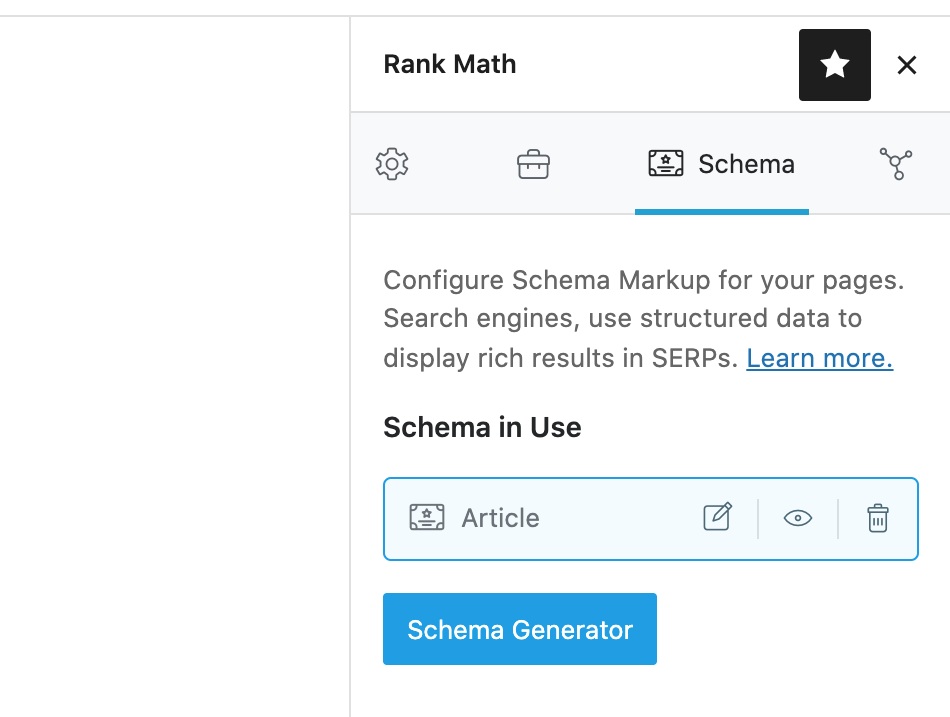
If you’re using the global Schema and want to remove the Schema from a page, then you can just delete it. First, head to the post. You should see the Schema added to the page or post like this.
Then, you need to do this.
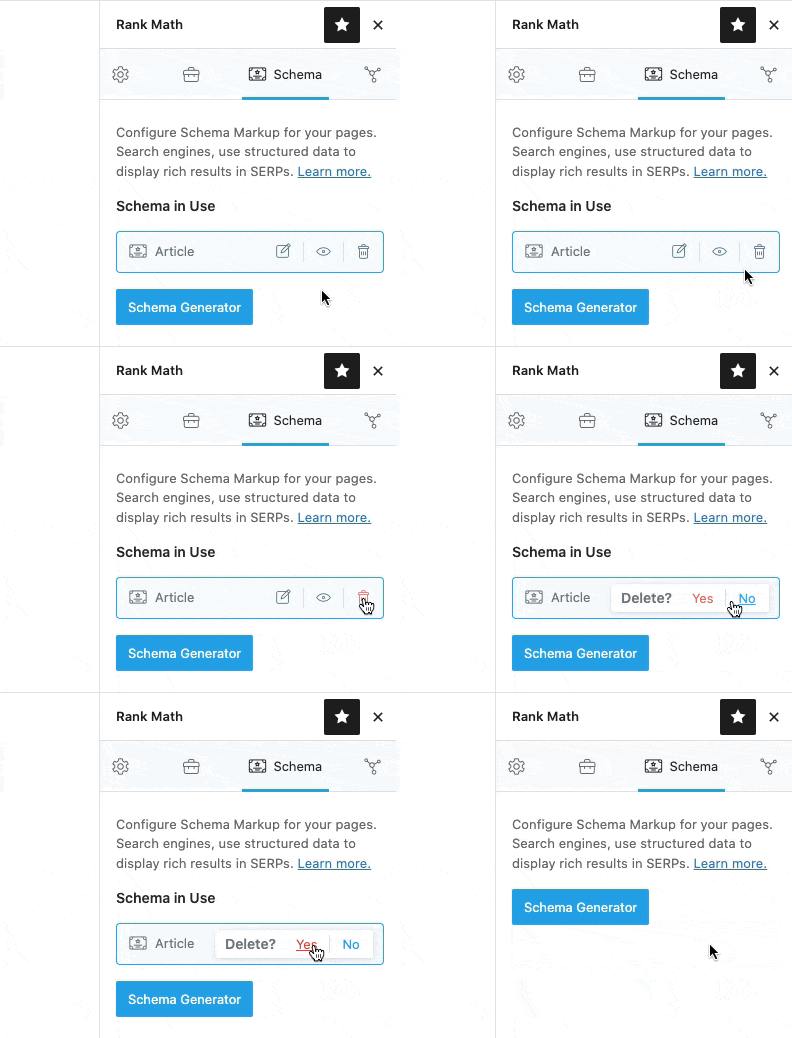
And the Schema will be deleted from your page.
6.2 Article
The Article Schema type should be used on all articles on your website, so we recommend setting it up as the default Schema type.
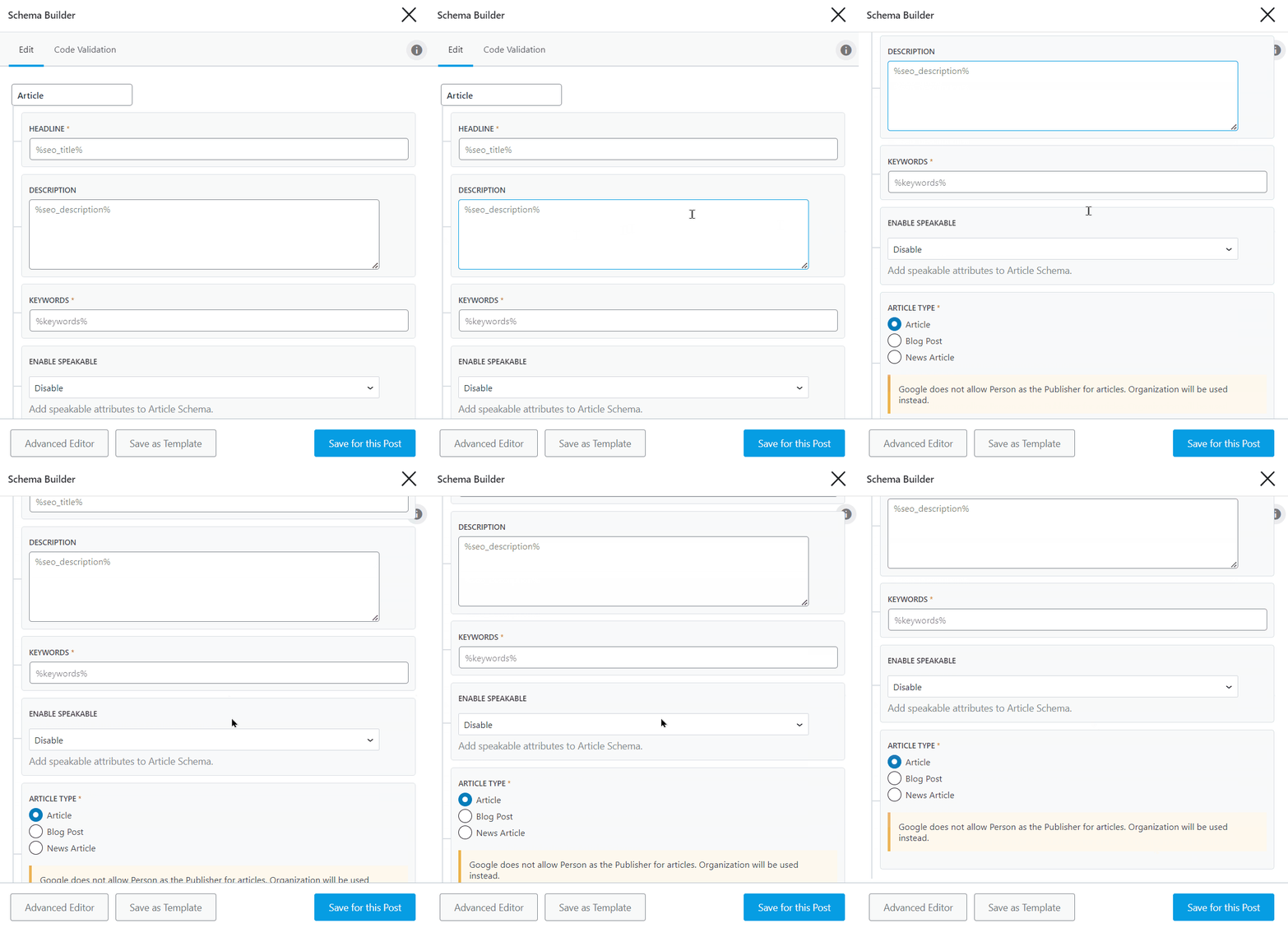
Within this Schema type, you will find several options, such as Headline, Description, and others, as seen below.
Once you have incorporated this Schema type into your articles, the rich snippet might appear in the search results, as depicted below.
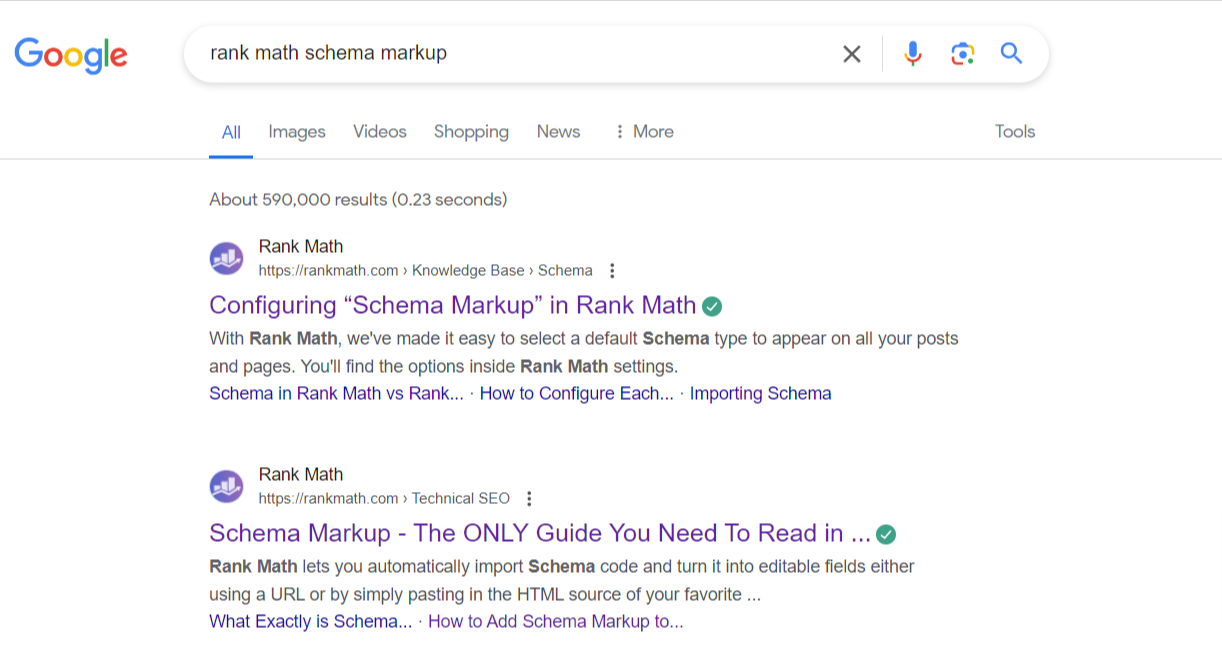
In the example above, our Knowledge Base article is displayed in search results with the SEO title and description intact. Notably, Google accurately identifies the keywords searched by the user and even links to specific subheadings within it.
And to set up this Article Schema markup, you can refer to our comprehensive guide.
6.3 Book
If your post pertains to a book of any kind, it is recommended that you make use of the Book Rich Snippet type.
When you select the Book option, you will be presented with various options that you should fill in.
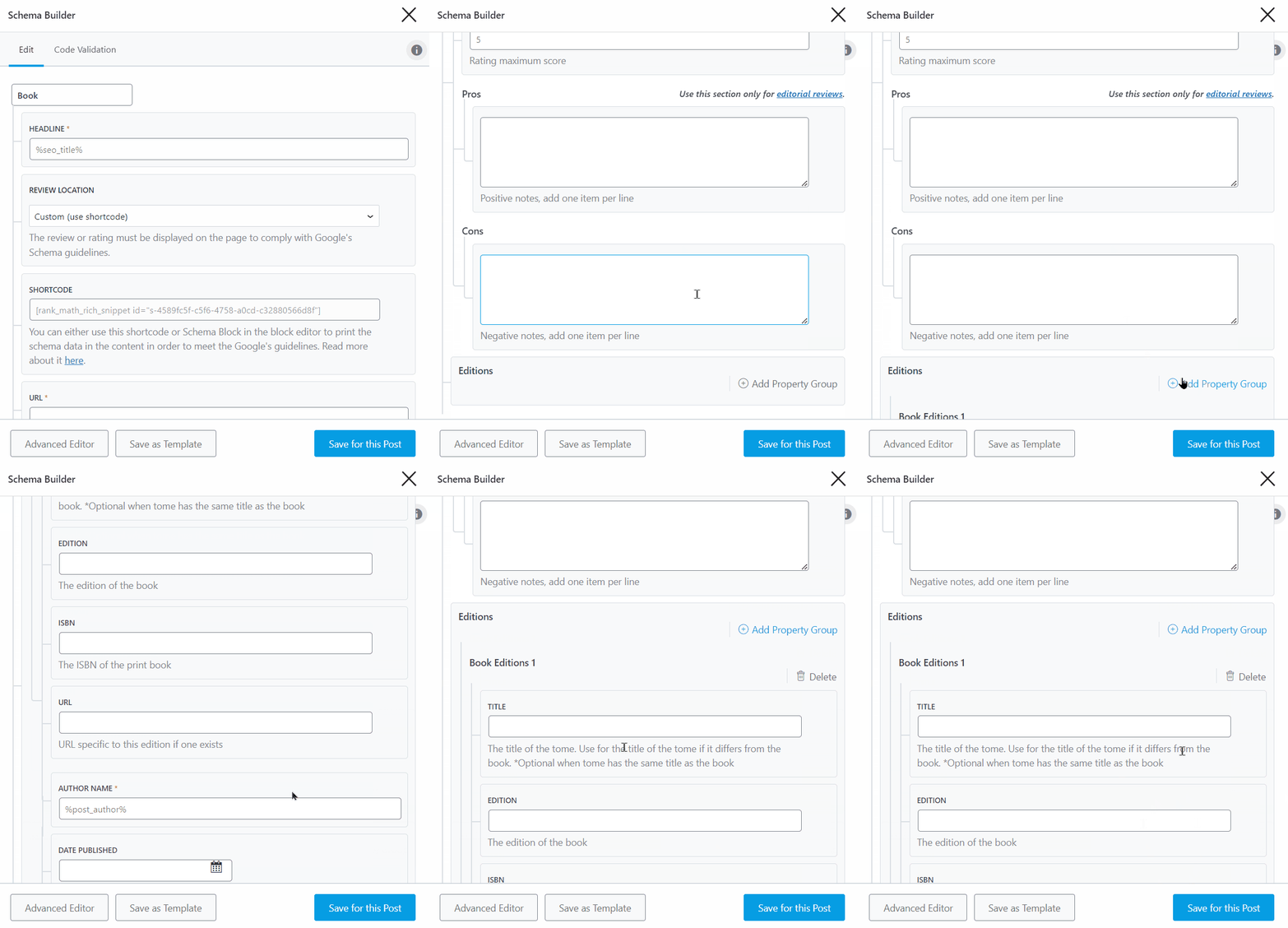
Once you have configured and utilized this Book Schema type on your posts, search engines such as Google will likely showcase it as rich results on the search results page, similar to the image below.
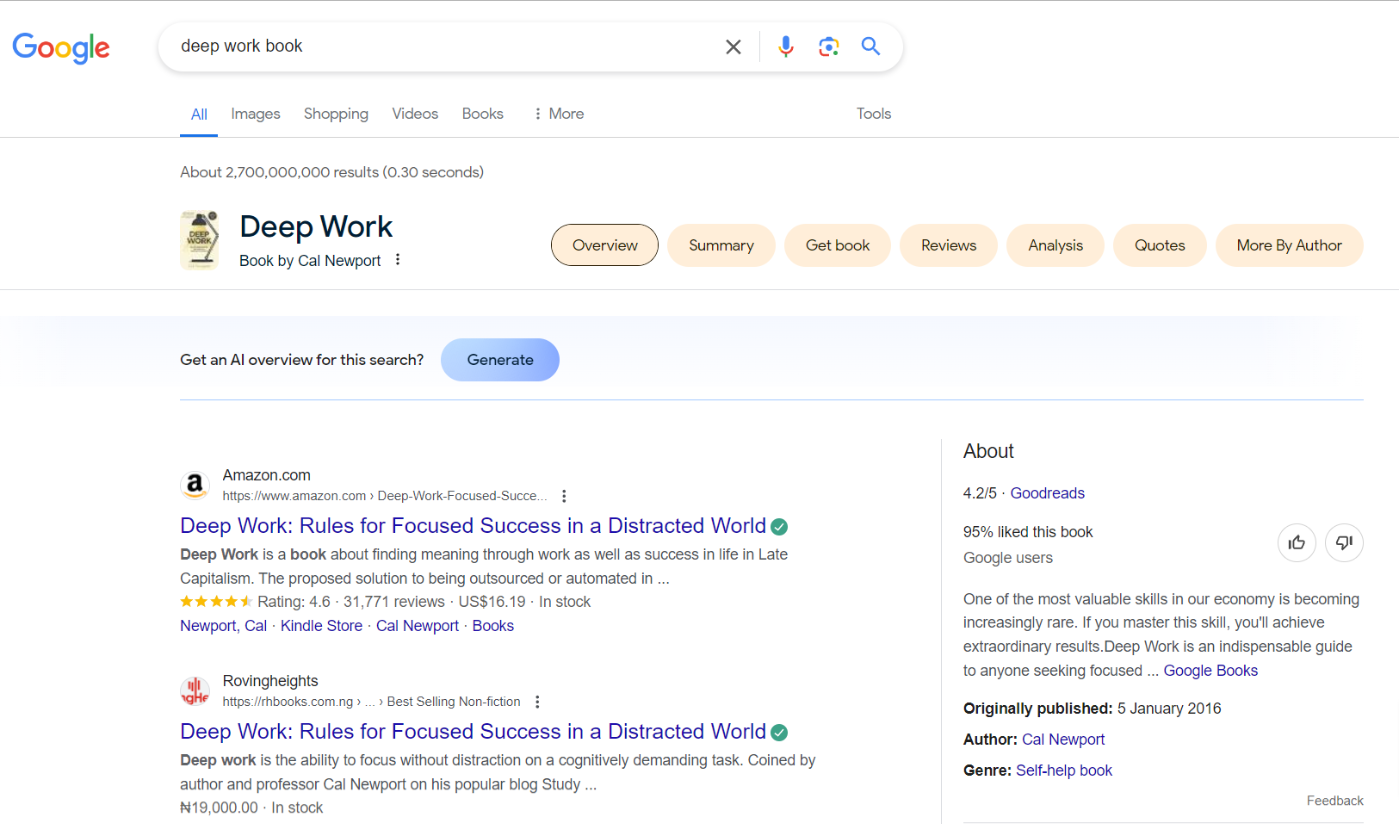
As can be seen from the image, Google featured a book on the search results page, displaying the author’s name, reviews, date of publication, and other relevant information. This can attract more attention from potential readers or users.
To configure the properties of the Book Schema type, you may refer to our detailed guide.
6.4 CollectionPage
The CollectionPage Schema is added by default to pages that are a compilation of other posts and pages. For example, Category and Tag pages. It will also be added to your homepage (if it is set to display your latest posts and not a static page).
6.5 Course
If you’re reviewing or discussing an online course, you can use the Course Rich Snippet.
Note: Google has phased out support for the Course Info Schema and will no longer display rich results for it.
Here are all the options you would see if you select the Course Schema type.
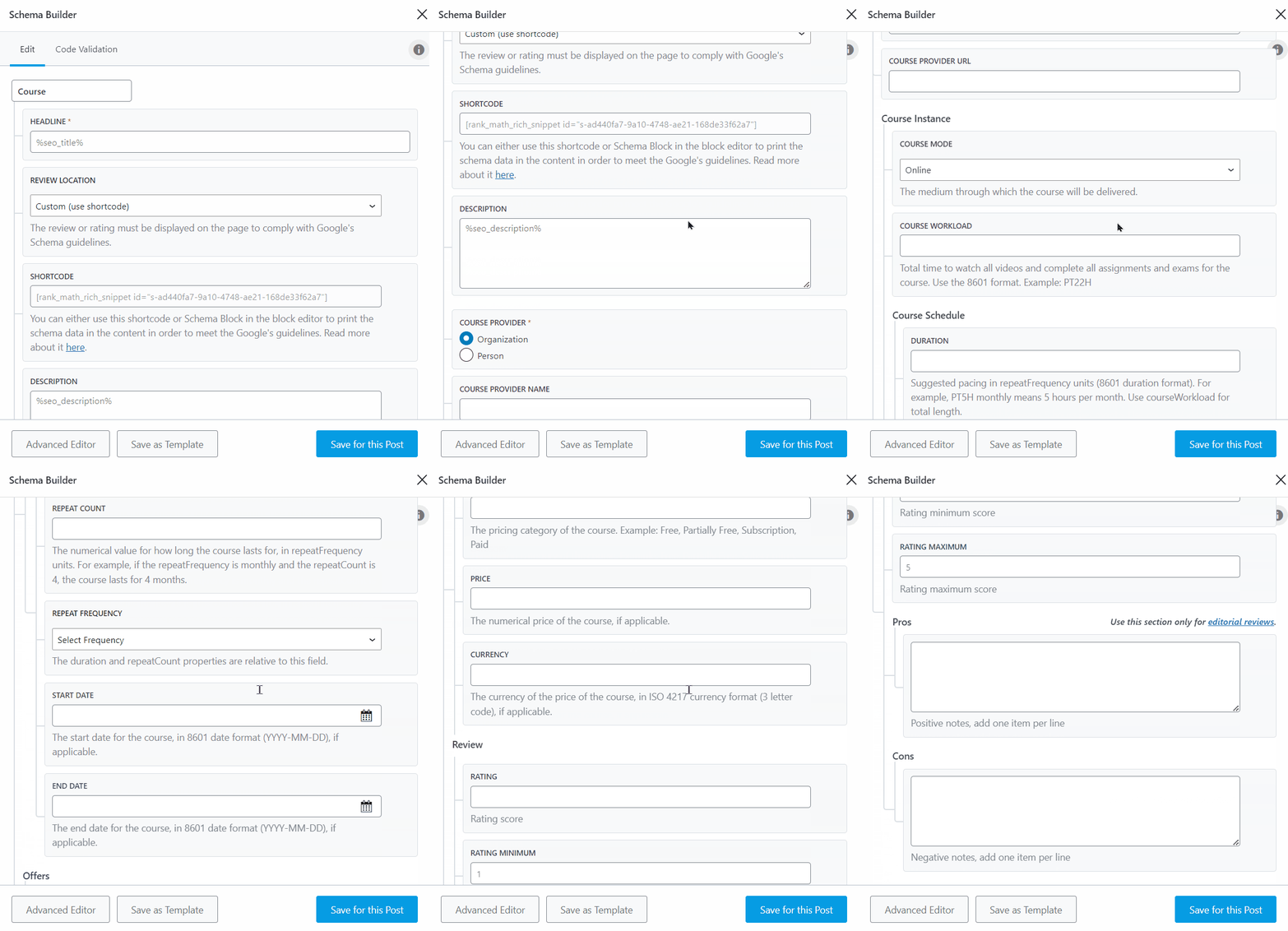
Once you implement the Course Schema type on your course pages, your website becomes eligible to display a rich snippet for courses in search results, as depicted below:
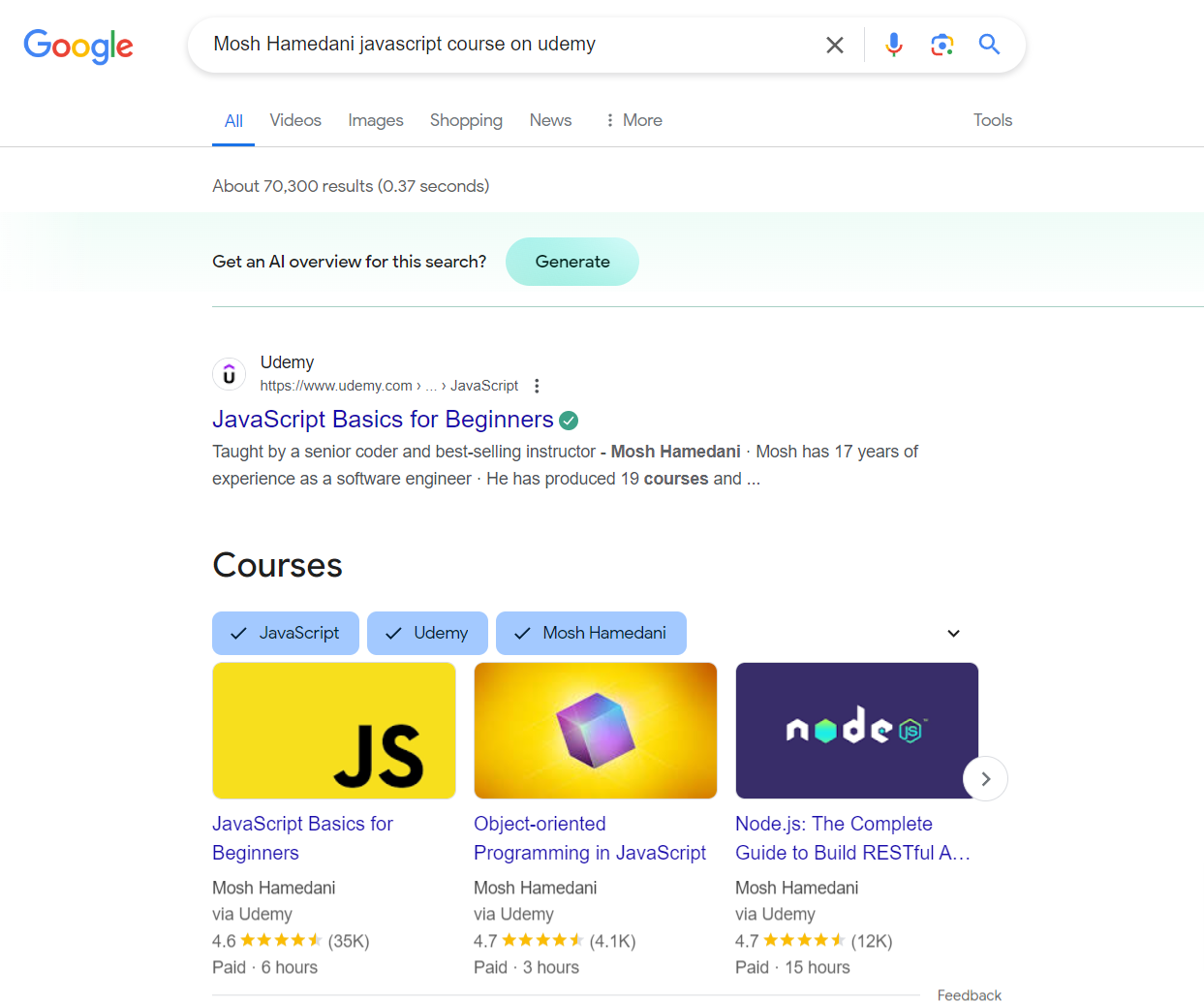
From the image, you’ll notice a course with a rich snippet highlighting key details such as the course owner, pricing category, course name, reviews, duration, and more.
These snippets can be easily configured using Rank Math by following this detailed knowledgebase article.
6.6 Dataset PRO
The Dataset Schema type is best suited for pages or posts where you are talking about a publicly accessible data set. You might just talk about the data or even draw conclusions from it—the Schema applies in both cases. You can learn more about the Schema type here.
Note: Google only uses the Dataset Schema for the Google Dataset Search tool. The Dataset Schema does not affect the regular Google Search.
Here are the fields you will need to configure in the Schema.
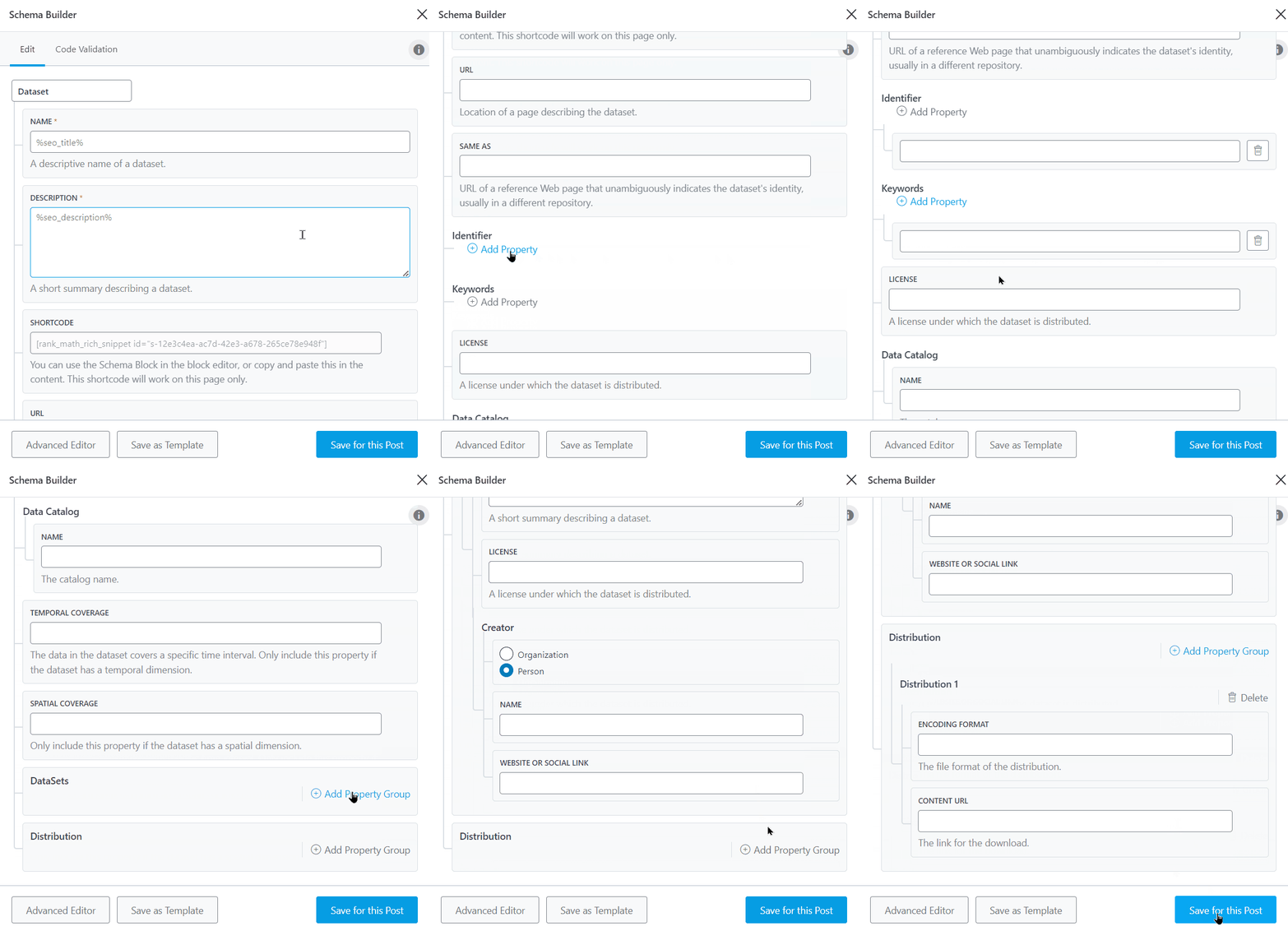
You can refer to our guide on how to configure the Dataset Schema type.
6.7 Event
Is your post or page about a public event? Then, use the Event type to markup your metadata. Here are all the fields that you should see when using the Event Schema in your post.
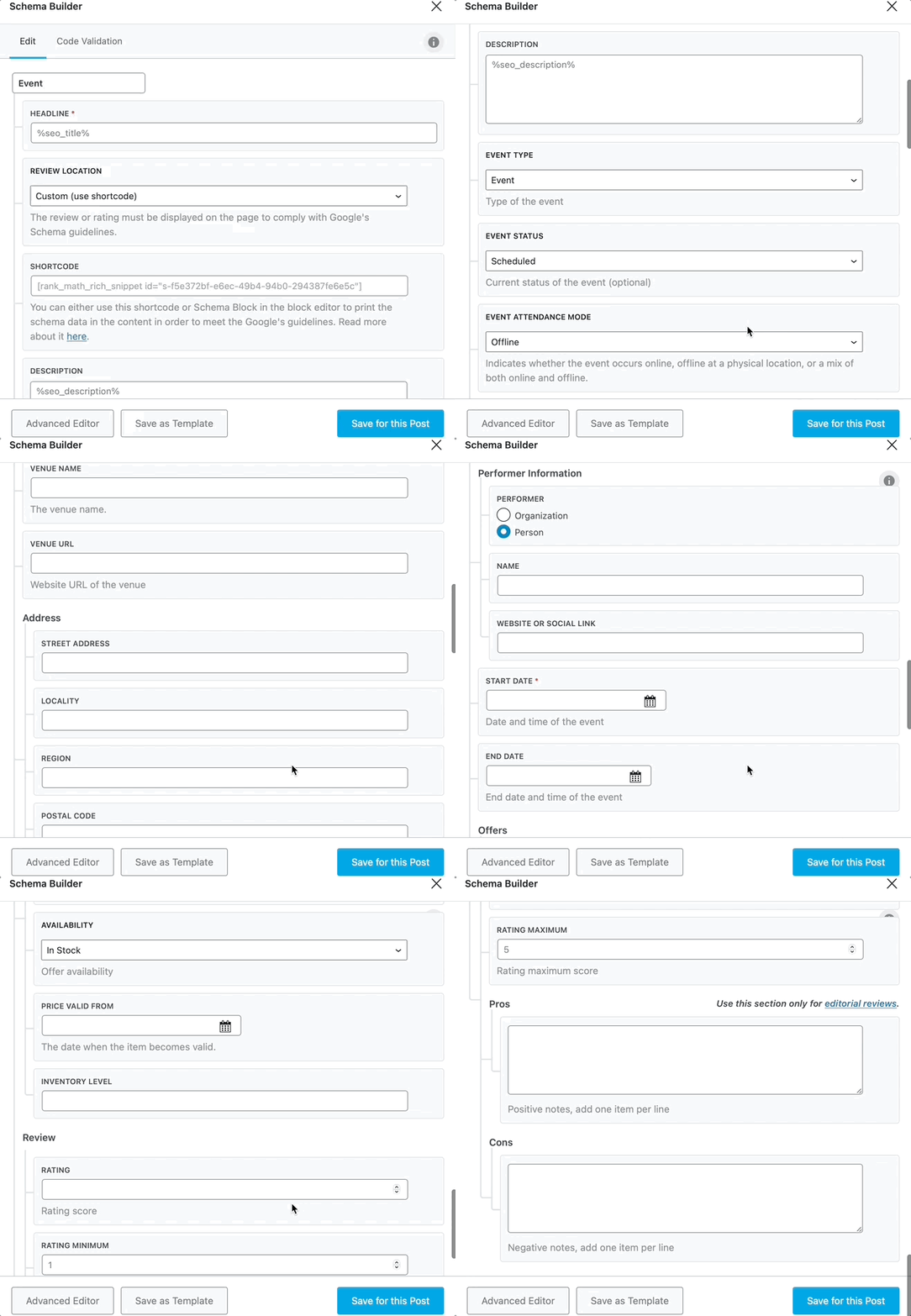
When utilizing the Event Schema on your web pages, Google can display them as event-rich results that may feature important details such as the date, location, address, and more, as illustrated in the image below.
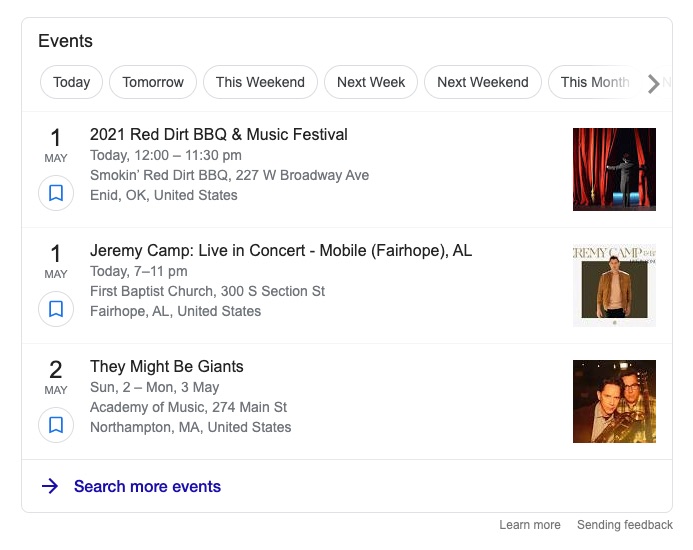
That said, the Event Schema type offers a wide range of customization options. To learn more about configuring it, refer to our comprehensive guide.
6.8 FAQ Schema
If you own a page containing a list of questions and their respective answers about a particular topic, then using the FAQ Schema will help increase your page’s overall visibility.
FAQPage Schema is a structured data/markup that indicates to Google that the page has a section with Frequently Asked Questions (FAQs) and the respective answers to the questions.
With Rank Math’s FAQ Block, adding the appropriate FAQ Schema to your blog posts is effortless. You can also easily add FAQ Schema with Elementor and Rank Math. Rank Math’s advanced Schema generator helps to add FAQ Schema easily, but this feature is available only in our Rank Math PRO version.
Anytime you write a post on your website that could be made better with some FAQs, use Rank Math to quickly and easily add the appropriate Schema Markup.

In the Free version, you can add the FAQ Schema only by using the FAQ by Rank Math block from the Block Editor.
6.9 FactCheck (Claim Review) PRO
The Claim Review is used when you fact-check certain claims made by individuals or organizations. You can learn more about it on Schema.org. Google has also created a dedicated page to explain the Claim Review structured data. Google calls it Fact Check.
Note: Google has phased out support for the Claim Review Schema and will no longer display rich results for it.
Here are all the options that you see in the Claim Review Schema.
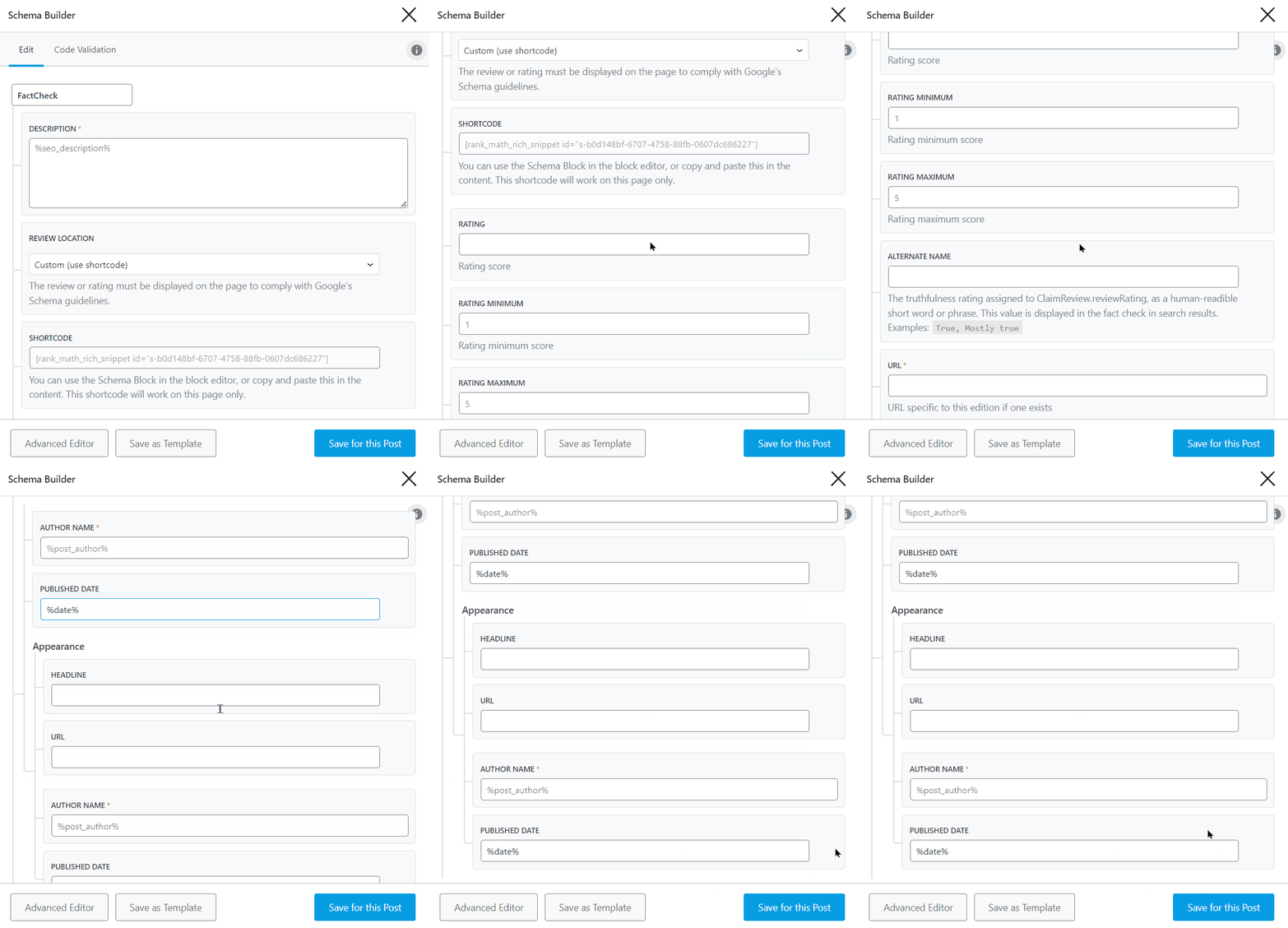
So, when you incorporate the FactCheck Schema, Google will display rich results that encompass the details of the claim, who claimed it, and its truthfulness, as shown below.
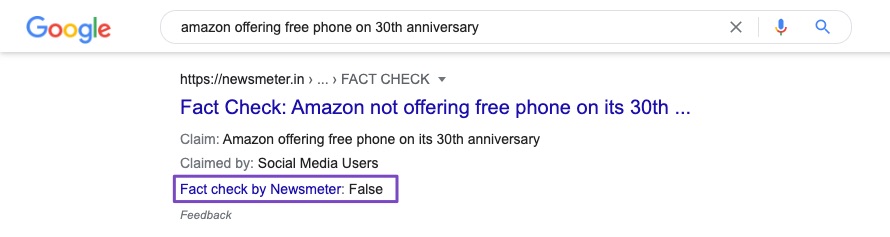
You can read our guide on configuring the FactCheck Schema type in Rank Math for more details.
6.10 HowTo Schema
If you run a website with content in the form of tutorials or explanations of any kind – you should consider using the HowTo Schema type. “How-to” snippets aim to provide step-by-step guidance directly in the SERPs for instruction-based queries.
You can add HowTo Schema Markup to pages using Rank Math’s Schema Generator, available only in Rank Math PRO.
The benefit of the Schema Generator option is that it allows the HowTo Schema to be used with Classic Editor, Elementor, or any other page builder for that matter. At the same time, the HowTo Block only works on Gutenberg.
From the free version, you can only add HowTo Schema by using the HowTo by Rank Math block from the Block editor.

6.11 Job Posting
If you list specific jobs on your website, you should add the Job Posting Schema on the page. This Schema type will be most valuable to job sites, job boards, and similar websites.
Here are all the options to configure in the Schema type.
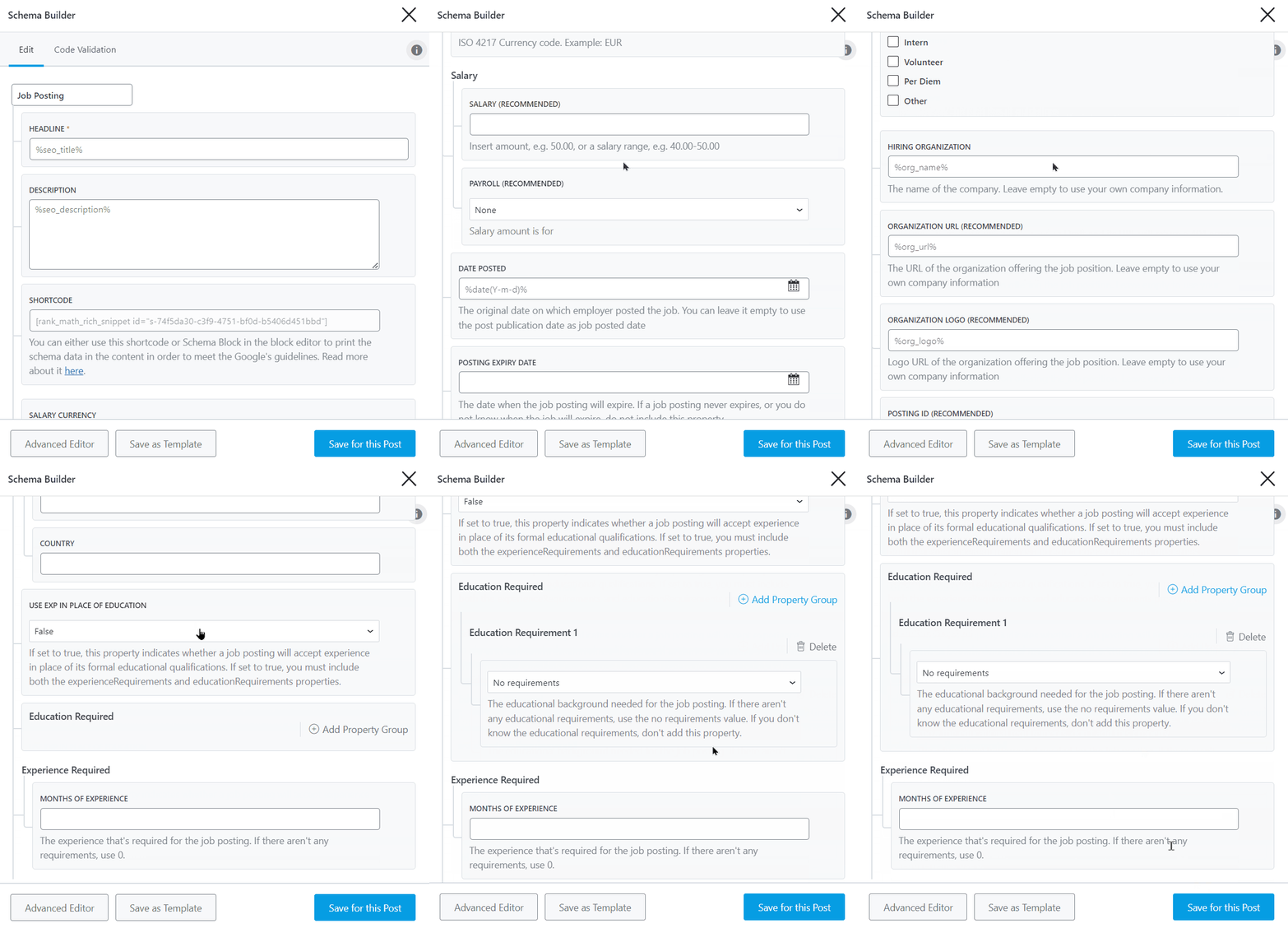
When you apply the Job Posting Schema markup to your job pages, they are more likely to be eligible for inclusion as rich results in search engine results pages.
These rich results may include important data such as the job title, location, type, date posted, and more, as shown in the image example below.
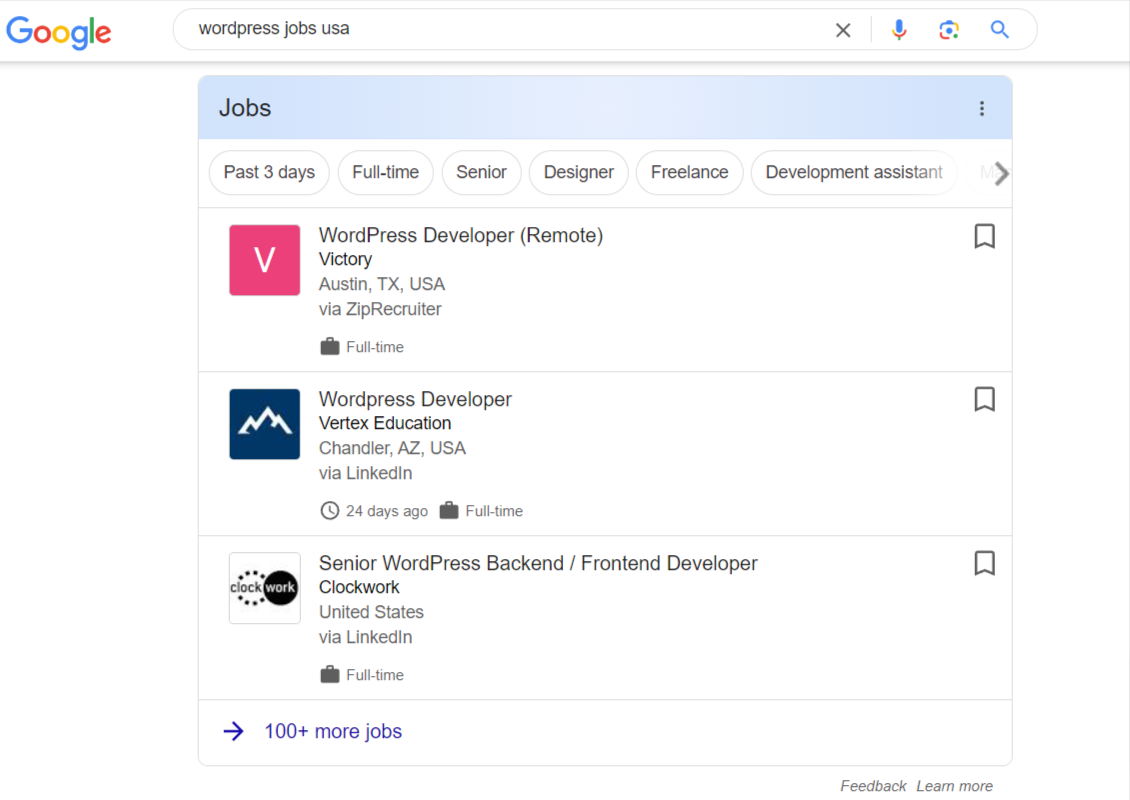
You can refer to our guide on how to configure the Rank Math Job Posting Schema type for more details.
6.12 Movie PRO
If you discuss movies in your posts, you should use the Movie Schema type. Here are the options that you’ll need to configure.
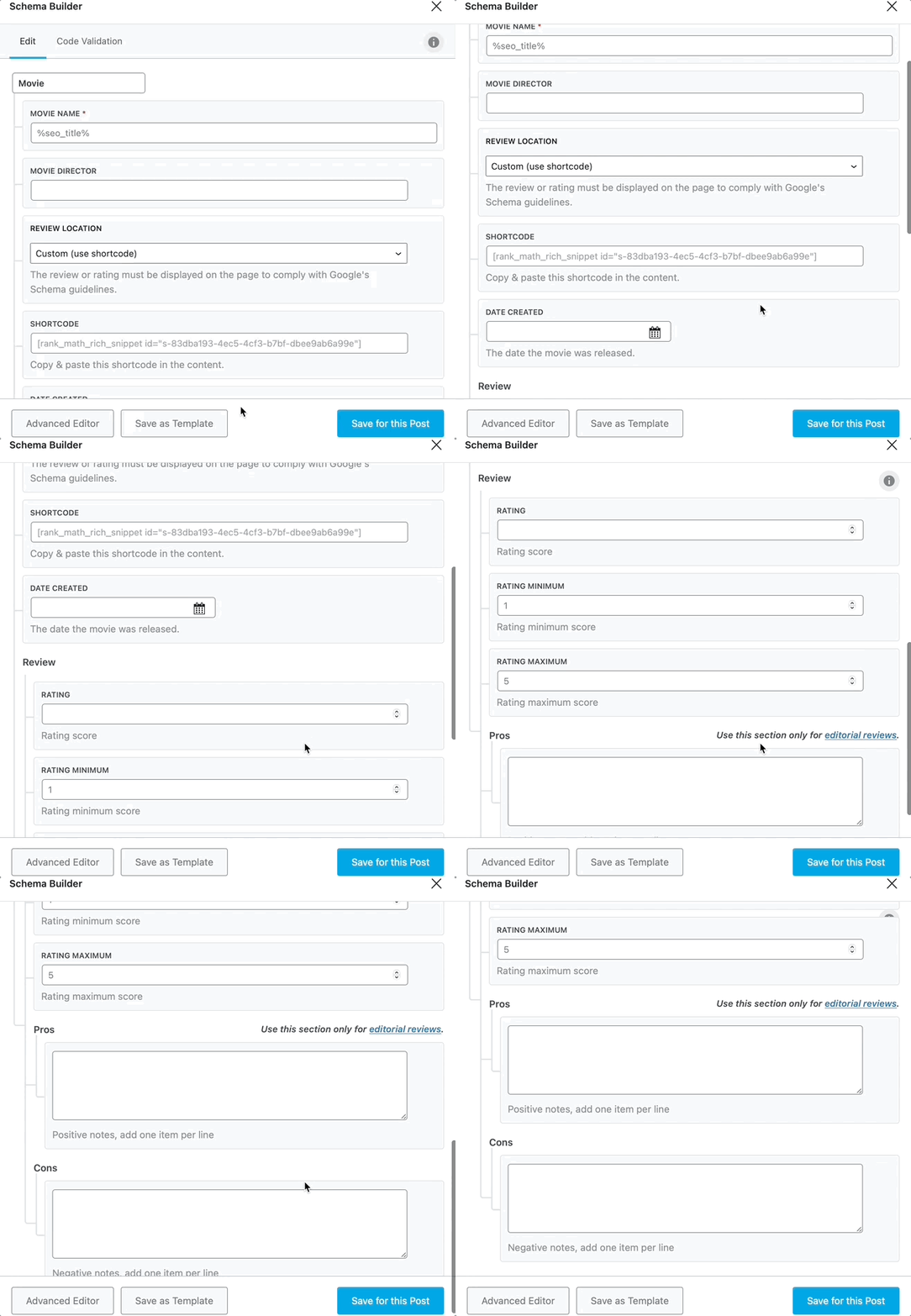
Configuring the Movie Schema markups and including them on your page can help you become eligible for your discussed movie to appear on Google rich snippets, just like the movie shown in the image below.
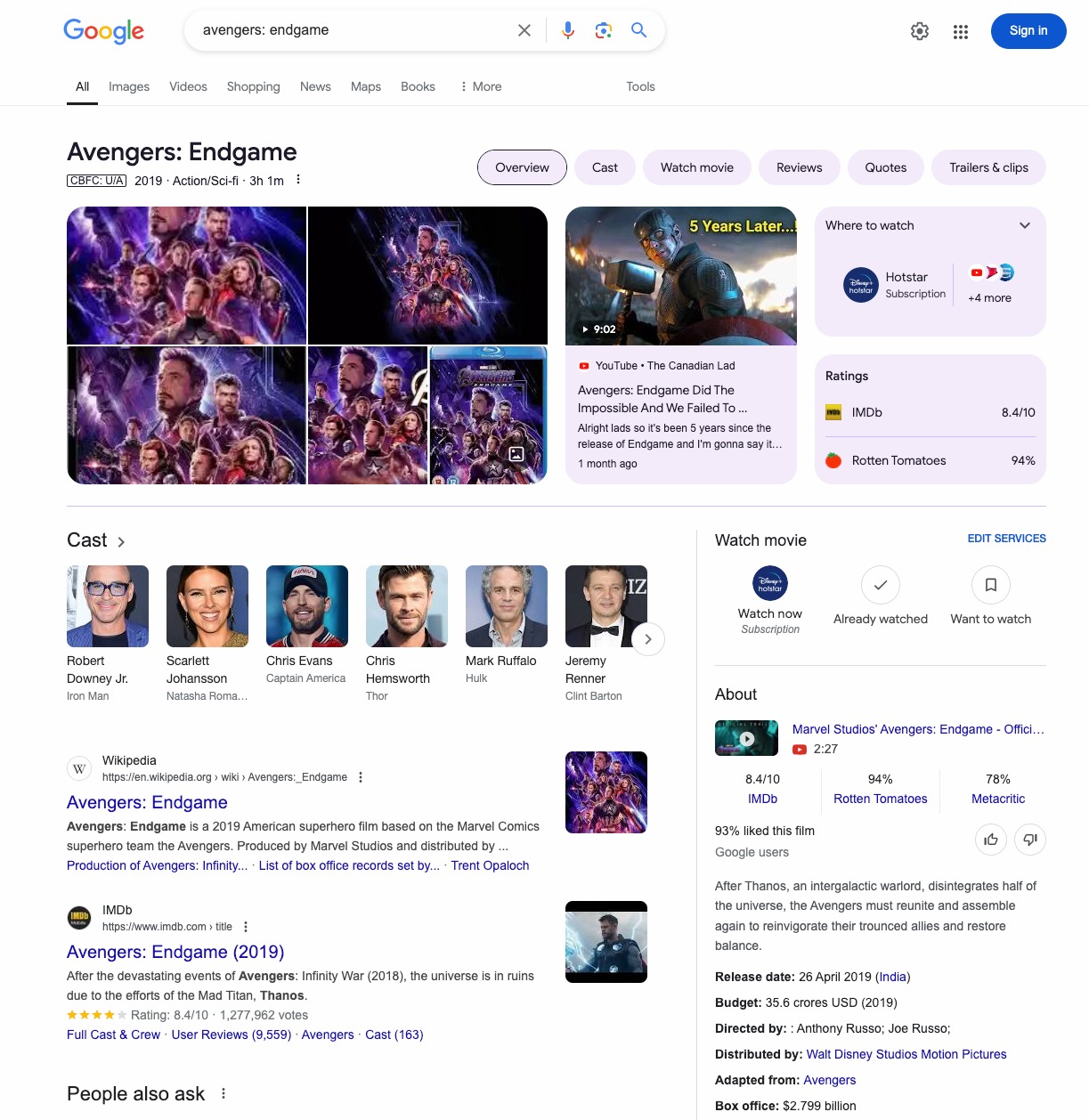
As you can see in the image, Google featured the movie’s structured data, including the name, release date, director, ratings, and other relevant information.
For more details, you can read our guide on how to configure the Movie Schema type.
6.13 Music
If your post discusses music, then you should use the Music Rich Snippet. Here are all the options that should be available for the Music Rich Snippet type.
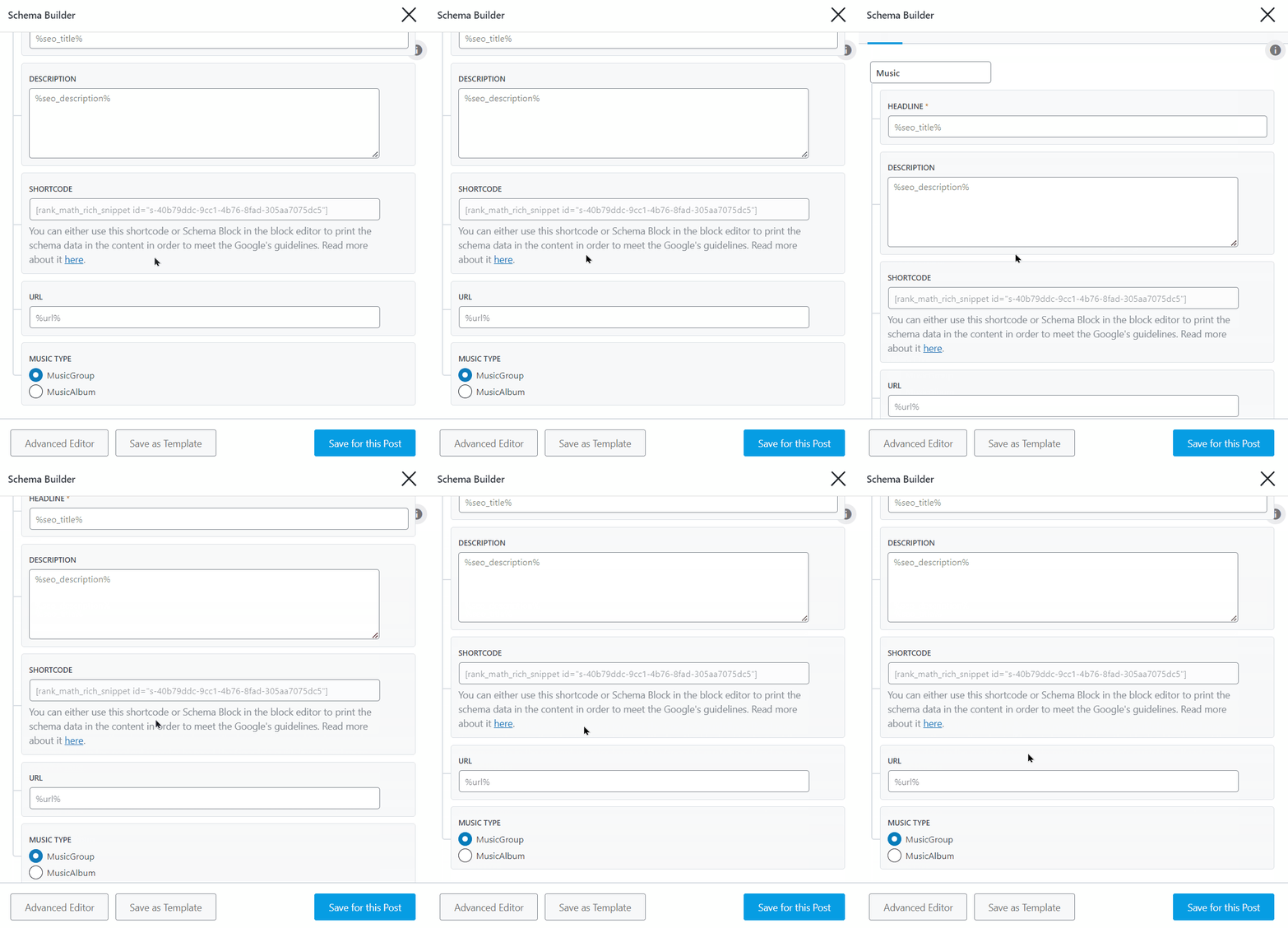
You can refer to our detailed guide to configure the Music Schema type on your page.
6.14 Person
The Person Schema type is to be used when discussing a specific person on your page, and you want it featured on rich snippets in search results. The person can be alive, dead, undead, or even fictional.
Here are all the options that are visible when you select the Person Schema type.
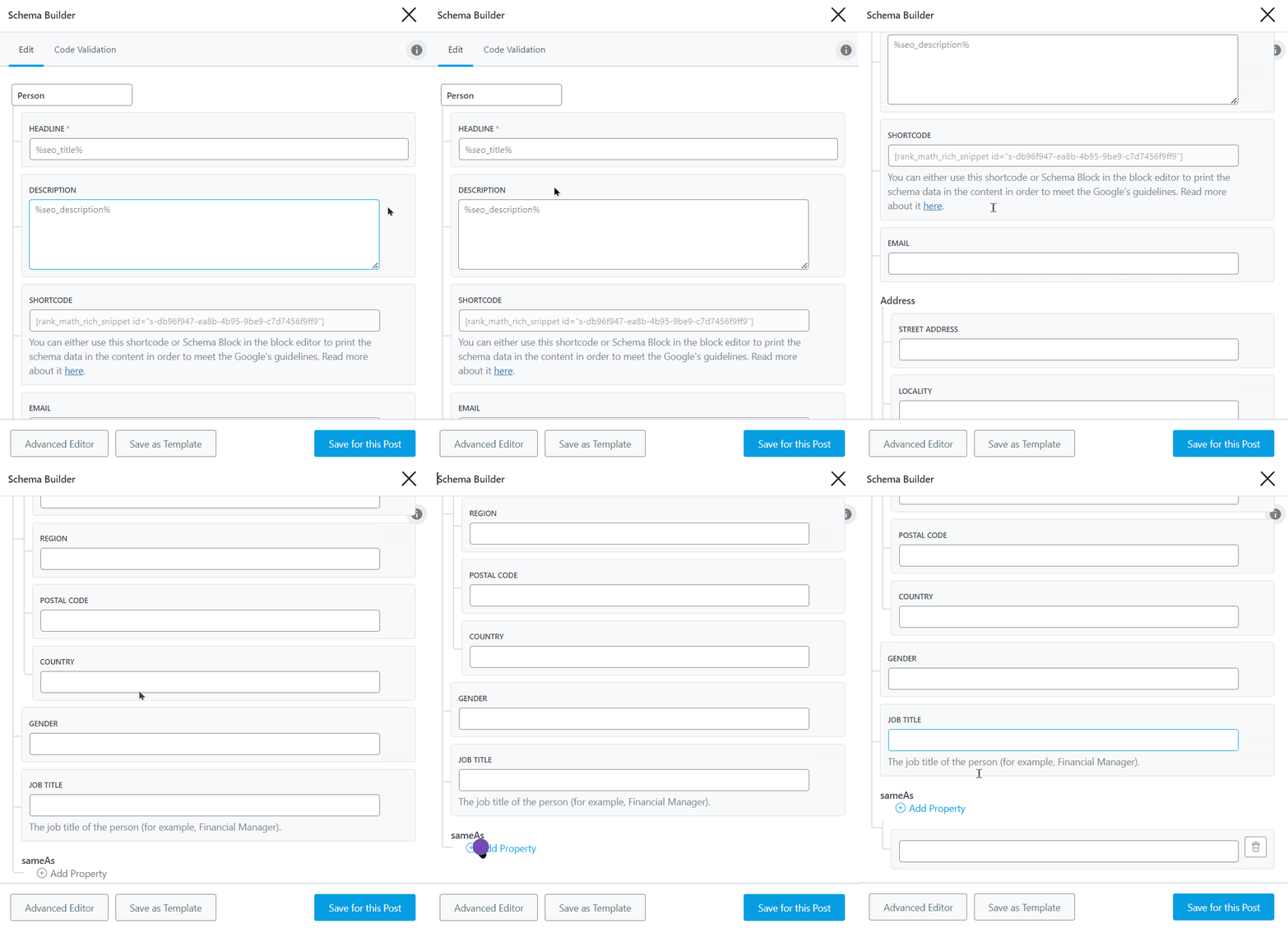
Here is a detailed guide to help you configure the Person Schema type.
6.15 Person or Organization
The Person Schema is included by default when the site is operated on behalf of a person. Similarly, the Organization Schema is added by default when the site is operated on behalf of an organization.
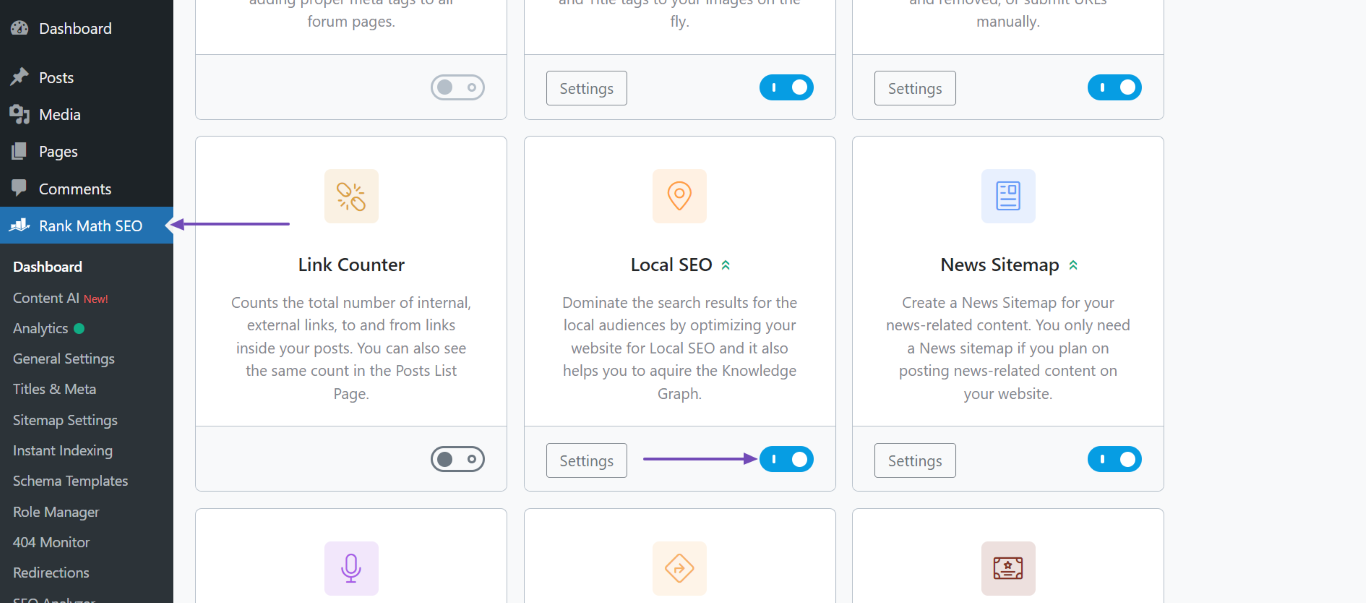
You can access the Person and Organization Schema by heading to WordPress Dashboard → Rank Math SEO and enabling the Local SEO module, as shown below.
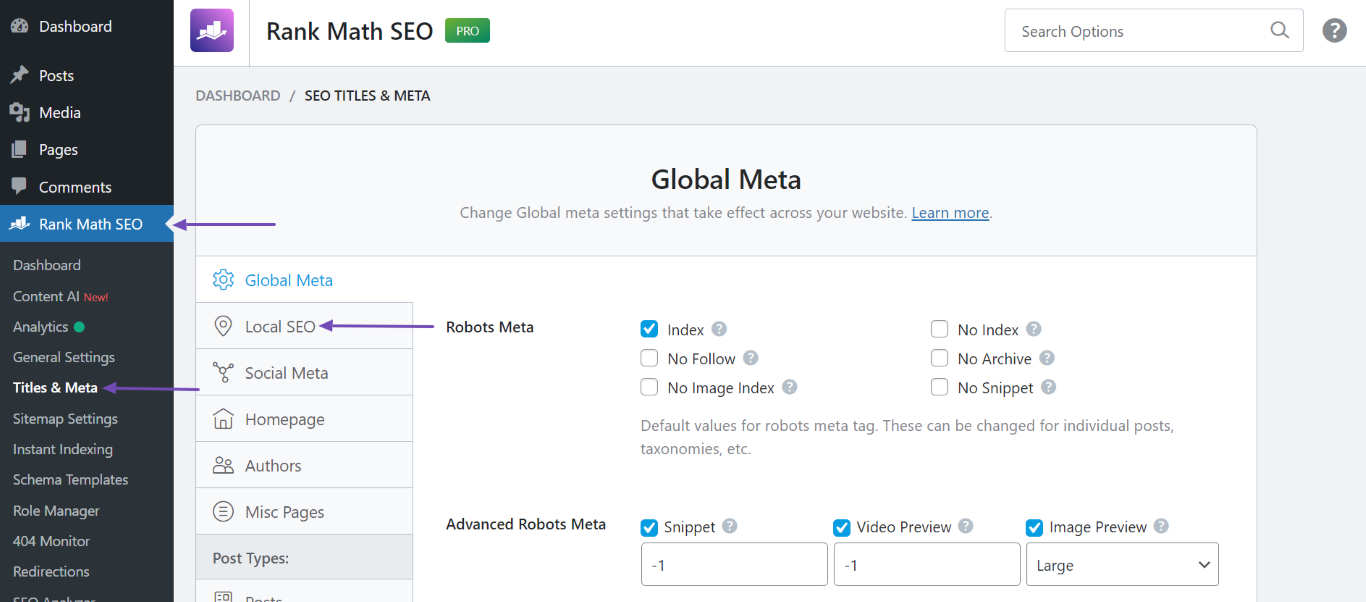
Next, navigate to Rank Math SEO → TItles & Meta → Local SEO.
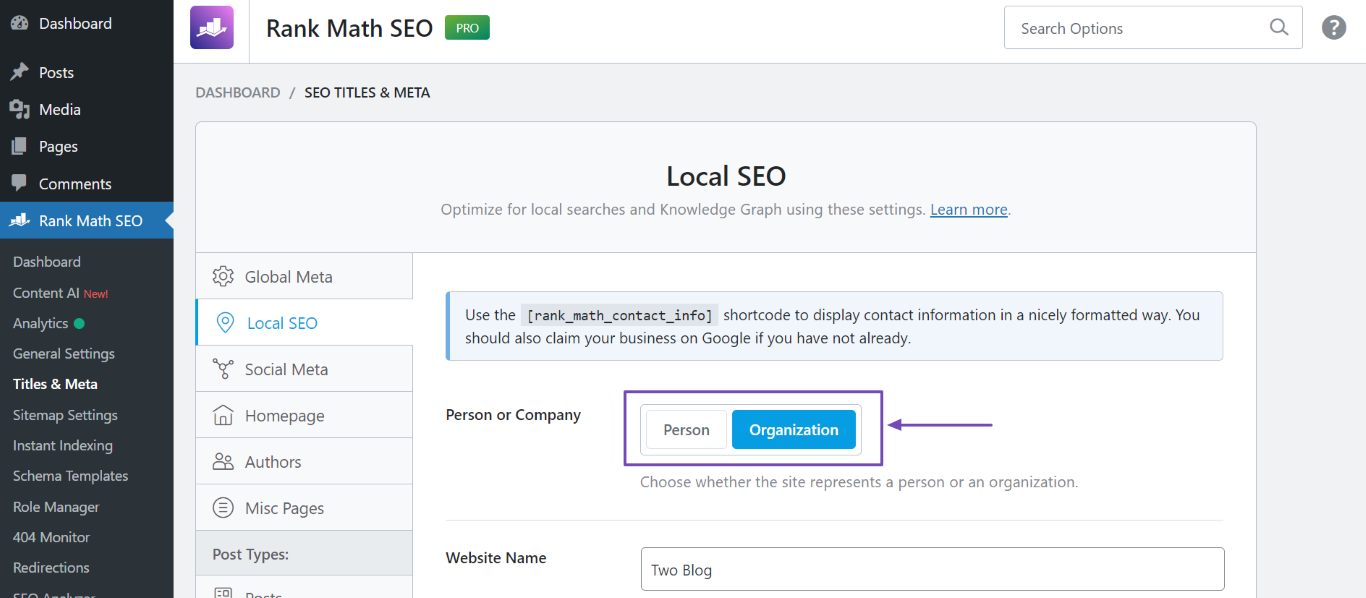
Now, head to Person or Company and select Person if the site is owned by a person or Organization if an organization owns it. Once done, scroll down and click Save Changes.
6.16 Podcast Episode PRO
When you list your podcast episodes on your page, you can use the Podcast Episode Schema type to help search engines understand and display your podcast episodes as rich snippets in search results.
These snippets can include details like episode titles, guest names, and even thumbnail images, making your podcast stand out and enticing users to click.
When you select the Podcast Episode Schema type, it will look like this:
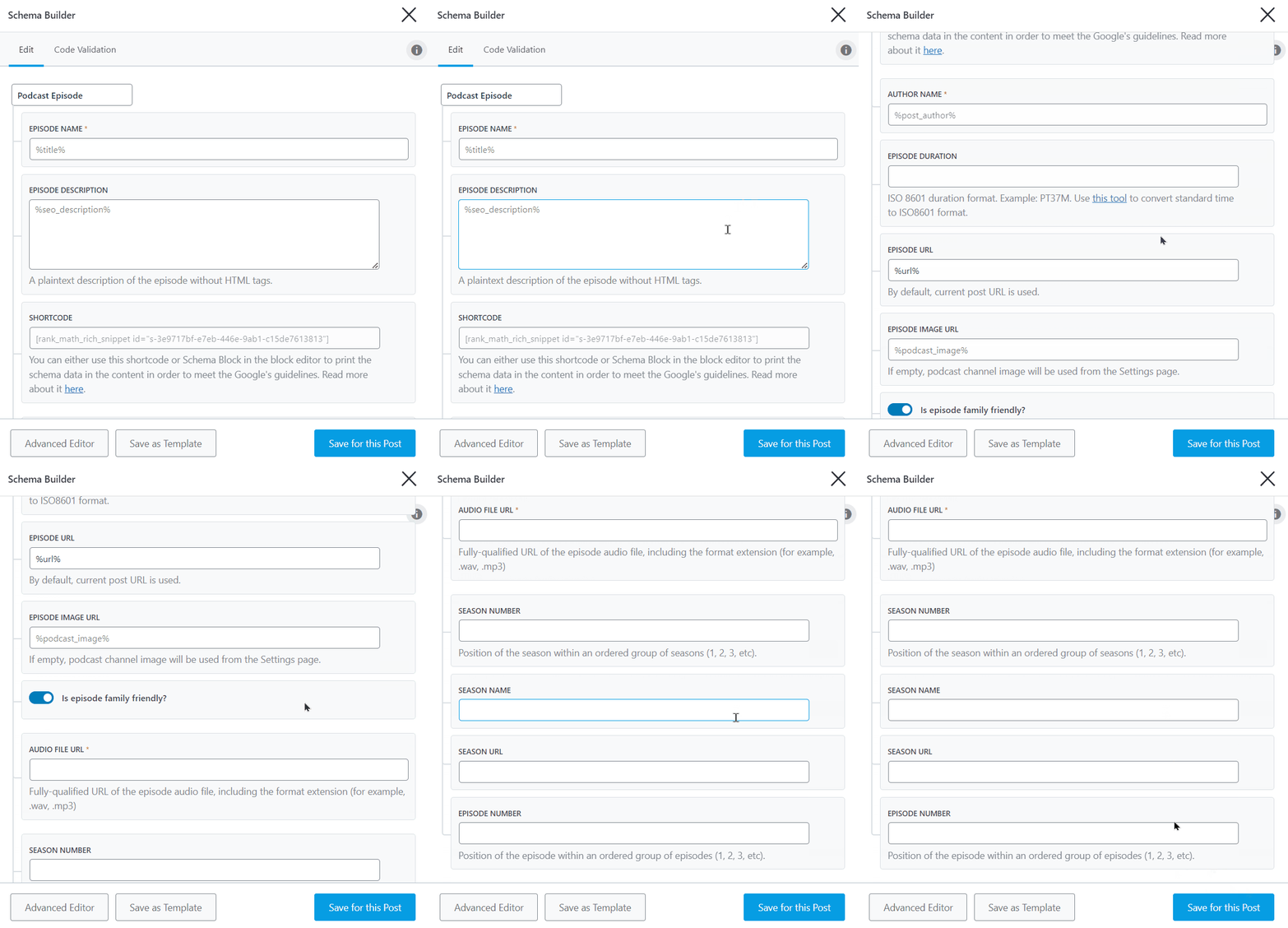
You can further refer to our guide on for configuring the Podcast Episode Schema markup.
6.17 Product
The Product Rich Snippet is particularly beneficial when featuring products on your website, whether as reviews or affiliates. Moreover, if you operate an eCommerce store, it’s recommended to incorporate the Product Rich Snippet into your product pages.
Here are all the options that you would see in the Product Rich Snippet.
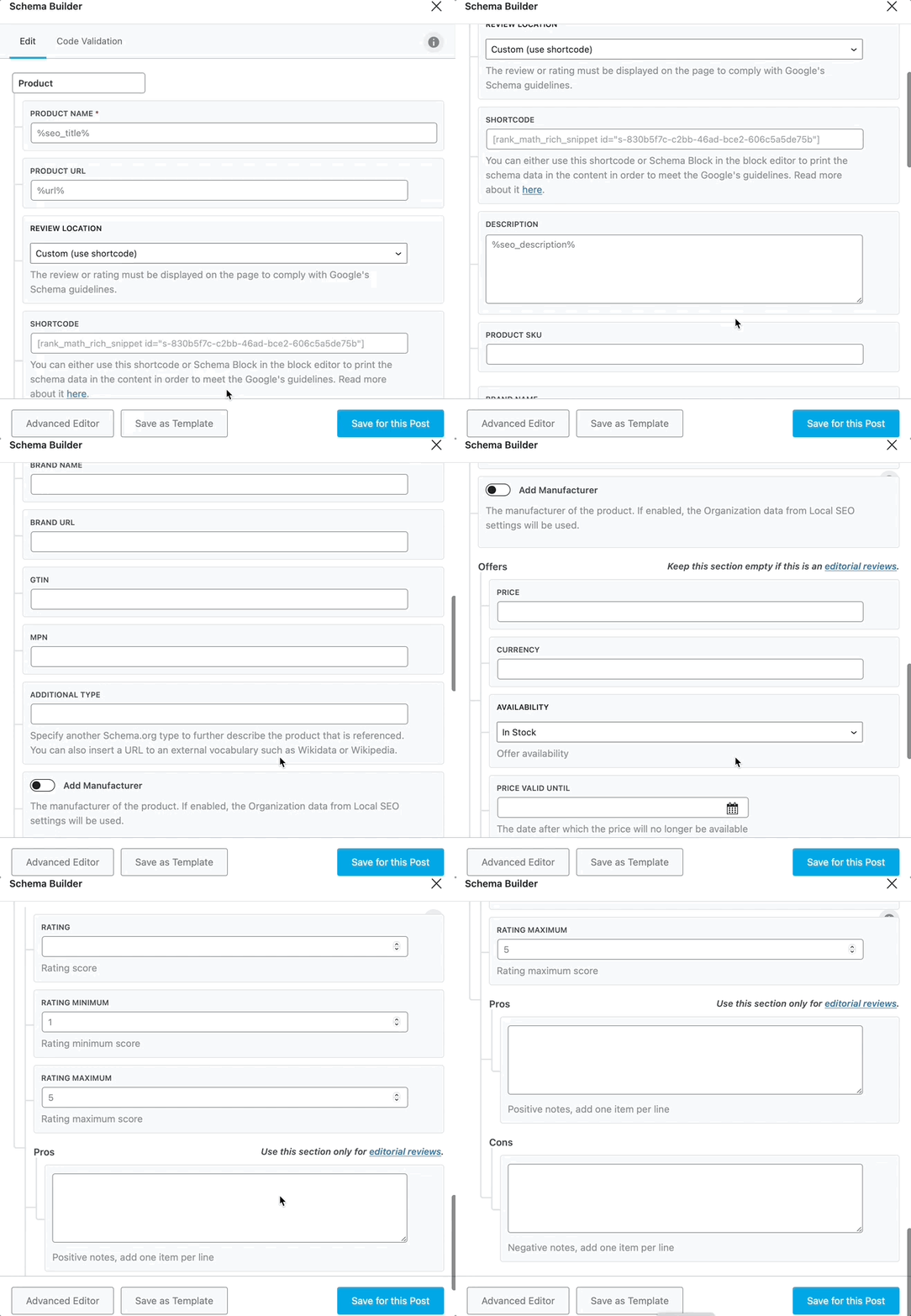
Utilizing the Product Schema markup on your web pages enables Google to display the product’s rich results in search results.
These rich results may include important details such as product prices, reviews, ratings, availability, and more, as shown in the image below.
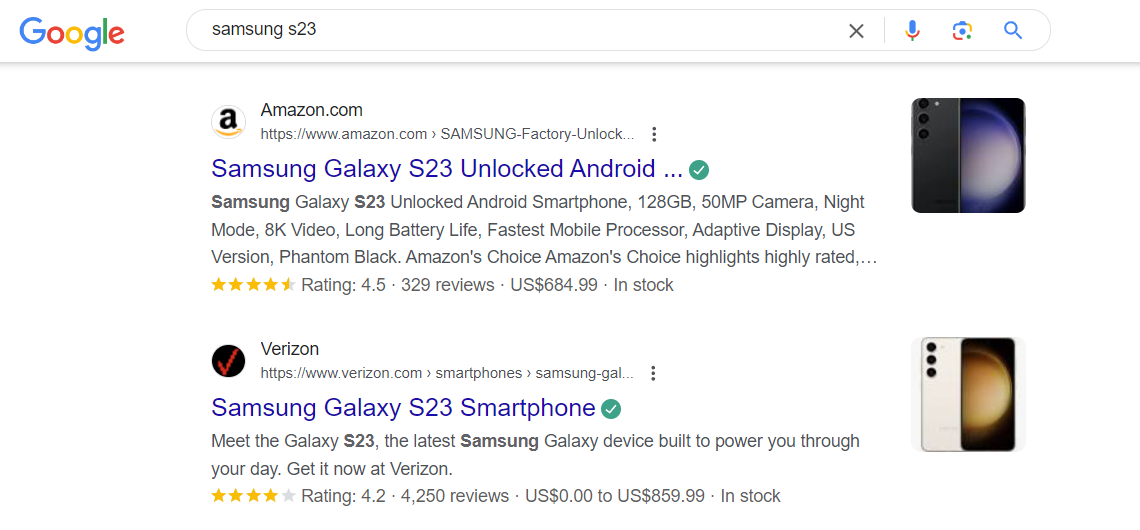
You can refer to our detailed guide to configure all the essential properties for the Product Schema type.
6.18 ProfilePage
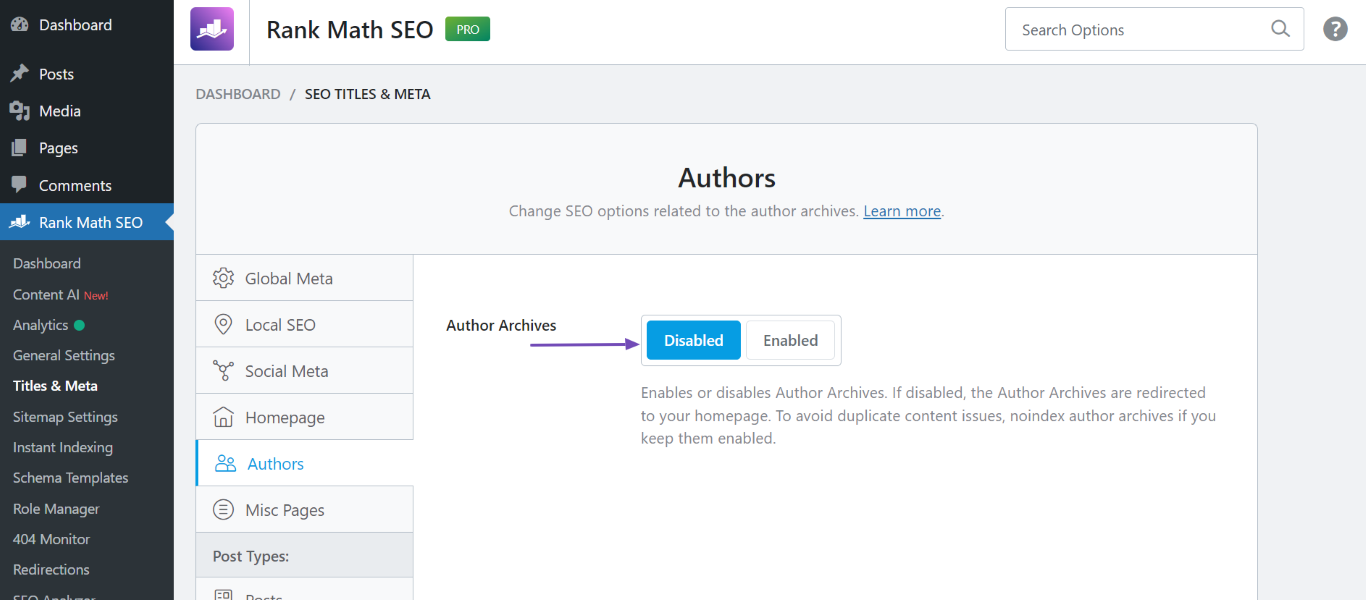
The ProfilePage Schema is added to your author pages by default. You can disable it by heading to WordPress Dashboard → Rank Math SEO → Titles & Meta → Authors.
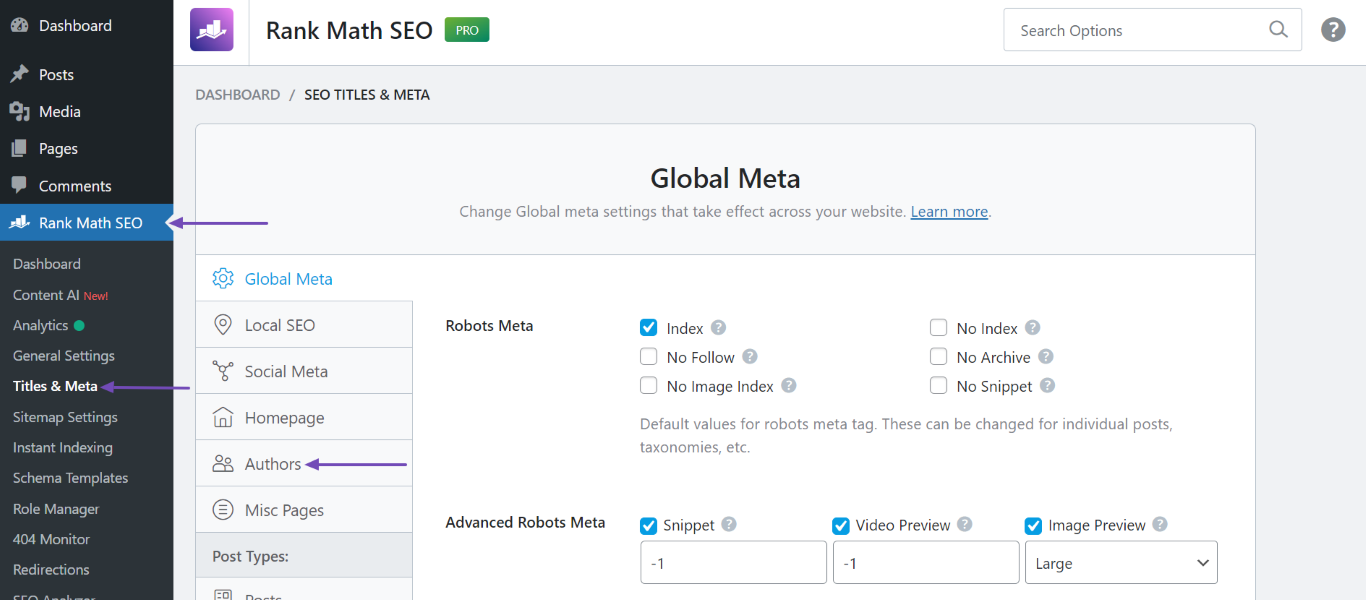
Then, navigate to Author Archives and click Disabled. Once done, scroll down and click Save Changes.
6.19 Recipe
Are you discussing food or beverages? Adding the Recipe Schema can be a valuable addition to your page. However, remember that there are many settings to configure in this Schema.
Here’s the thing: the recipe world is highly competitive, with search engine results flooded with rich snippets. To stand out and attract more traffic to your recipe website, it’s crucial to meticulously configure and fill in all the details within this field.
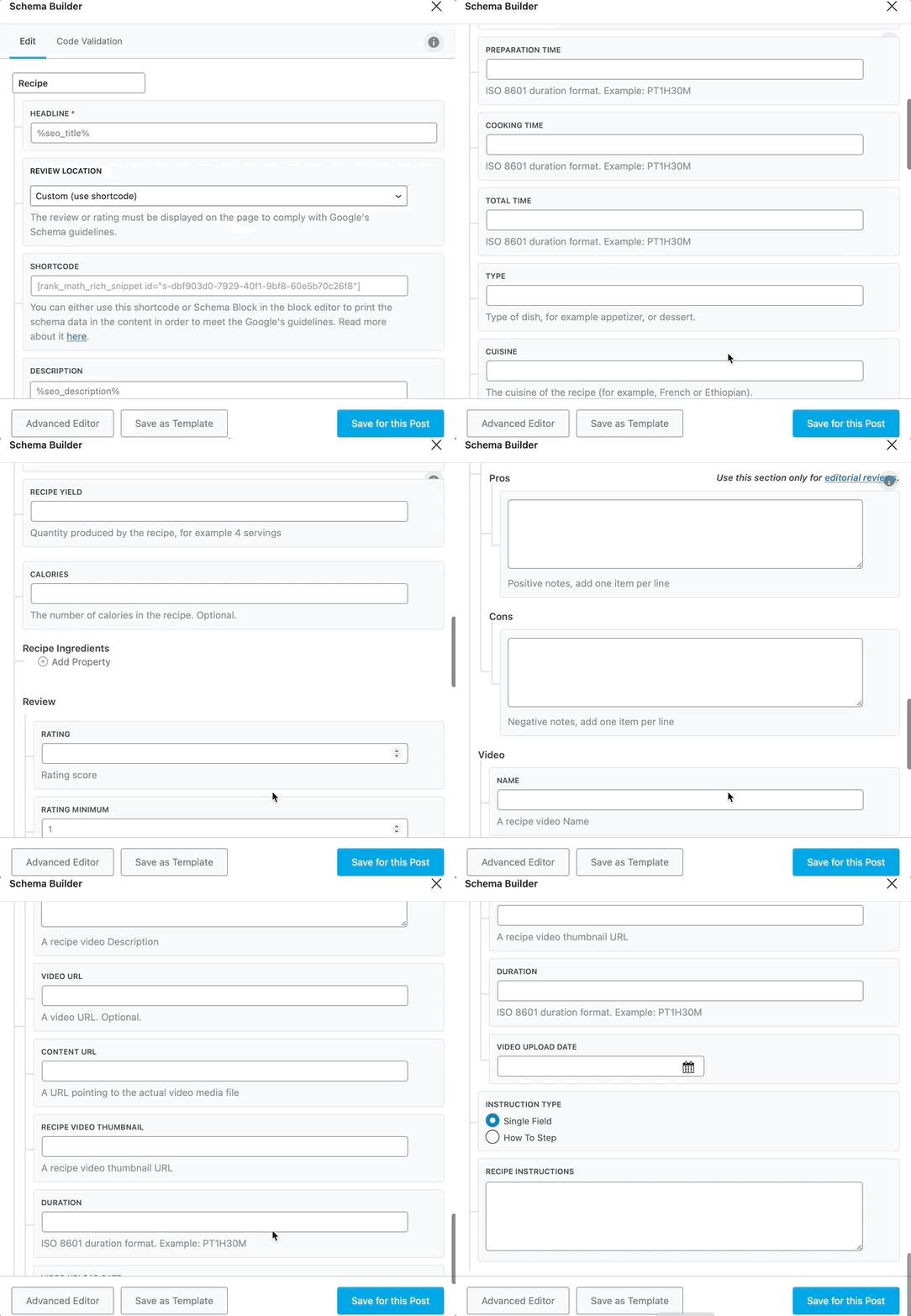
Here are all the options that you’ll need to configure.
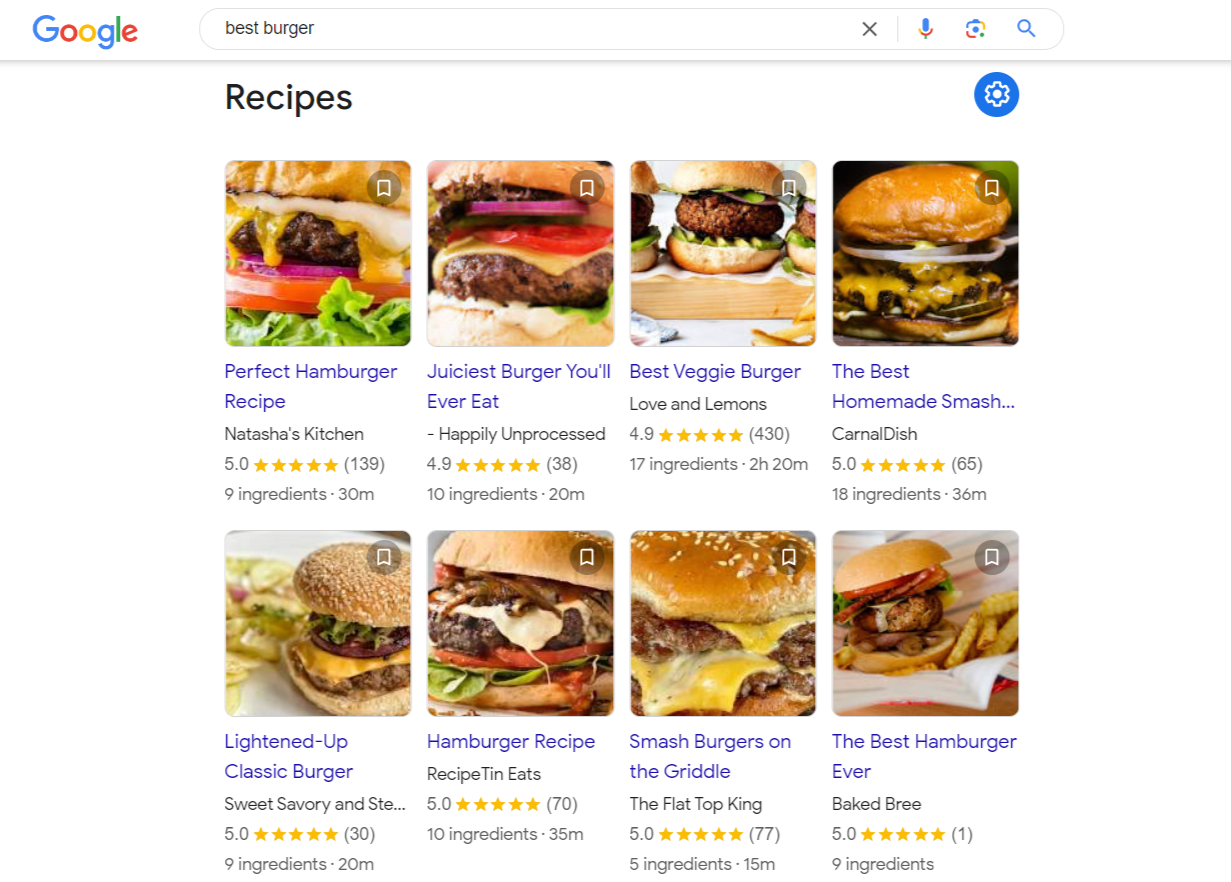
Once you’ve applied the Recipe Schema markup to your recipe pages, they become eligible to appear as rich results on search engines like Google, as shown below:
To configure Recipe Schema markup, follow our detailed guide over here.
6.20 Restaurant
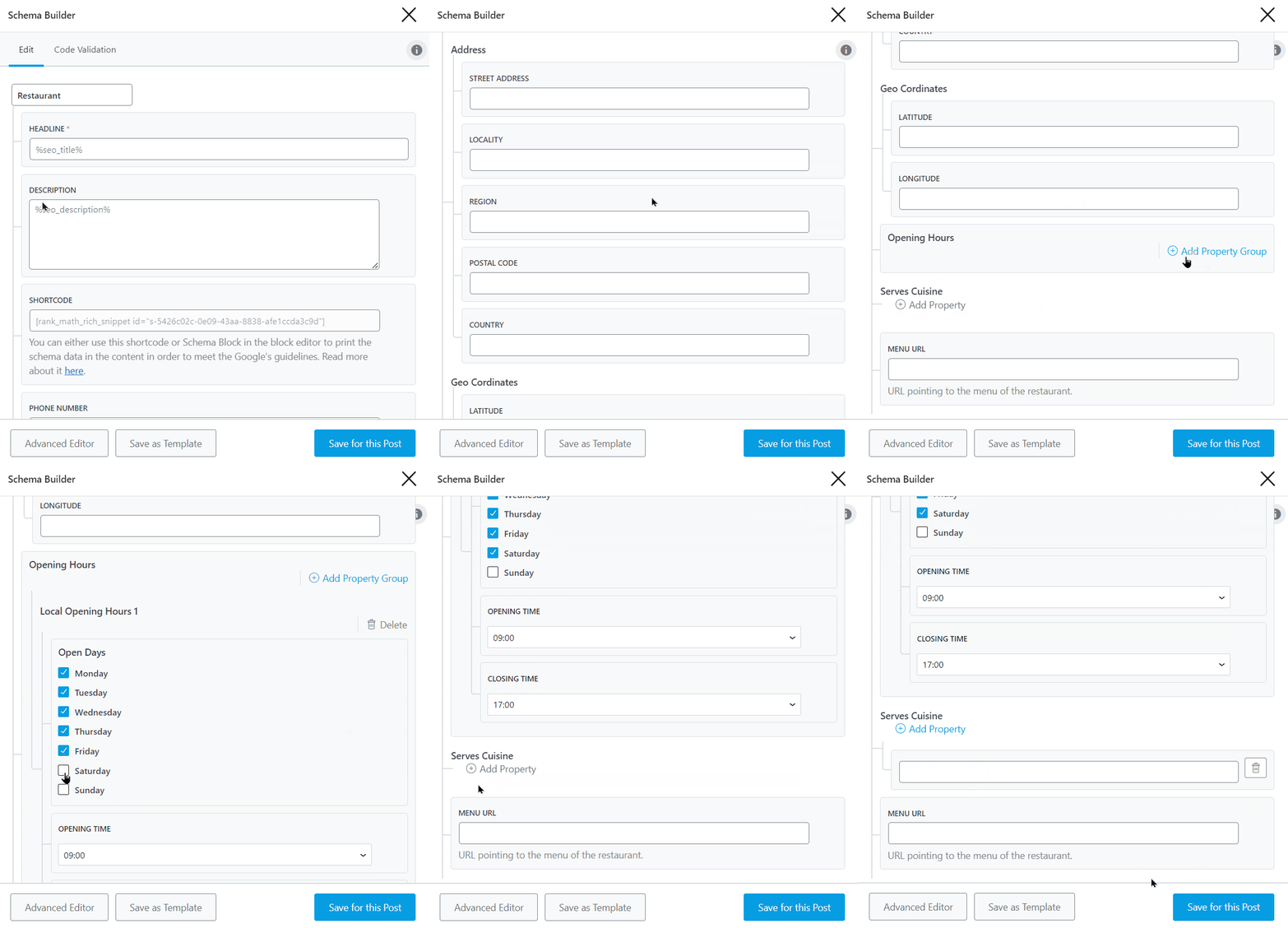
The Restaurant Rich Snippet should be used when your post discusses a food joint, cafe, or restaurant. Here are all the options that you would see when you select the Restaurant Schema type.
For more details, you can follow our guide on how to configure the restaurant Schema type.
6.21 Service
The Service Rich Snippet should be used when you’re talking about a specific service. For example, if you’re talking about a local business, a plumber, or an electrician, you’d use the Service Schema.
You can also use this Schema type on your own local business website. Here are the options that you’ll need to configure.
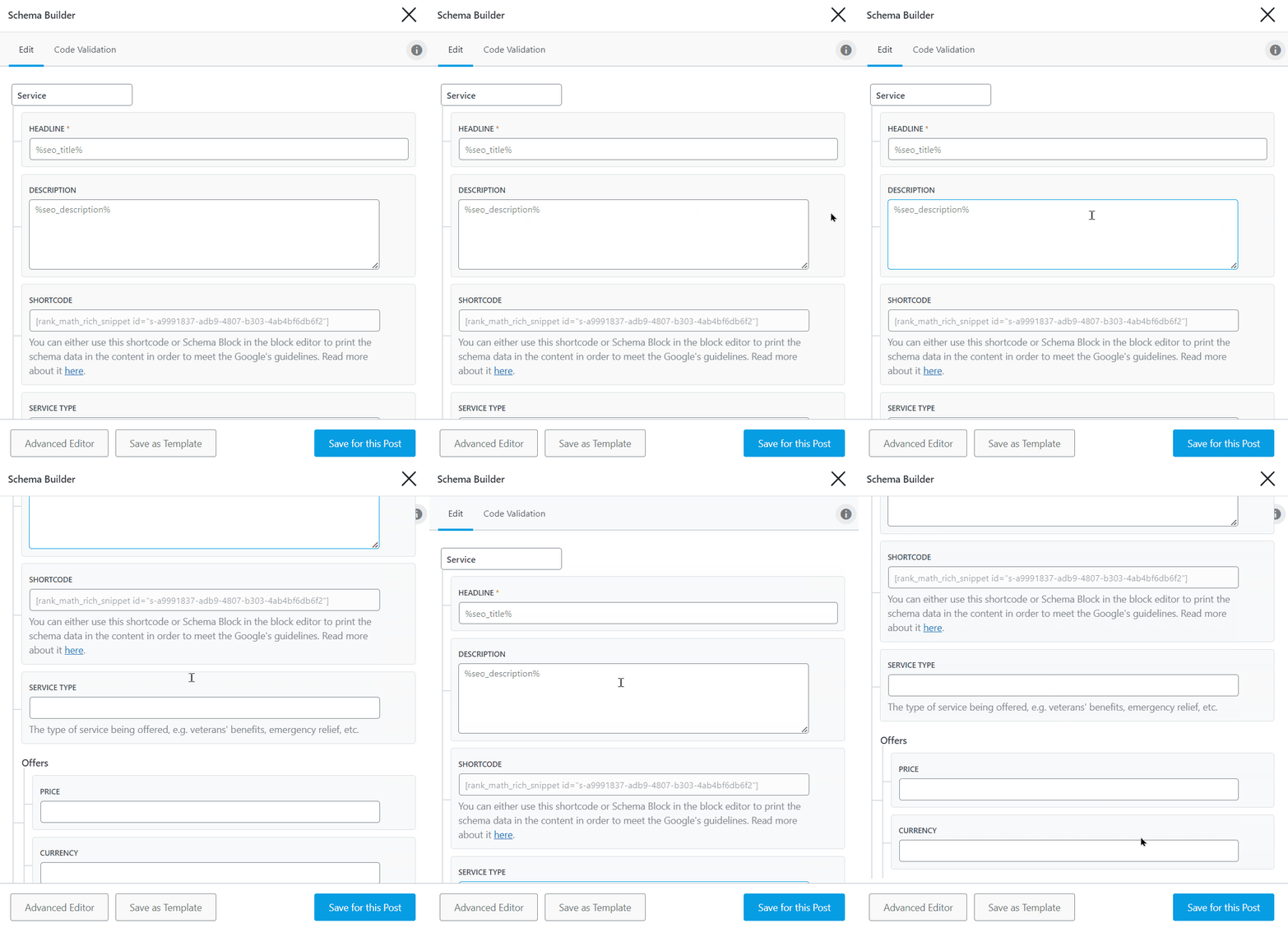
To configure the Service Schema options, you will want to follow our detailed guide on how to do that.
6.22 Software Application
The Software Application Rich Snippet is used when you’re talking about software applications. If you sell or discuss software products on your website, then you should use this Rich Snippet Type.
Here are all the options that should be visible to you.
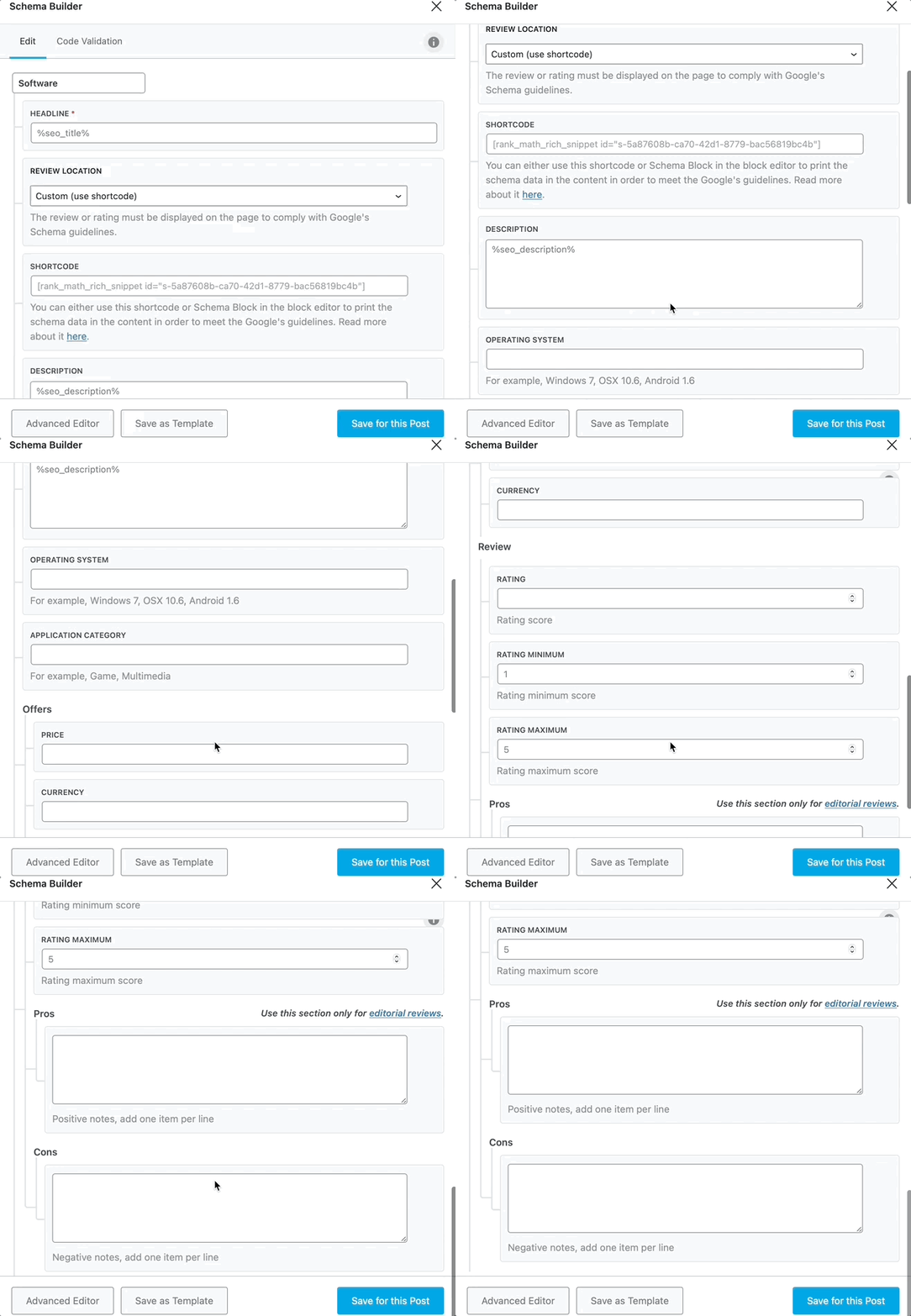
By implementing the Software Application Schema, you enable search engines to grasp the content of your page and gather information about the software you’re featuring or evaluating.
This, in turn, makes your page eligible to appear as rich snippets in search results, as shown below:
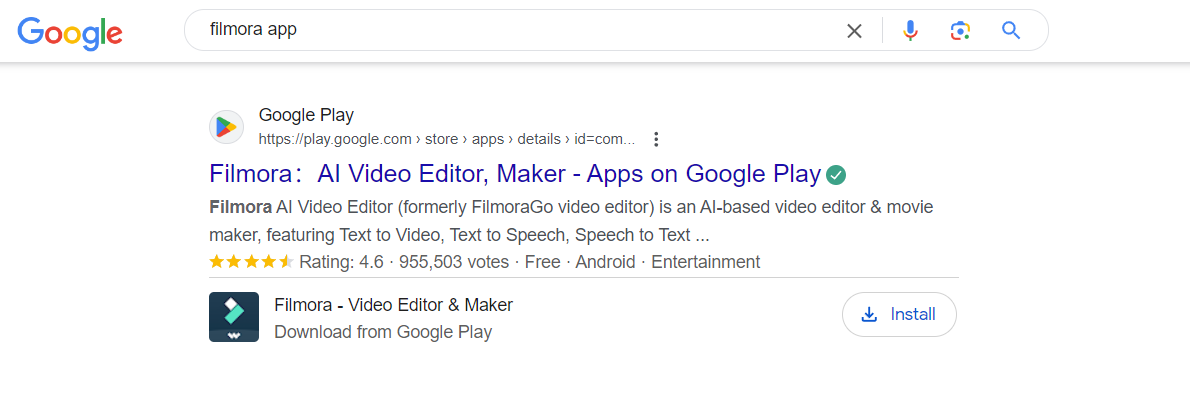
In the image provided, you’ll notice a rich snippet of the app displayed in search results, showcasing details such as the app name, description, ratings, category, and offers.
Similarly, your rich snippet could display these details when you use the Software Application Schema.
To configure this Schema type effectively, refer to our detailed guide.
6.23 Video
When you’re discussing a video in your post, you should use the Video Rich Snippet.
Here are the options that you would see when you select the Video Schema.
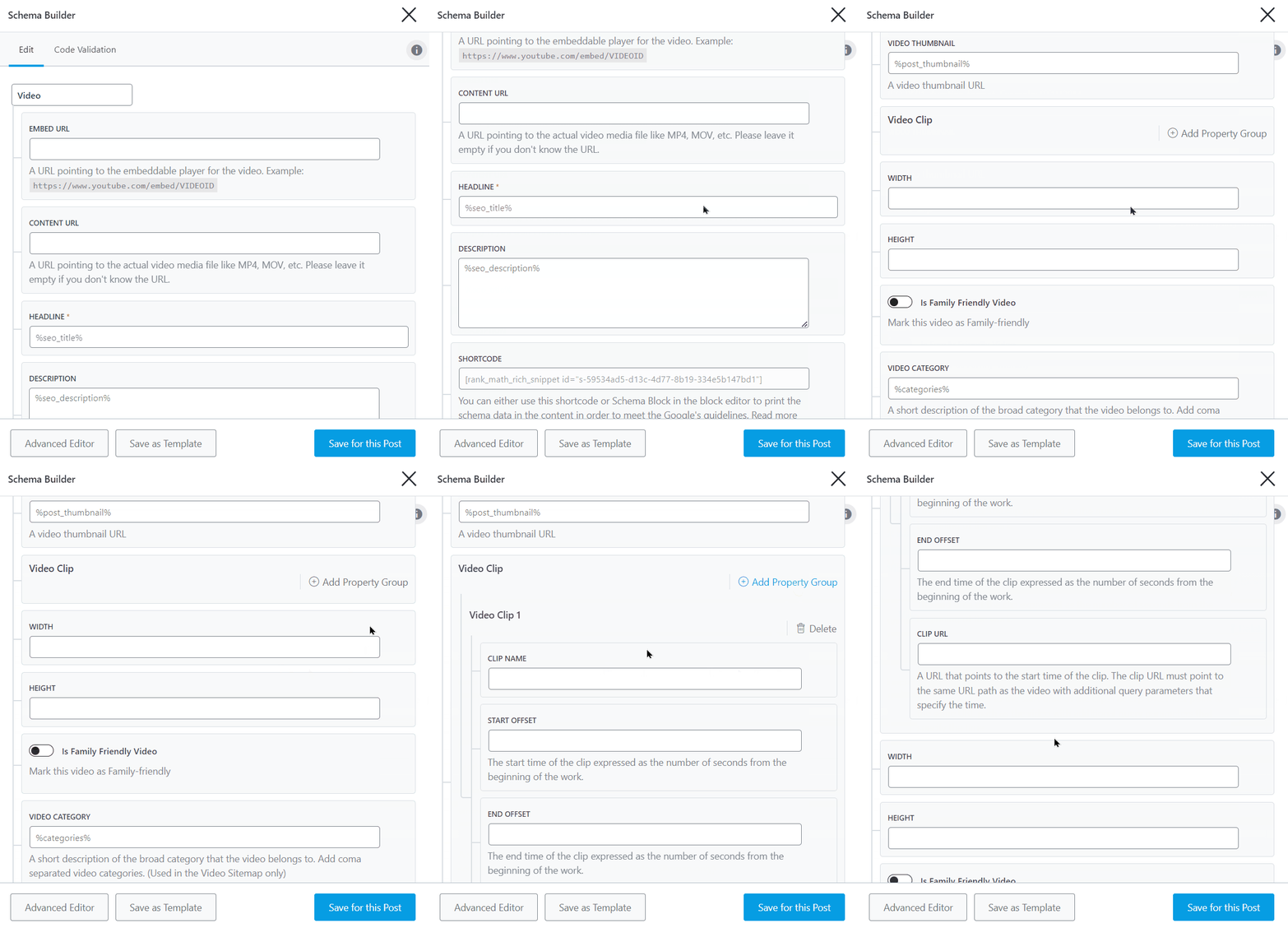
When you apply the Video Schema to videos on your page, it streamlines the process for search engines to comprehend your video content, thus facilitating the display of its details on search results.
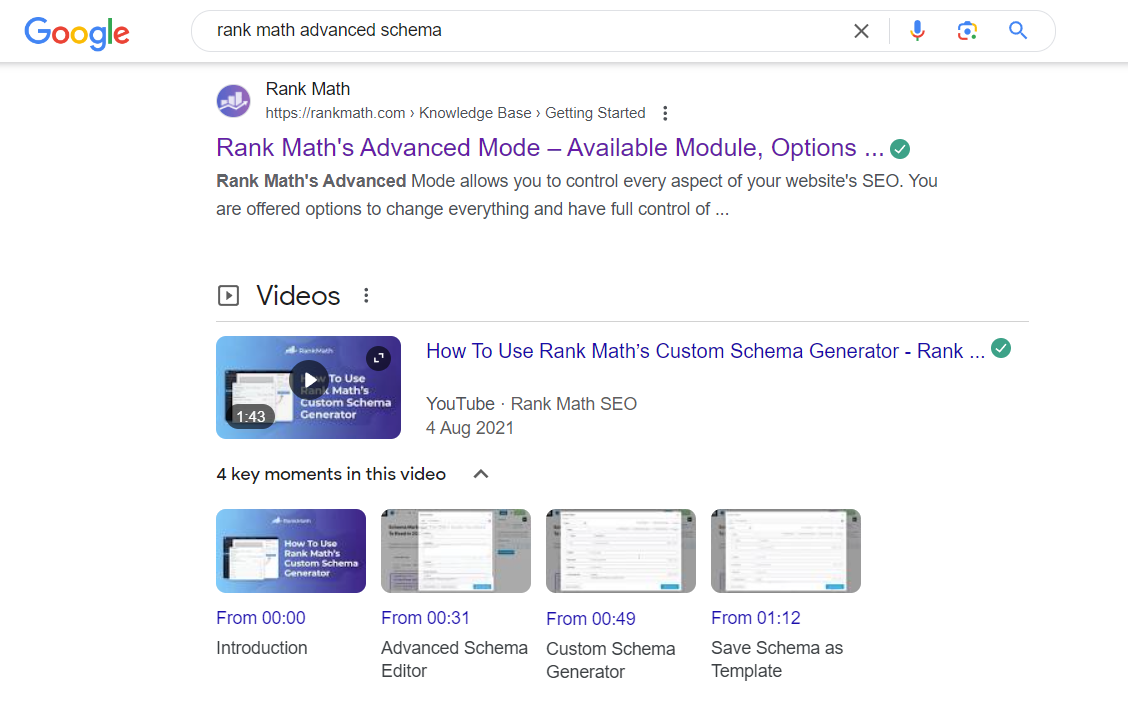
In the image above, you’ll notice that Google has showcased various details of the featured video, including the title, thumbnail, upload date, source, and even specific video clips or moments.
To implement the Video Schema on your page and ensure similar visibility for your videos, you can follow our detailed guide on configuring the Video Schema type.
6.24 About and Mentions Schema PRO
You can make the most of the About and Mentions Schema by appending extra information to your outbound links to mark them as mentions or references. Note that this is only available in the Rank Math PRO version.
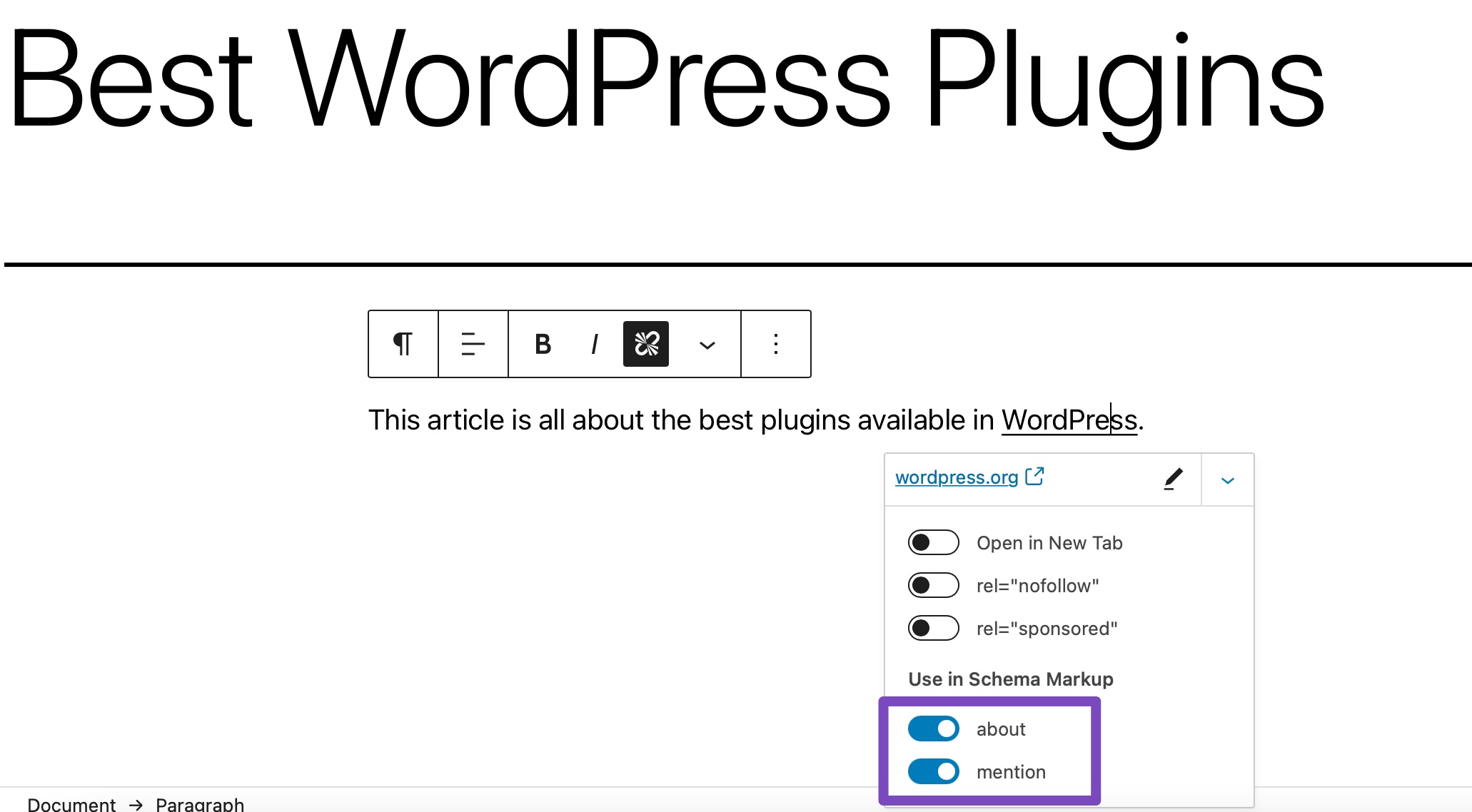
You can add an About and Mentions Schema in your post by adding a link to your text and enabling the About and Mention option as shown below:
To learn more, please refer to our dedicated KB article covering About & Mentions Schema here.
6.25 Blog Posting
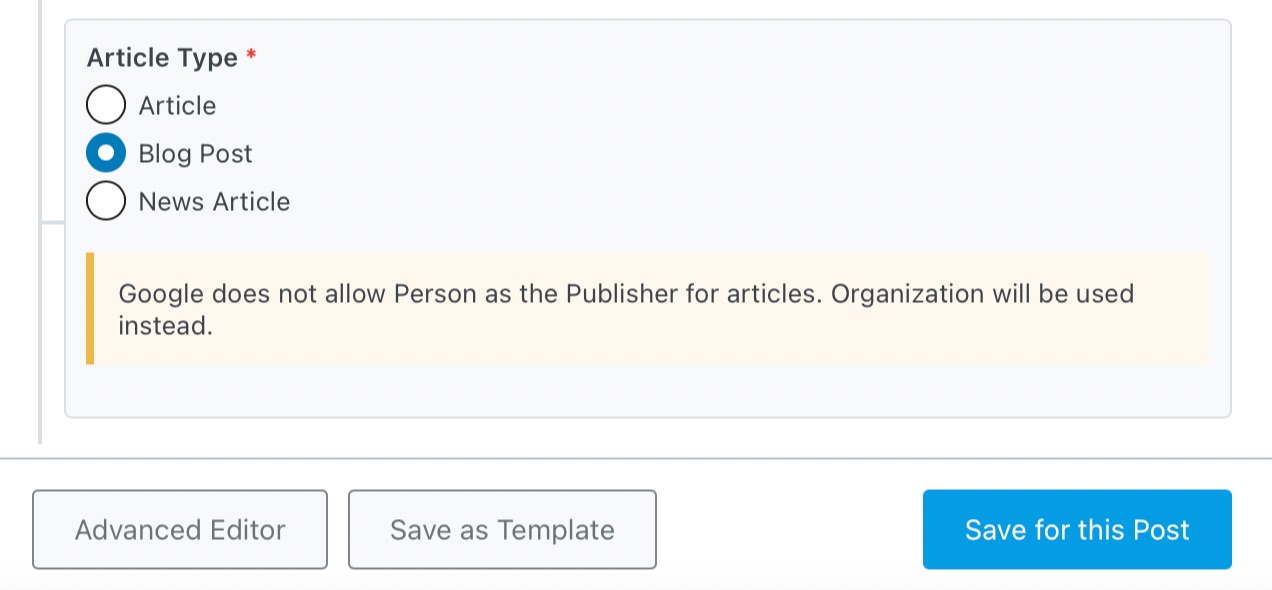
Article objects can be based on one of the following types: Article, NewsArticle, Blog Posting. Adding BlogPosting Schema Markup to your blog posts helps search engines quickly find out what the post is all about and increases the chances of getting ranked higher in the SERPs. The Article and Blog Post fields can be used interchangeably.
6.26 Breadcrumb Schema
Adding Breadcrumbs to your website can help improve your website’s navigational experience. Rank Math makes it easy to include Breadcrumbs on your website and includes the relevant Breadcrumb Schema.
To enable Breadcrumbs on your website, navigate to Rank Math SEO → General Settings → Breadcrumbs in your WordPress dashboard and activate the Enable Breadcrumbs function.
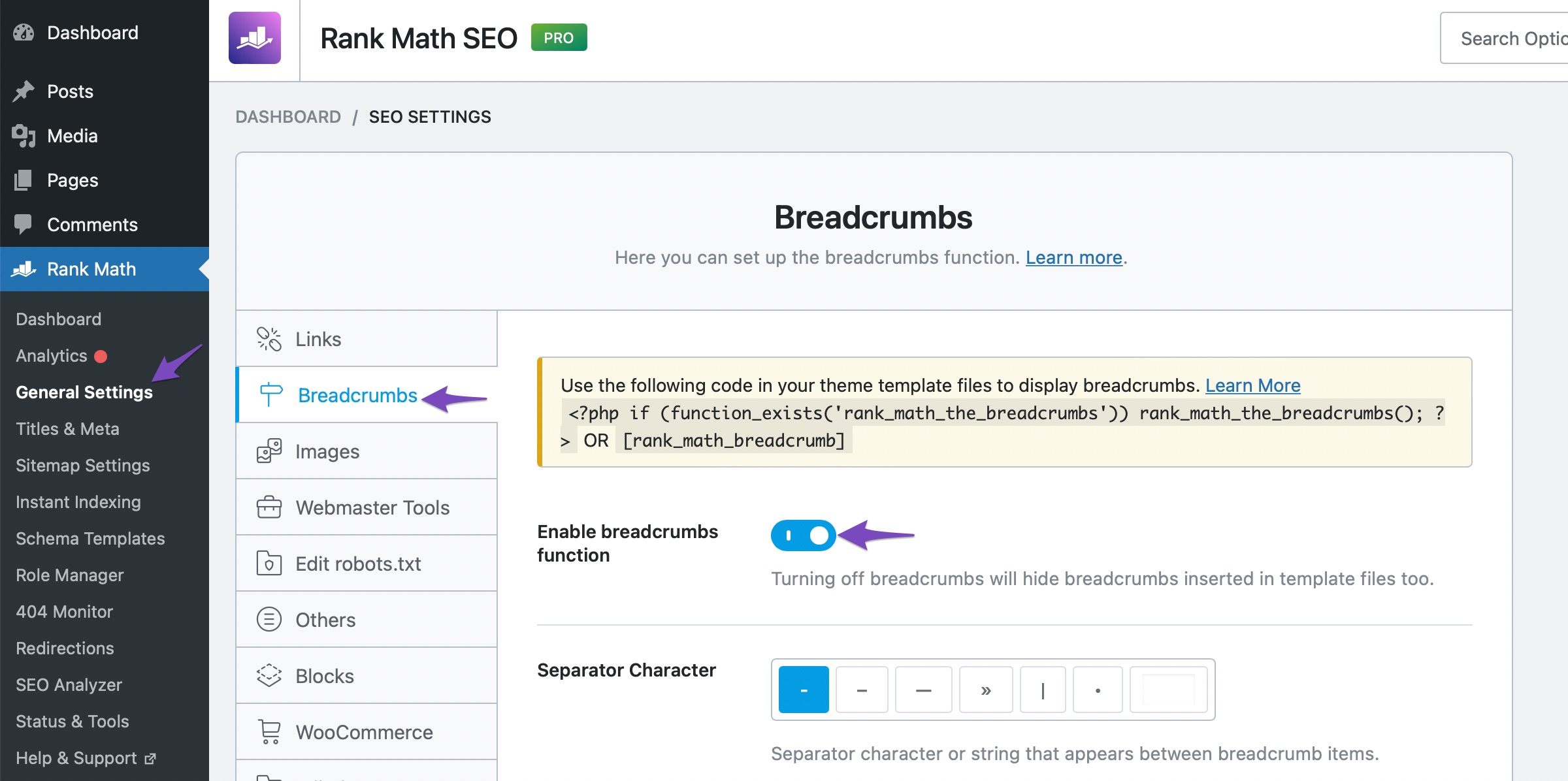
Once Breadcrumbs is activated and placed inside your website using the shortcode or using the function, Rank Math automatically adds the Schema code.
To configure all the settings relevant to Breadcrumbs, please refer to our detailed documentation on Breadcrumbs.
6.27 Carousel Schema PRO
Carousel structured data is a horizontal list of search results displayed in a carousel format. In most cases, the Google search engine displays a carousel of movies with the content image, title, and year of release. This is also used for books and a variety of other items.
Rank Math PRO automatically adds Carousel Schema to a post/page when a user uses multiple Schemas of the same type. For example, when a user uses Course Schema two times for two separate courses, Rank Math will add the Carousel Schema to that page apart from the Course Schema.
6.28 Easy Digital Downloads Schema
Rank Math works seamlessly with Easy Digital Downloads and similar plugins, which help you sell digital products online with your WordPress website. Rank Math detects if the EDD is installed on your website and adds Schema configuration settings to the Title and Meta settings inside Rank Math.
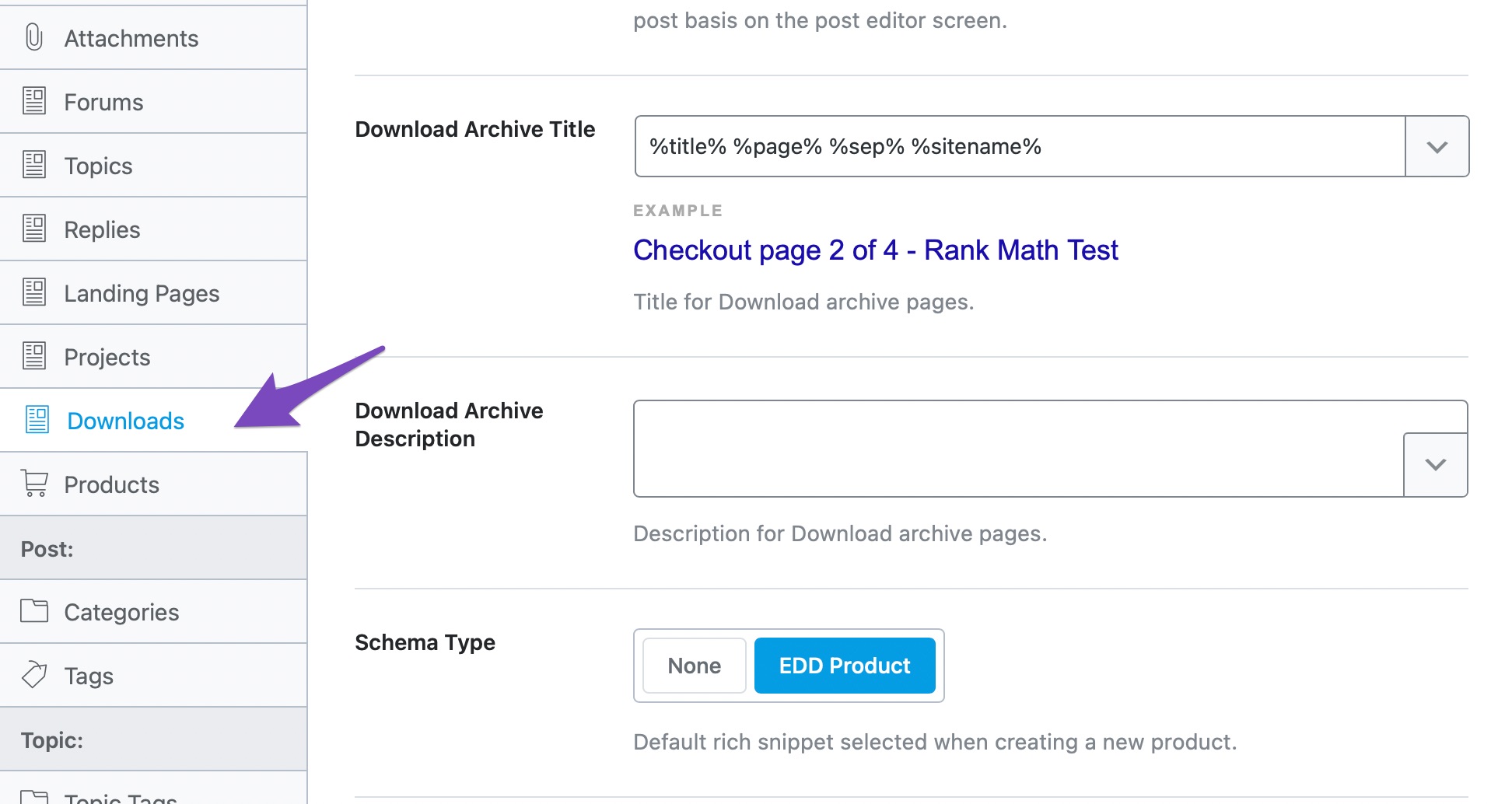
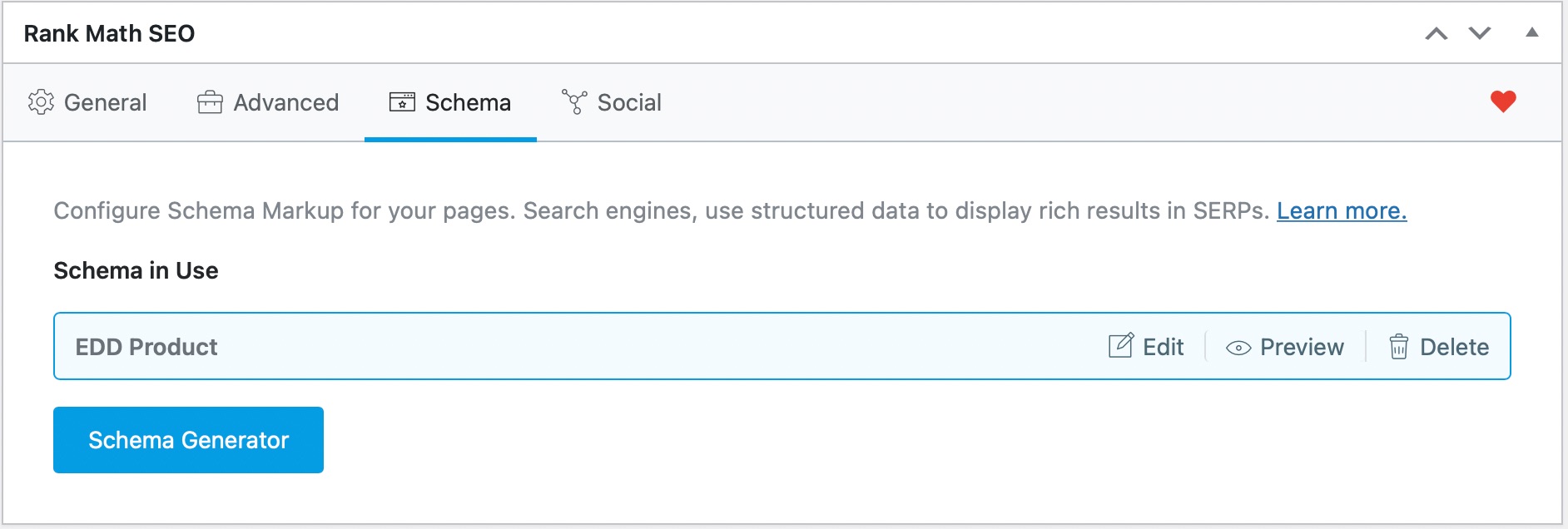
Rank Math will also add the appropriate Schema to any of the products you create, and they will inherit the settings from the global settings. You can customize the Schema just as you would customize any other Schema.
6.29 ItemList Schema PRO
ItemList refers to the list of items. All URLs in the list must refer to separate pages on the same domain if used on a summary page. You can also read the complete definition of ItemList in Schema.org’s documentation if you wish to understand how it works from a technical perspective.
Rank Math adds ItemList Schema automatically to a category, product, and tag archives. For this functionality to work, you have to enable the Schema module in your Rank Math Dashboard (in your site’s WordPress admin area) located under Rank Math SEO → Dashboard.
6.30 Local SEO Schema
Rank Math also features dedicated Schema (Structured Data) settings specifically for local businesses (i.e., businesses that serve customers at one or more physical locations). This is part of Rank Math’s Local SEO Module.
For a full guide on how to set up Rank Math’s Local SEO module, create new locations, show your business & location information on the front-end of your website (which is advised if you’re using Local SEO Schema) & every other available setting, please refer to our documentation on Local SEO.
6.31 News Article Schema
A NewsArticle is an article whose content reports news or provides background context and supporting materials for understanding the news. In addition, a non-post format (e.g., a page, a custom post type, a homepage, a product page, etc.) may be elected as a news type in some rare cases. A more detailed overview of News Markup is also available.
Rank Math supports News Schema, and you can choose your article to be News Article for the factual news content.

6.32 Q&A Page Schema PRO
Q&A Schema is used on pages in the question and answer format, and what it means is that the content of the page is to be marked with QAPage, Question and Answer structured data types.
If you’re running a forum, you should consider adding a Q&A Page Schema for your forum pages. Rank Math can automatically detect if the bbPress plugin is used on your website and activates the bbPress module.
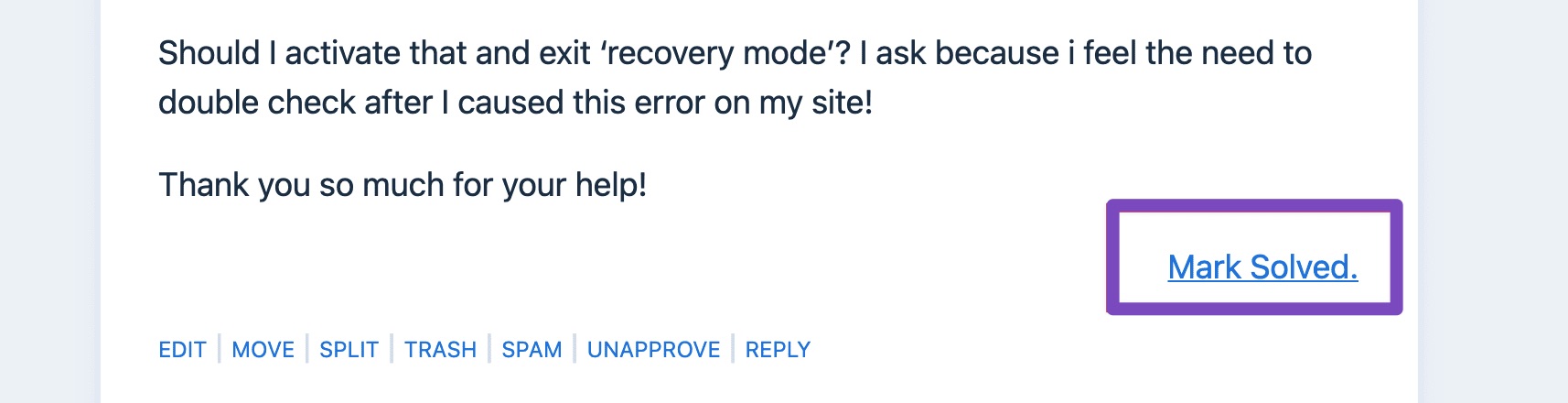
Once the module is activated, you don’t have to configure any settings specific to the Q&A Page Schema. Rank Math automatically includes the Q&A Page Schema when the forum topic is marked resolved, thus taking the weight off your shoulders in improving the discovery of your forum in search results.
6.33 Sitelinks Search Box Schema
Sitelinks are additional links that appear underneath a search result. They are known to increase the visibility of your website in search results, and at times, they include a search box. Although the decision to include the sitelinks and search box for your website’s search result is solely the decision of Google, adding appropriate Schema can help increase your chances.
When the Schema module is enabled, Rank Math automatically includes the Sitelinks Search Box Schema to your website according to Google’s guidelines. Hence, you don’t have to configure any additional settings to experience this functionality.
Note: Google no longer supports the sitelinks search box feature due to low usage. However, this won’t impact your site ranking or cause errors in the search console, even if your site still has the schema.
6.34 Speakable Schema PRO
With the rise in the number of voice searches and everyone looking to get ahead of the game, Speakable Schema makes your most important information coherent and easy to read.
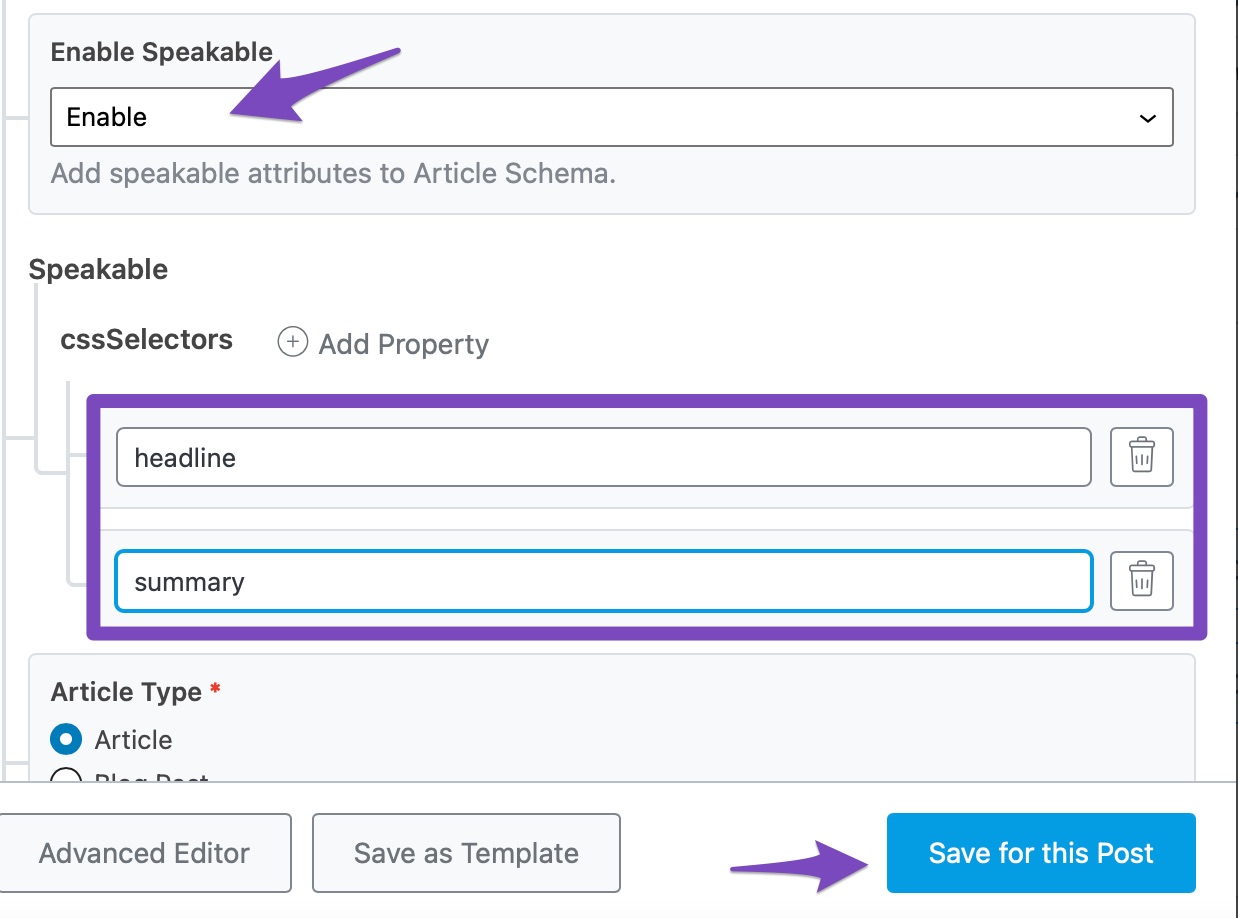
The Speakable Schema available in Rank Math PRO lets you select the information you want Google to read and use for your audience. Rank Math will add the appropriate markup to the post, informing Google where it should pick the text to speak to the user.
6.35 WebPage
The WebPage Schema specifies that a page is a webpage. It is added by default to your webpages and contains details like the date the page was published and modified. It also includes the page’s URL, title, and language.
6.36 WebSite
The WebSite Schema contains the details of your site, including its name, alternative name, and whether a person or organization owns it. It is added to your site by default.
You can configure your WebSite Schema by heading to WordPress Dashboard → Rank Math SEO. Once done, enable the Local SEO module.
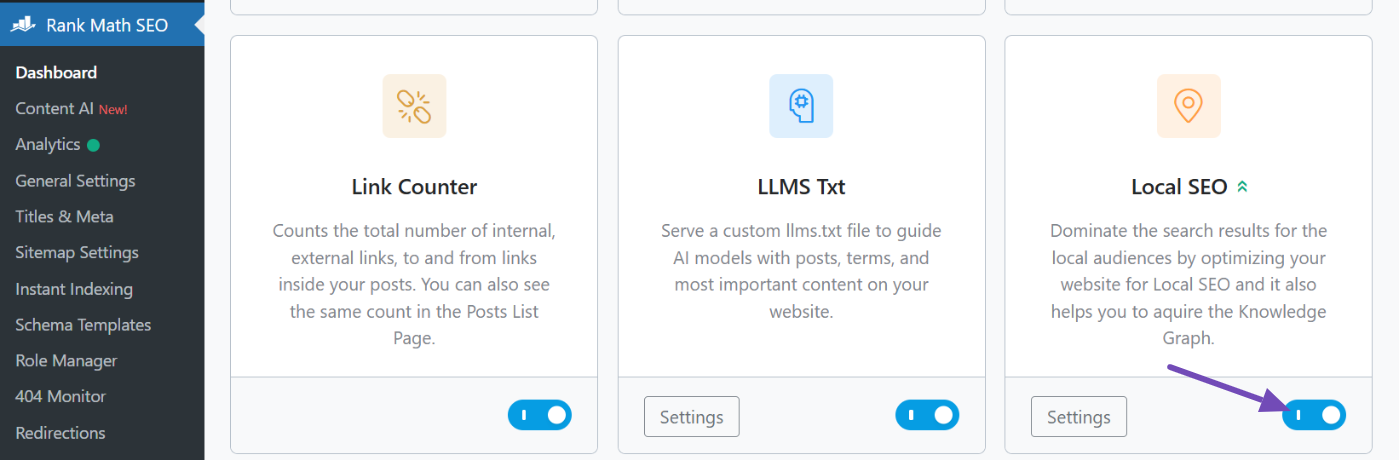
Next, Rank Math SEO → Titles & Meta → Local SEO.
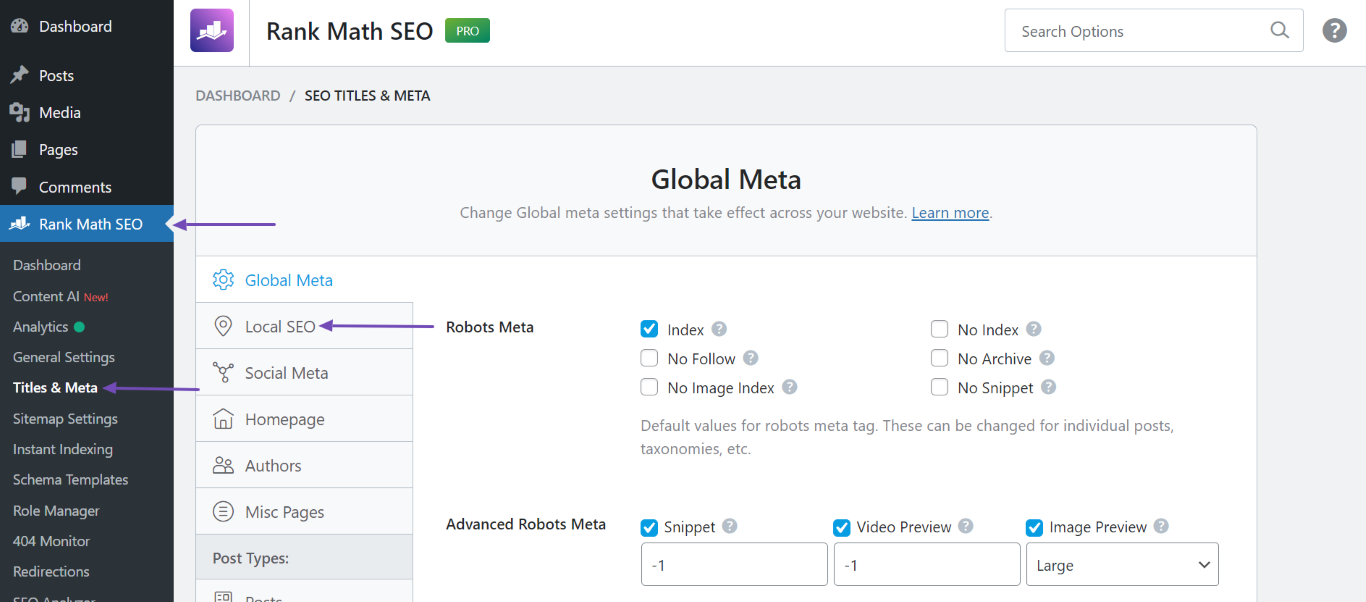
You will see several options on the page. You can edit your WebSite Schema using the Person or Company, Website Name, and Website Alternate Name settings, as shown below.
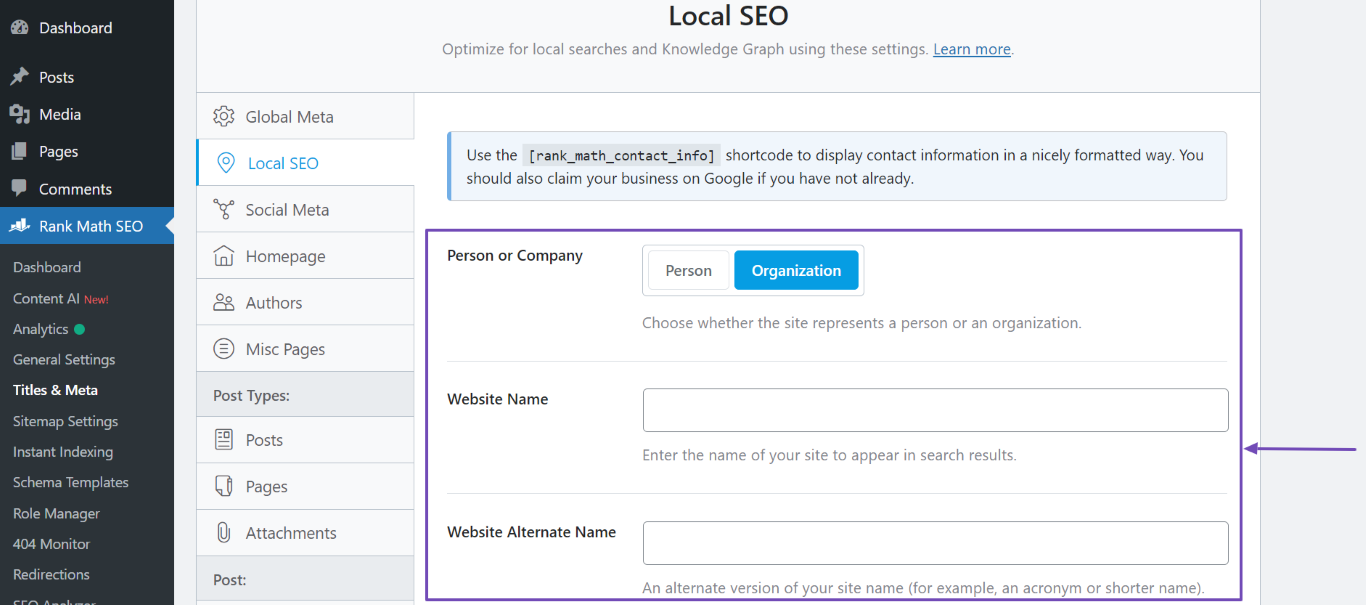
Here is how you configure the WebSite Schema.
Person or Company
Select whether the website belongs to a person or organization.
Website Name
Enter the name of the website.
Website Alternate Name
Enter an alternative website name. This could be an acronym or a shortened version of your site name. If your site has no alternate name, leave this field blank.
6.37 WooCommerce Schema
If you operate an online store with WooCommerce, you should definitely enhance your products with the Schema to increase sales and attract more traffic. Rank Math automatically detects if you install WooCommerce or similar plugins and adds the appropriate Schema to your product pages.