With the SoundCloud Embed block, you can embed tracks, playlists & albums from SoundCloud into your posts and pages. You don’t need a SoundCloud account to embed a track, playlist, or album, although the track needs to be public.


Steps to embed a track from SoundCloud
- Find your track link on SoundCloud: In SoundCloud, select the track and click on the “Share” button.

- Highlight the track’s link and copy it from the “Share” popup window.

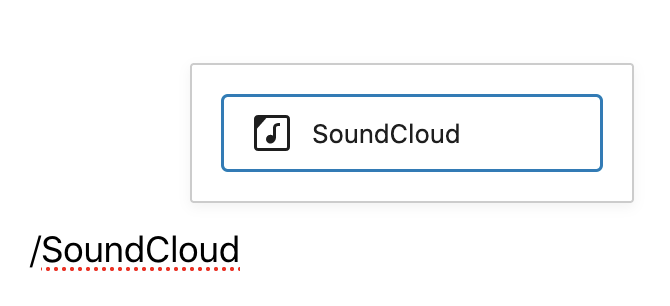
- Add a SoundCloud Embed block to your page/post by clicking on the Block Inserter icon. You can also type /SoundCloud and hit enter in a new paragraph block to add one quickly.
Detailed instructions on adding blocks
- Paste the track’s link into the text box.

- Click the “Embed” button. If the link is successfully embedded you will see a preview in your editor.

If you use a URL that can’t be embedded, the block shows the message “Sorry, this content could not be embedded”. You will have two choices: Try again with a different URL or convert to a link.

- Click on “Preview” to see how it will look on the front end.

7. A album or playlist URL can be embedded the same way and the complete track list shows in the embed box.

Block Toolbar
Each block has its own block-specific controls that allow you to manipulate the block right in the editor. The SoundCloud Embed block has the following options in the Block toolbar.
- Transform to
- Block moving tools
- Change alignment
- Edit URL, and
- More options.

Transform to:
You can transform a SoundCloud Embed block into a Paragraph, Columns, or a Group block.

When you transform a SoundCloud embed to a Group block, you can change the background color around the SoundCloud embed.


Block-moving tools

Use the block-moving tools to move the block up and down inside the editor. Use the six dots icon to drag and drop the SoundCloud Embed block and reposition it anywhere on the editor. Alternatively, click on the up and down arrows to move the block up or down the editor.
Get more information about moving a block within the editor.
Change alignment

- Align left – Make the SoundCloud post left aligned
- Align center – Make the SoundCloud post alignment centered
- Align right – Make the SoundCloud post align right
- Wide width – Increase the width of the post beyond the content size
- Full width – Extend the SoundCloud post to cover the full width of the screen
“Wide width” and “Full width” alignment need to be enabled by the Theme of your site.
Edit URL
You can change the SoundCloud Embed URL in the embed block. Overwrite the existing URL and click on the “Embed” Button.

More options
These controls give you the option to copy, duplicate, and edit your block as HTML.