
Description
“I’ve been doing eCommerce sites for almost a decade. The combination of WP All Import and WooCommerce is a game changer! I can now get clients into eCommerce sites that could never afford the time/energy or money it took to administrate a site. It has opened up a whole new client base for me.”
Mike Tidmore -Founder, Successful Online Stores
Whether you’re working with XML, CSV, Google Sheets, or Excel files, the WooCommerce add-on for WP All Import makes it easy to bulk import your products to WooCommerce in less than 10 minutes.
The left side of the plugin looks just like WooCommerce, and the right side displays product details in a table from your XML/CSV/ Excel file.
Drag & drop the data from your XML, CSV, or Excel into the WooCommerce fields to import it.
The importer is so intuitive it is almost like manually adding a product in WooCommerce.
WooCommerce CSV imports? WooCommerce XML imports? WooCommerce Excel Import? They are EASY with WP All Import.
Here’s why you should use the WooCommerce add-on for WP All Import:
- Supports files in any format and structure. There are no requirements that the data in your file be organized in a certain way. WooCommerce CSV imports are easy, no matter the structure of your file. WooCommerce XML imports are flexible and work with any XML file.
- Supports files of practically unlimited size by automatically splitting them into chunks. Import 200Mb+ product catalogs with ease, even on shared hosting.
WooCommerce Add-On Pro
The Pro edition of WP All Import + the WooCommerce add-on is a paid upgrade that includes premium support and adds the following features:
-
In-depth support for Variable products – example CSV and Excel files, ability to import variations from properly formatted XML, and much more.
-
Import External/Affiliate products
-
Import Grouped products
-
Import files from a URL – Download and import WooCommerce data from Google Sheets and external websites, even if they are password protected with HTTP authentication.
-
Cron Job/Recurring Imports – WP All Import Pro can periodically check a file for updates, and add, edit, delete, and update the stock status of the imported products accordingly.
-
Execution of Custom PHP Functions on data, i.e. use something like [my_function({xpath/to/a/field[1]})] in your template, to pass the value of {xpath/to/a/field[1]} to my_function and use whatever it returns.
-
Get access to our customer portal with documentation and tutorials, and e-mail technical support.
Upgrade to the Pro edition of WP All Import + the WooCommerce add-on now.
You need the WooCommerce add-on if you need to:
- Import XML to WooCommerce
- Import CSV/Excel to WooCommerce
- Import Google Sheets to WooCommerce
- Are frustrated with the limitations of the official WooThemes Product CSV Import Suite
WooCommerce CSV Imports
Of course, XML files can have complex structures, but for CSV files, you can easily edit them and change the column names.
When importing CSV files, you should use UTF-8 encoding (which is very standard) if you are having any trouble with CSV imports containing special characters. But other than that, there are no special requirements.
This importer is the best option for WooCommerce CSV import tasks – our importer is extremely flexible when doing CSV imports because you don’t need to edit your CSV files to import them to WooCommerce. WP All Import can import ANY CSV file to WooCommerce. You don’t need to layout your data in a specific way, and you don’t need your CSV to have specific column names. WP All Import’s drag & drop interface provides you with a visual way to map the columns in your CSV file to the appropriate fields in WooCommerce.
WooCommerce Excel Import / Google Sheets Import
Don’t want to convert your Excel or Google Sheets data to CSV? WP All Import also works as a Google Sheets and Excel importer for WooCommerce. Simply upload your Excel file as you would for CSV and WP All Import will automatically detect the columns in your file.
For Google Sheets, use the ‘Download a file’ option and paste your sheet’s public URL to import data to WooCommerce.
Related Plugins
Export any WordPress data to XML/CSV
Import any XML or CSV File to WordPress
Export Products to CSV/XML for WooCommerce
Custom Product Tabs for WooCommerce WP All Import Add-on
Export Orders to CSV/XML for WooCommerce
Export WordPress Users to CSV/XML
Related Tutorials
How to Import Product Types Including Simple, Grouped, Virtual, Downloadable, Bookable, Subscriptions, and Product Bundles
How to Sync WooCommerce Product Stock Levels
How to Import Product Customers
How to Import Product Image Galleries and Metadata
How to Import Product Categories, Tags, and Other Taxonomies
How to Schedule Product Imports
How to Migrate WooCommerce Products
Support
You can submit the support form on our website or email us at [email protected]. While we try to assist users of our free version, please note that support is not guaranteed and will depend on our capacity. For premium support, purchase WP All Import Pro.
Screenshots
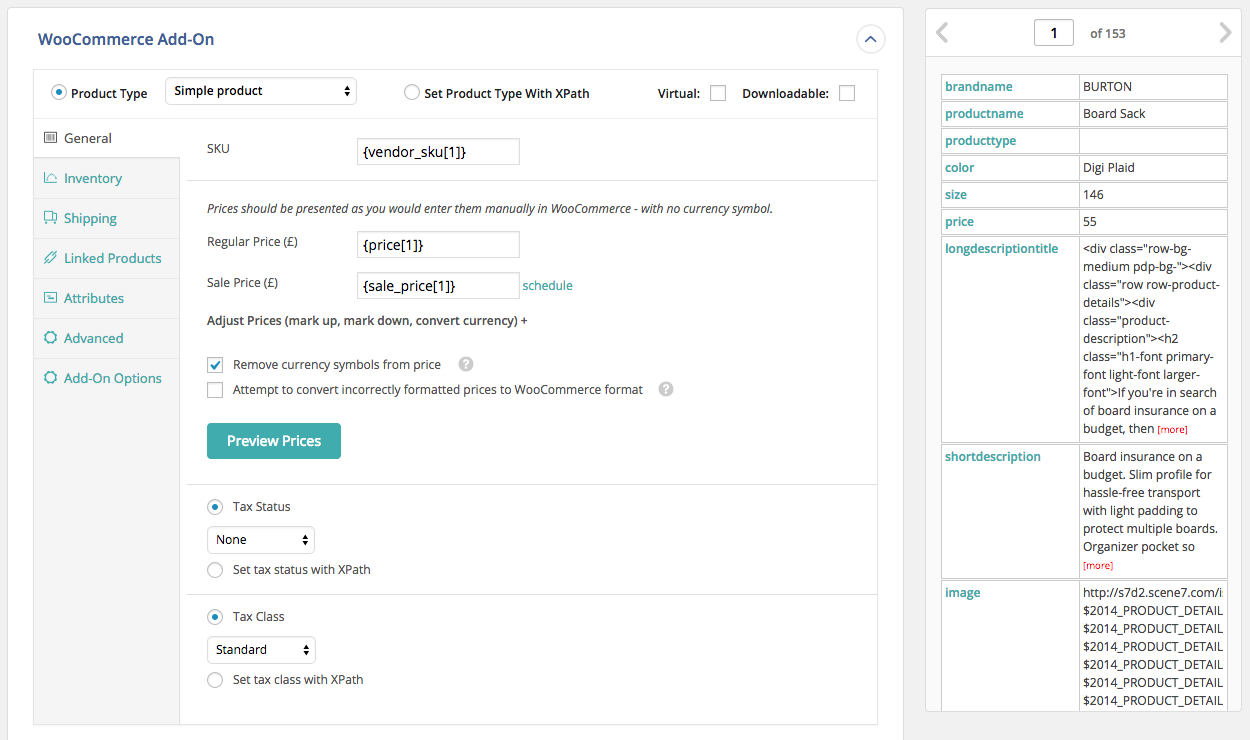
The WooCommerce add-on.

Installation
First, install WP All Import.
Then install the WooCommerce add-on.
To install the WooCommerce add-on, either: –
- Upload the plugin from the Plugins page in WordPress
- Unzip woocommere-product-import-add-on-for-wp-all-import.zip and upload the contents to /wp-content/plugins/, and then activate the plugin from the Plugins page in WordPress
The WooCommerce add-on will appear in the Step 4 of WP All Import.
FAQ
-
How do I import WooCommerce products?
-
- Navigate to All Import › New Import.
- Upload the import file.
- Choose WooCommmerce Products as the import type.
- Map the incoming data elements to the product fields.
- Run the import and verify the imported data.
-
How do I import product images into WooCommerce?
-
- Go to All Import › New Import.
- Upload the import file.
- Select WooCommmerce Products as your import target.
- Map the incoming data elements to their product fields.
- Include product image data in the mapping process.
- Run the import and verify the imported data.
-
How do I import product attributes into WooCommerce?
-
To import product attributes into WooCommerce, use the Attributes tab of the WooCommerce Add-On section on the Drag & Drop screen. This will let you map incoming attribute data elements to the appropriate product attribute fields.
-
How do I add new variations to existing variable products in WooCommerce?
-
- Go to All Import › New Import.
- Upload the import file with the new variations.
- Choose WooCommerce Products as the import post type.
- Map the incoming data elements to their product fields.
- Use the “I’m importing new variations to existing products” option.
- Run the import and review the imported products.
-
Can I import any WooCommerce product type?
-
Yes. You can import any standard WooCommerce product type, including simple products, variable products, simple subscription products, grouped products, and affiliate products. Just set the product type during the import process.
-
How do I import WooCommerce products from a CSV or Excel file?
-
To import product data from a CSV or Excel file to WooCommerce, just specify it as the source file. WP All Import will automatically recognize the file type and adjust its interface accordingly.
-
How do I import WooCommerce products from an XML file?
-
To import WooCommerce products from an XML file, just upload the file. Our software will automatically identify the XML nodes and will let you import from any XML layout regardless of its complexity.
-
How do I import WooCommerce products from Google Sheets?
-
To import product data from Google Sheets to WooCommerce, just specify the file URL in the ‘Download a file’ option. WP All Import will automatically download data from the file and display it in a table for mapping.
-
How do I import a product feed into WooCommerce?
-
A product feed is usually organized around a URL or FTP/SFTP import source. Our plugin will handle either. Just select Download a File › From URL or Download a File › From FTP/SFTP and provide the information required by the interface.
-
How do I migrate WooCommerce products?
-
- Export the WooCommerce products that you want to migrate.
- Download the bundle file, which contains import instructions.
- Upload the bundle file on the destination site.
- WP All Import will use the bundle file to configure itself.
- Run the import and check the migrated products.
Reviews


Contributors & Developers
“Product Import for WooCommerce – Import Products CSV – Import Products With Images” is open source software. The following people have contributed to this plugin.
Contributors

Interested in development?
Browse the code, check out the SVN repository, or subscribe to the development log by RSS.
Changelog
1.5.5
- improvement: UI updates
1.5.4
- improvement: add ‘GTIN, UPC, EAN or ISBN’ field
1.5.3
- bug fix: don’t block use of HPOS
1.5.2
- improvement: update upgrade links
1.5.1
- bugfix: some output not properly sanitized
- bugfix: update only these attributes option doesn’t work in some cases
- bugfix: import attributes with < and > characters doesn’t work properly
- bugfix: not possible to import “0” as an attribute value
1.5.0
- bug fix: attributes with < and > characters weren’t imported correctly
1.4.9
- bug fix: product_shipping_class taxonomy not updated
1.4.8
- bug fix: downloadable permissions wan not imported correctly
1.4.7
- bug fix: matching linked products didn’t work properly, this functionality moved to the end of import process
- bug fix: import download limit and download expiry are set to 1, instead of being provided empty values
- bug fix: featured image not updated when only “Images” is set to be updated in “Choose which data to update”
1.4.6
- improvement: compatibility with WordPress 5.5