







To start your own website, you first need a domain name with a web hosting package.
The domain name is the name of your website that your visitors enter in the address bar of their browser. On the web hosting package you place the content of your website, such as the images, text and code.
In this article we will first explain how to register your own domain name. We will then tell you how to place a web hosting package on that domain name. Finally, we will tell you how you to start your own website.
Besides building your own website, you can also use a web hosting package to create email addresses. Read more on this in the article 'Creating a new email address'.
Choose a domain name
As mentioned earlier, you need a domain name to start with.
I don't own a domain name yet
Step 1
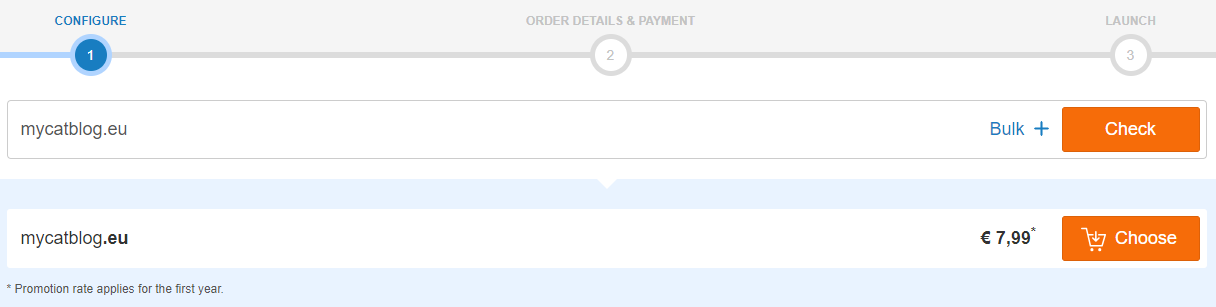
Visit our homepage and enter the domain name of your choice in the domain checker. Next, click on 'Check' to see if that domain name is still available. If that's the case, click on 'Choose', followed by 'Continue'.
If your domain name is already taken, choose a different domain name and try again.
Step 2
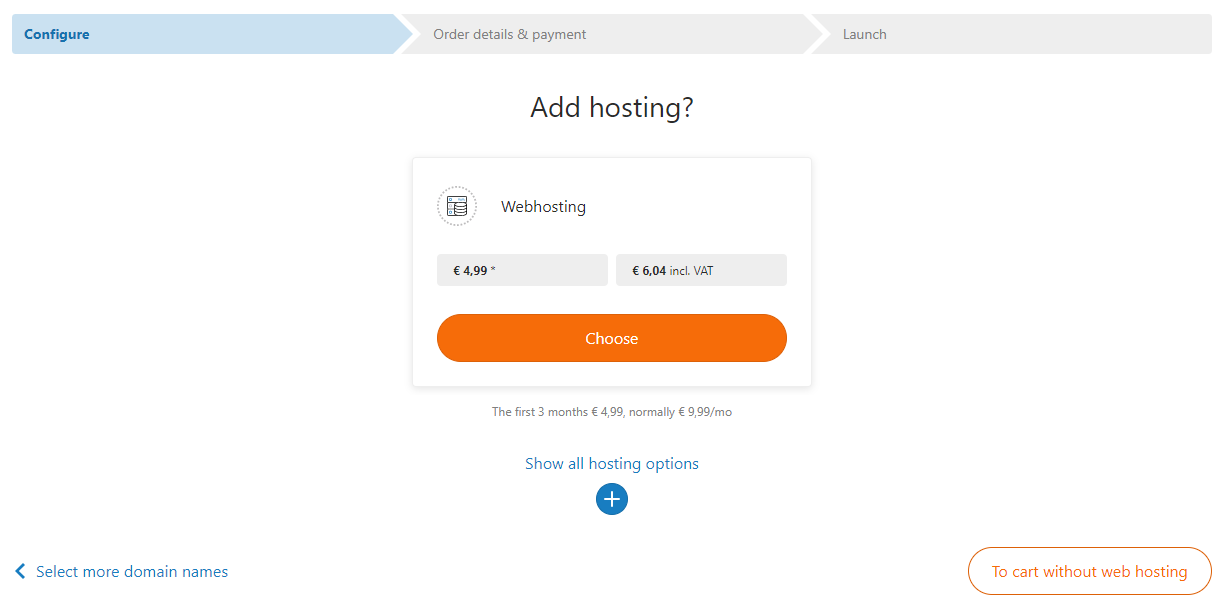
On the next page you can choose to purchase a web hosting package with your domain name. The most popular web hosting package Pro is selected by default. Click 'Show all hosting options' to view the other options.
Make a pick from one of the web hosting packages and click on the 'Choose' button to continue.
Step 3
You will now see an overview of your chosen products and the chosen payment method. Click on the pencil icon to change the payment method of your account. Once you're ready, click on 'Order’.
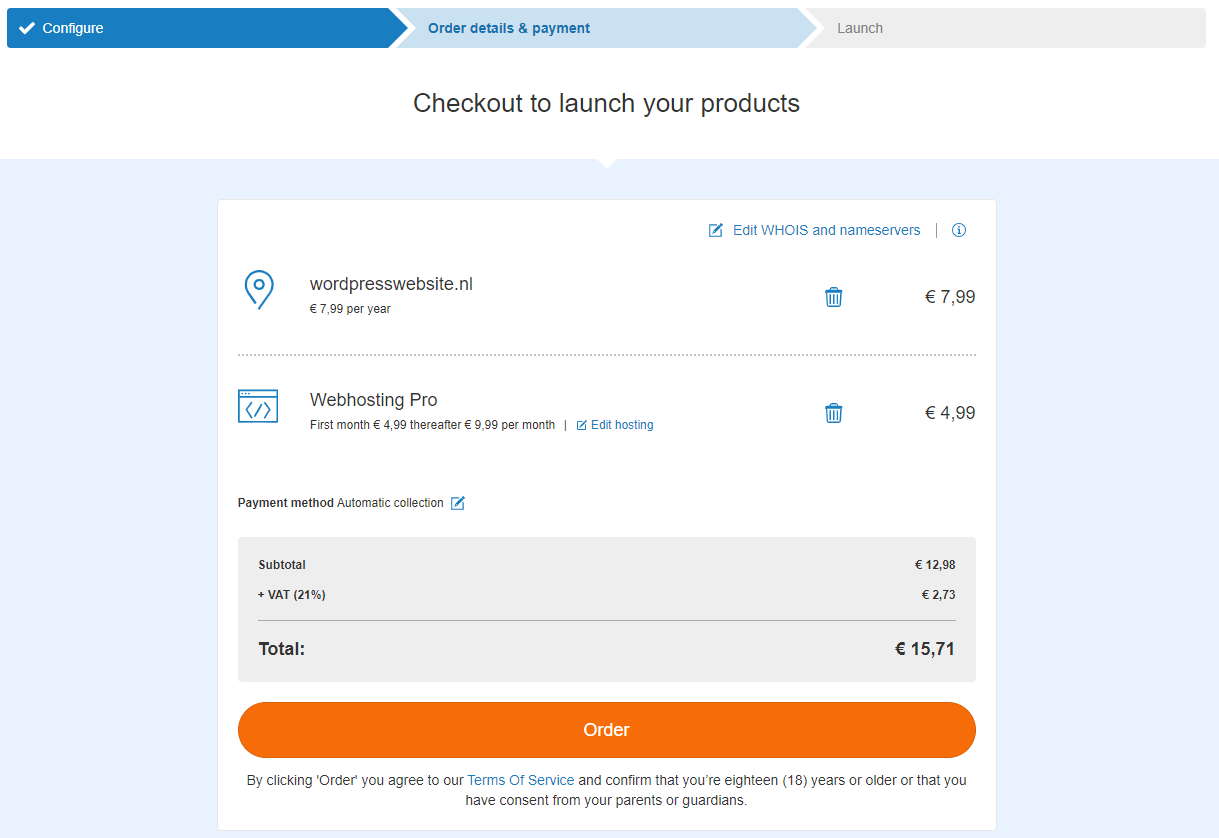
Your order will now be processed and a confirmation of your order will be displayed. Click on 'To my control panel'. After a few minutes your domain name and web hosting package will be active. Refresh the page until the domain name and the web hosting icon are visible.
Now proceed to 'Start with your own website'.
My domain name is already registered at TransIP
In that case you only need to order a web hosting package for that domain name. If you already have a web hosting package for that domain name, proceed to 'Start with your own website'.
Don't have a web hosting package yet? Then follow the steps below.
Step 1
Visit your Control Panel and head to 'Domain'. Next, in the column to the left, select your domain name (don't check the box).
Scroll down to 'Order extras' at the bottom of the page and press 'Order' next to 'Launch lightning fast websites'.

Step 2
You will now see an overview of our different web hosting packages. Select one of the web hosting packages.
The Email Only packages and Forwarding Service are solely for e-mail and forwarding purposes. These products can't be used to create a website at TransIP.
Click on 'Order' once you have chosen the desired web hosting package. Click on 'Pay' on the next page to order the web hosting package.
Now proceed to 'Start with your own website'.
My domain name is not registered at TransIP yet
-
You can only use our web hosting packages for domain names that are registered at TransIP. If your domain name is not registered with TransIP, you will first need to transfer the domain name to TransIP. You can order a web hosting package during the transfer procedure.
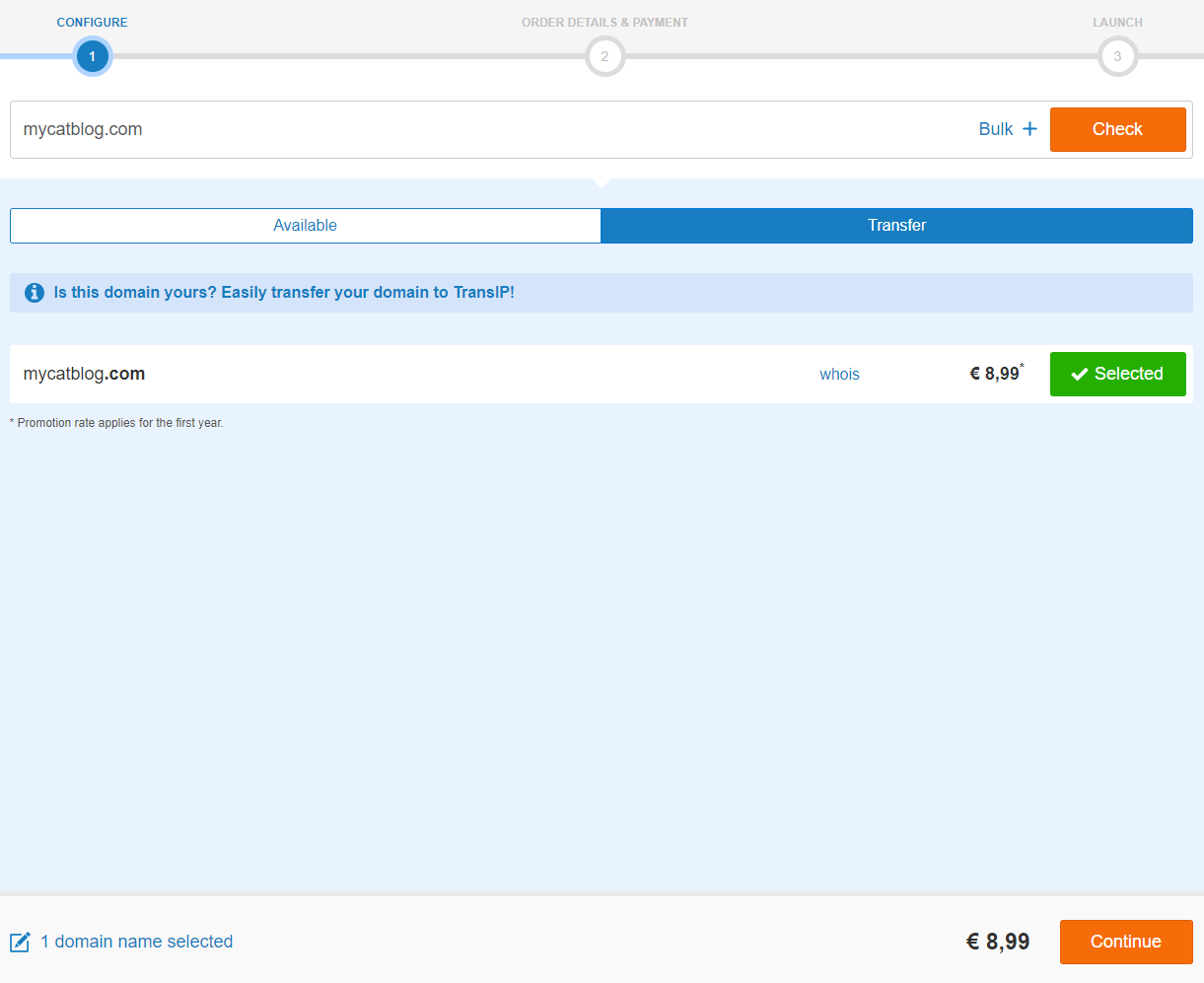
Step 1Visit our homepage, enter your domain name on our domain checker and click on 'Check'.

Step 2Next to your domain name you will see the price for the transfer and the option to transfer the domain. Click on 'Transfer', followed by 'Continue' once you're ready.
Step 3You will now be asked to enter an authorization code, which is required to finalize the domain transfer. You can request the authorization code at your current registrar.
-
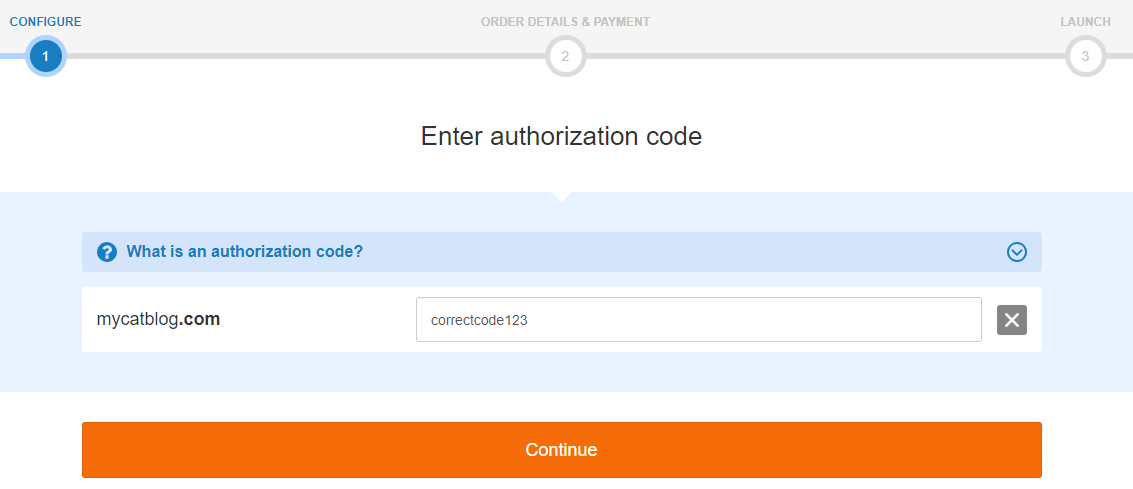
Once you've entered the authorization code of your domain name, click on 'Continue'.
Step 4On the next page you can choose to purchase a web hosting package with your domain name. The most popular web hosting package L is selected by default. Click 'Show all hosting options' to view the other options.
Make a pick from one of the web hosting packages and click on the 'Choose' button to continue.
Step 5You will now see an overview of your chosen products and the chosen payment method. Click on the pencil icon to change the payment method of your account. Once you're ready, click on 'Order’.
Your order will now be processed and a confirmation of your order will be displayed. Click on 'To my control panel'.
After completing the order, it may take a short time before your domain name and web hosting package are active.