Images are an essential part of most WordPress websites.
When writing Solution Center reviews, I always make sure to add as many screenshots as possible so readers can see the plugin in action. I also go beyond the user interface, and include screenshots of the end results – such as a completed form, a beautiful landing page, or a helpful Google Analytics report.
This helps readers decide whether the plugin is right for them. Plus, images just look nice! They break up plain text and can really catch the reader’s attention.
Want to get the most from your graphics (while avoiding common pitfalls like slow loading speeds and un-optimized images)? Then a gallery plugin is a must-have.
Don’t have time to test a ton of image plugins yourself? Don’t worry, I’ve done the hard work for you! In this detailed Envira Gallery review, I’m gong to see how it compares to some of the other image plugins I’ve tried over the years.
Is it the right slider plugin for you? Let’s find out, in this detailed Envira Gallery review.

Envira Gallery Review: Why Use It in WordPress?
Struggling to display your images in a user-friendly and visually appealing way? We’ve all been there, so that’s try and find a solution.
Envira Gallery is a popular image gallery plugin for WordPress that promises to help you create beautiful photo galleries. It comes with an easy-to-use drag and drop builder, plus built-in themes so you can easily customize how your gallery looks.
I’ve tried a lot of gallery plugins, and some of them can really slow down your website. With that said, I was happy to see that Envira Gallery claims it’s optimized for web and server performance. If that’s true, then it means you can add high-resolution images to your WordPress website, without having to worry about its performance. That would be a big relief!
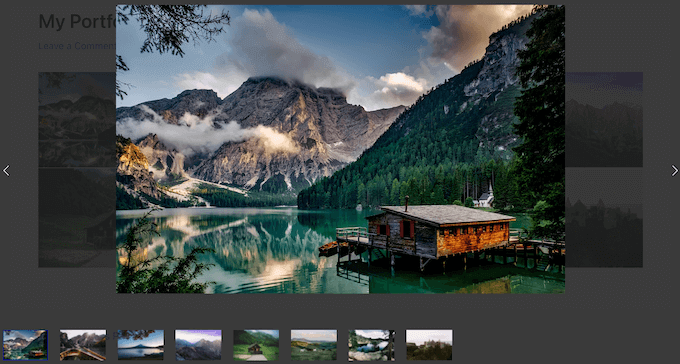
Visitors can also open each image in a lightbox window, which is a must-have if you want to show high-resolution or very detailed images.
If you want to sell images, photos, or artwork online, then Envira Gallery integrates with WooCommerce. It can even automatically create a WooCommerce product for every image you add to your galleries.
If you’re looking for a free gallery plugin, then you can download Gallery by Envira from the official WordPress repository.
This plugin lets you create an unlimited number of galleries, and then add them to your site using either a shortcode or the built-in Envira Gallery block. That’s pretty generous for a free plugin, making it a great choice for WordPress bloggers or even smaller websites.
However, if you want to unlock powerful features such as the option to protect your images with watermarks and passwords, then you’ll need to upgrade to a premium plan.
Envira Gallery Review: Is it the Right Gallery Plugin for You?
Websites with high-quality images often see a significant boost in user engagement, which makes sense.
Websites that have lots of nice images immediately look more appealing, especially when compared to a site that’s just a wall of solid text (I know which kind of website I prefer!)
If you have lots of photos or images, then a WordPress gallery plugin can show them all in a nice layout. However, the problem is that some gallery plugins can slow down your website, which will hurt your SEO and the user experience. Other slider plugins are missing important features, so even if the plugin’s optimized for performance you may still struggle to properly display, promote, and sell images online.
That’s a lot of things to consider, so in this Envira Gallery review I’ll be doing the hard work for you! I’m going to start by deep-diving into Envira Gallery’s features, so you can decide whether it’s the right plugin for your WordPress blog or website.
1. Easy to Use
First things first: how easy is Envira Gallery to use?
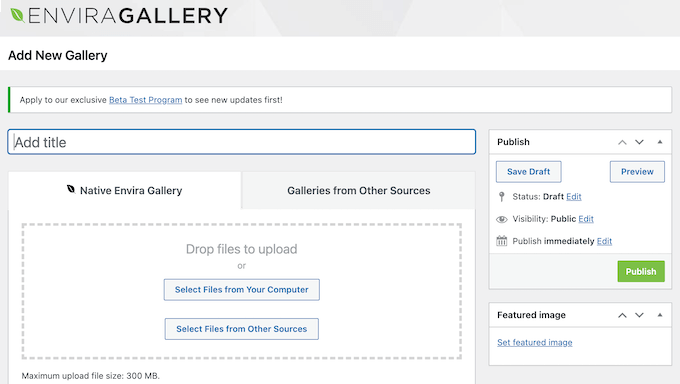
To start, you can install and activate Envira Gallery, just like any WordPress plugin. Upon activation, I created my first gallery with just a few clicks.
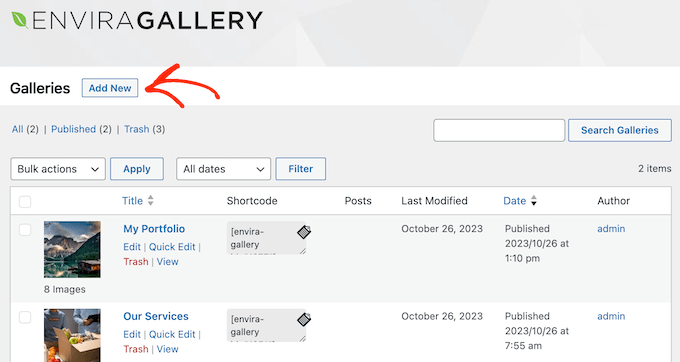
After that, I simply typed in a title and selected the media files I wanted to display.
You can either upload files from your local computer, or select files that already exist in the WordPress media library.
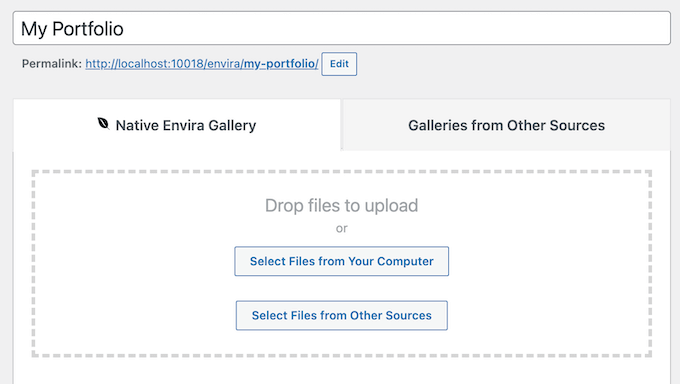
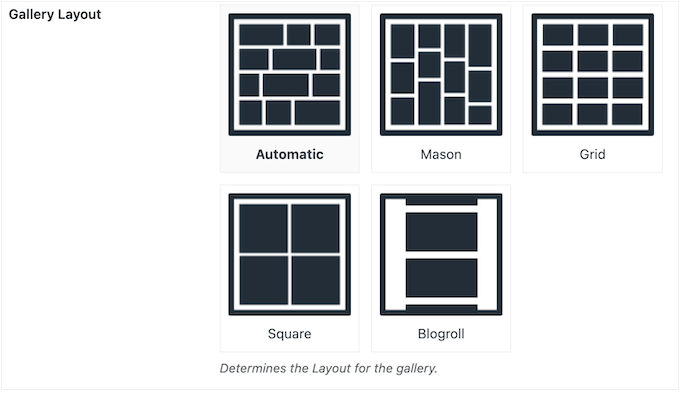
With that done, I chose a gallery layout, template, and configured the gallery settings by selecting the different tabs.
At this point, I was happy with how my gallery was set up, so I clicked on the ‘Publish’ button – and that was it! The gallery was live on my website.
You can also create galleries directly inside the WordPress block editor, using the Envira Gallery block. Simply add this block to your content and you can build a gallery by uploading files, or selecting images from the WordPress media library.
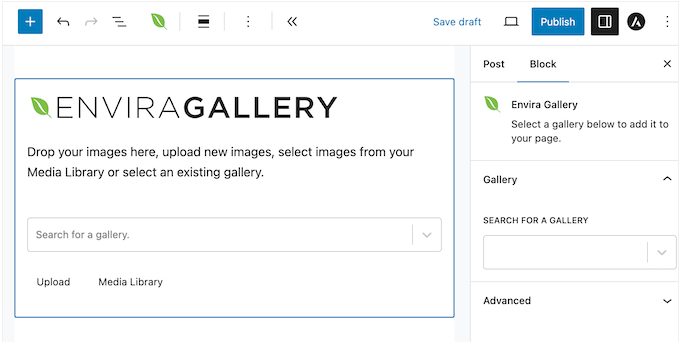
This method doesn’t give you access to all the Envira Gallery settings. However, there are some basic settings in the right-hand menu, so I could edit the gallery’s margins, row height, and make other important changes.
This was a quick and easy way to create galleries on the fly. If you need to make more in-depth changes, then you can open the new gallery in the Envira Gallery editor at any point. This gives you access to the full range of settings and options, so you can fine-tune every part of the gallery.
2. Customize Your Gallery
Every site is different, so you’ll be happy to learn that Envira Gallery lets you customize how the gallery looks and acts. I had no problems fine-tuning it to perfectly fit my WordPress theme.
To start, you can choose between 5 different layouts.