⚡ NEW: ./using/windows.html - High Quality

3. Using Python on Windows
This document aims to give an overview of Windows-specific behaviour you should know about when using Python on Microsoft Windows.
3.1. Installing Python
Unlike most Unix systems and services, Windows does not include a system supported installation of Python. To make Python available, the CPython team has compiled Windows installers (MSI packages) with every release for many years. These installers are primarily intended to add a per-user installation of Python, with the core interpreter and library being used by a single user. The installer is also able to install for all users of a single machine, and a separate ZIP file is available for application-local distributions.
3.1.1. Supported Versions
As specified in PEP 11, a Python release only supports a Windows platform while Microsoft considers the platform under extended support. This means that Python 3.6 supports Windows Vista and newer. If you require Windows XP support then please install Python 3.4.
3.1.2. Installation Steps
Four Python 3.6 installers are available for download - two each for the 32-bit and 64-bit versions of the interpreter. The web installer is a small initial download, and it will automatically download the required components as necessary. The offline installer includes the components necessary for a default installation and only requires an internet connection for optional features. See Installing Without Downloading for other ways to avoid downloading during installation.
After starting the installer, one of two options may be selected:
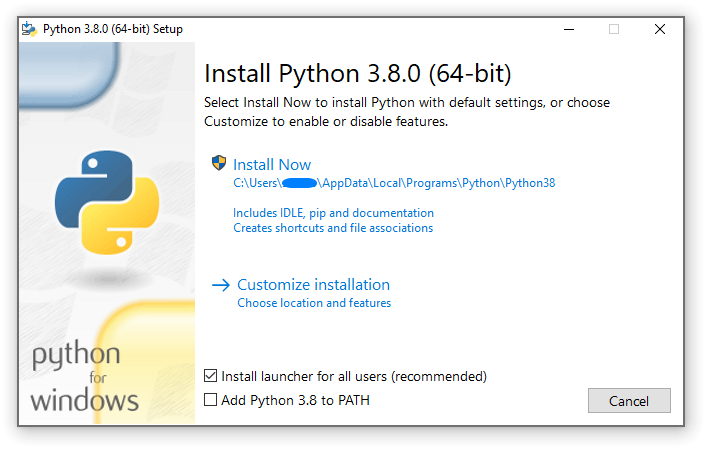
If you select “Install Now”:
You will not need to be an administrator (unless a system update for the C Runtime Library is required or you install the Python Launcher for Windows for all users)
Python will be installed into your user directory
The Python Launcher for Windows will be installed according to the option at the bottom of the first page
The standard library, test suite, launcher and pip will be installed
If selected, the install directory will be added to your
PATHShortcuts will only be visible for the current user
Selecting “Customize installation” will allow you to select the features to install, the installation location and other options or post-install actions. To install debugging symbols or binaries, you will need to use this option.
To perform an all-users installation, you should select “Customize installation”. In this case:
You may be required to provide administrative credentials or approval
Python will be installed into the Program Files directory
The Python Launcher for Windows will be installed into the Windows directory
Optional features may be selected during installation
The standard library can be pre-compiled to bytecode
If selected, the install directory will be added to the system
PATHShortcuts are available for all users
3.1.3. Removing the MAX_PATH Limitation
Windows historically has limited path lengths to 260 characters. This meant that paths longer than this would not resolve and errors would result.
In the latest versions of Windows, this limitation can be expanded to
approximately 32,000 characters. Your administrator will need to activate the
“Enable Win32 long paths” group policy, or set the registry value
HKEY_LOCAL_MACHINE\SYSTEM\CurrentControlSet\Control\FileSystem@LongPathsEnabled
to 1.
This allows the open() function, the os module and most other
path functionality to accept and return paths longer than 260 characters when
using strings. (Use of bytes as paths is deprecated on Windows, and this feature
is not available when using bytes.)
After changing the above option, no further configuration is required.
Changed in version 3.6: Support for long paths was enabled in Python.
3.1.4. Installing Without UI
All of the options available in the installer UI can also be specified from the command line, allowing scripted installers to replicate an installation on many machines without user interaction. These options may also be set without suppressing the UI in order to change some of the defaults.
To completely hide the installer UI and install Python silently, pass the
/quiet option. To skip past the user interaction but still display
progress and errors, pass the /passive option. The /uninstall
option may be passed to immediately begin removing Python - no prompt will be
displayed.
All other options are passed as name=value, where the value is usually
0 to disable a feature, 1 to enable a feature, or a path. The full list
of available options is shown below.
Name |
Description |
Default |
|---|---|---|
InstallAllUsers |
Perform a system-wide installation. |
0 |
TargetDir |
The installation directory |
Selected based on InstallAllUsers |
DefaultAllUsersTargetDir |
The default installation directory for all-user installs |
|
DefaultJustForMeTargetDir |
The default install directory for just-for-me installs |
|
DefaultCustomTargetDir |
The default custom install directory displayed in the UI |
(empty) |
AssociateFiles |
Create file associations if the launcher is also installed. |
1 |
CompileAll |
Compile all |
0 |
PrependPath |
Add install and Scripts directories
to |
0 |
Shortcuts |
Create shortcuts for the interpreter, documentation and IDLE if installed. |
1 |
Include_doc |
Install Python manual |
1 |
Include_debug |
Install debug binaries |
0 |
Include_dev |
Install developer headers and libraries |
1 |
Include_exe |
Install |
1 |
Include_launcher |
Install Python Launcher for Windows. |
1 |
InstallLauncherAllUsers |
Installs Python Launcher for Windows for all users. |
1 |
Include_lib |
Install standard library and extension modules |
1 |
Include_pip |
Install bundled pip and setuptools |
1 |
Include_symbols |
Install debugging symbols (*.pdb) |
0 |
Include_tcltk |
Install Tcl/Tk support and IDLE |
1 |
Include_test |
Install standard library test suite |
1 |
Include_tools |
Install utility scripts |
1 |
LauncherOnly |
Only installs the launcher. This will override most other options. |
0 |
SimpleInstall |
Disable most install UI |
0 |
SimpleInstallDescription |
A custom message to display when the simplified install UI is used. |
(empty) |
For example, to silently install a default, system-wide Python installation, you could use the following command (from an elevated command prompt):
python-3.6.0.exe /quiet InstallAllUsers=1 PrependPath=1 Include_test=0
To allow users to easily install a personal copy of Python without the test suite, you could provide a shortcut with the following command. This will display a simplified initial page and disallow customization:
python-3.6.0.exe InstallAllUsers=0 Include_launcher=0 Include_test=0
    SimpleInstall=1 SimpleInstallDescription="Just for me, no test suite."
(Note that omitting the launcher also omits file associations, and is only recommended for per-user installs when there is also a system-wide installation that included the launcher.)
The options listed above can also be provided in a file named unattend.xml
alongside the executable. This file specifies a list of options and values.
When a value is provided as an attribute, it will be converted to a number if
possible. Values provided as element text are always left as strings. This
example file sets the same options as the previous example:
<Options>
    <Option Name="InstallAllUsers" Value="no" />
    <Option Name="Include_launcher" Value="0" />
    <Option Name="Include_test" Value="no" />
    <Option Name="SimpleInstall" Value="yes" />
    <Option Name="SimpleInstallDescription">Just for me, no test suite</Option>
</Options>
3.1.5. Installing Without Downloading
As some features of Python are not included in the initial installer download, selecting those features may require an internet connection. To avoid this need, all possible components may be downloaded on-demand to create a complete layout that will no longer require an internet connection regardless of the selected features. Note that this download may be bigger than required, but where a large number of installations are going to be performed it is very useful to have a locally cached copy.
Execute the following command from Command Prompt to download all possible
required files. Remember to substitute python-3.6.0.exe for the actual
name of your installer, and to create layouts in their own directories to
avoid collisions between files with the same name.
python-3.6.0.exe /layout [optional target directory]
You may also specify the /quiet option to hide the progress display.
3.1.6. Modifying an install
Once Python has been installed, you can add or remove features through the Programs and Features tool that is part of Windows. Select the Python entry and choose “Uninstall/Change” to open the installer in maintenance mode.
“Modify” allows you to add or remove features by modifying the checkboxes - unchanged checkboxes will not install or remove anything. Some options cannot be changed in this mode, such as the install directory; to modify these, you will need to remove and then reinstall Python completely.
“Repair” will verify all the files that should be installed using the current settings and replace any that have been removed or modified.
“Uninstall” will remove Python entirely, with the exception of the Python Launcher for Windows, which has its own entry in Programs and Features.
3.1.7. Other Platforms
With ongoing development of Python, some platforms that used to be supported earlier are no longer supported (due to the lack of users or developers). Check PEP 11 for details on all unsupported platforms.
Windows CE is still supported.
The Cygwin installer offers to install the Python interpreter as well (cf. Cygwin package source, Maintainer releases)
See Python for Windows for detailed information about platforms with pre-compiled installers.
See also
- Python on XP
“7 Minutes to “Hello World!”” by Richard Dooling, 2006
- Installing on Windows
in “Dive into Python: Python from novice to pro” by Mark Pilgrim, 2004, ISBN 1-59059-356-1
- For Windows users
in “Installing Python” in “A Byte of Python” by Swaroop C H, 2003
3.2. Alternative bundles
Besides the standard CPython distribution, there are modified packages including additional functionality. The following is a list of popular versions and their key features:
- ActivePython
Installer with multi-platform compatibility, documentation, PyWin32
- Anaconda
Popular scientific modules (such as numpy, scipy and pandas) and the
condapackage manager.- Canopy
A “comprehensive Python analysis environment” with editors and other development tools.
- WinPython
Windows-specific distribution with prebuilt scientific packages and tools for building packages.
Note that these packages may not include the latest versions of Python or other libraries, and are not maintained or supported by the core Python team.
3.3. Configuring Python
To run Python conveniently from a command prompt, you might consider changing some default environment variables in Windows. While the installer provides an option to configure the PATH and PATHEXT variables for you, this is only reliable for a single, system-wide installation. If you regularly use multiple versions of Python, consider using the Python Launcher for Windows.
3.3.1. Excursus: Setting environment variables
Windows allows environment variables to be configured permanently at both the User level and the System level, or temporarily in a command prompt.
To temporarily set environment variables, open Command Prompt and use the set command:
C:\>set PATH=C:\Program Files\Python 3.6;%PATH%
C:\>set PYTHONPATH=%PYTHONPATH%;C:\My_python_lib
C:\>python
These changes will apply to any further commands executed in that console, and will be inherited by any applications started from the console.
Including the variable name within percent signs will expand to the existing
value, allowing you to add your new value at either the start or the end.
Modifying PATH by adding the directory containing
python.exe to the start is a common way to ensure the correct version
of Python is launched.
To permanently modify the default environment variables, click Start and search for ‘edit environment variables’, or open System properties, Advanced system settings and click the Environment Variables button. In this dialog, you can add or modify User and System variables. To change System variables, you need non-restricted access to your machine (i.e. Administrator rights).
Note
Windows will concatenate User variables after System variables, which may
cause unexpected results when modifying PATH.
The PYTHONPATH variable is used by all versions of Python 2 and
Python 3, so you should not permanently configure this variable unless it
only includes code that is compatible with all of your installed Python
versions.
See also
- https://support.microsoft.com/kb/100843
Environment variables in Windows NT
- https://technet.microsoft.com/en-us/library/cc754250.aspx
The SET command, for temporarily modifying environment variables
- https://technet.microsoft.com/en-us/library/cc755104.aspx
The SETX command, for permanently modifying environment variables
- https://support.microsoft.com/kb/310519
How To Manage Environment Variables in Windows XP
- https://www.chem.gla.ac.uk/~louis/software/faq/q1.html
Setting Environment variables, Louis J. Farrugia
3.3.2. Finding the Python executable
Changed in version 3.5.
Besides using the automatically created start menu entry for the Python interpreter, you might want to start Python in the command prompt. The installer has an option to set that up for you.
On the first page of the installer, an option labelled “Add Python to PATH”
may be selected to have the installer add the install location into the
PATH. The location of the Scripts\ folder is also added.
This allows you to type python to run the interpreter, and
pip for the package installer. Thus, you can also execute your
scripts with command line options, see Command line documentation.
If you don’t enable this option at install time, you can always re-run the
installer, select Modify, and enable it. Alternatively, you can manually
modify the PATH using the directions in Excursus: Setting environment variables. You
need to set your