🔒 EXCLUSIVE: Search/label/tutorial - High Quality

Showing posts with label tutorial. Show all posts

September 18, 2010

Paper Bow Tutorial

This bow came into being because I needed a 3-D accent. I did a search and learned how to make them from a post on flickr that used magazine pages. Paper is a little different, but these are really fast to make and can add a fun happy look to your pages or cards. OR... you could actually make it for a present topper. :)

You'll need a paper cutter, liquid adhesive and a pair of scissors (optional). Here's a step by step for you:
  1. Cut 4 strips of 12 inch long paper. For this example I cut mine 5/8" wide, but you can experiment with the width.
  2. Cut three of the strips in half at the 6" mark. At this point, you'll chose which side you want showing. I wanted the ruler side of Harper's Ruler to show because I thought the variations would make for a fun bow. Notice how I marked and X at the 3" mark on the ruler side? That will guide where you put the spot of glue, right in the middle.

    3. Now comes the trickiest part of the process. You'll put a dab of the liquid adhesive on the X and then fold the end on the paper backward onto itself.

    Here's what it looks like from the front:
  3. Now you repeat the process with the other end of the same 6" strip.

    Here's what it looks like from the other side:
  4. Now you repeat the same process six (6) times. For the last two times, before you start the process, you'll want to cut about 1/2" to 3/4" off the strip to make the end loop a bit smaller than the first four. You'll have a group that looks like this, aren't they so cute in a row like that? Notice the two on the end are just a bit smaller. It makes it easier to put the bow together.

  5. Now the fun part, assembling the bow. Put a dab of glue in the middle of the first twist.
  6. Then start stacking, adding a dab of glue (this is why I use the Quick Dry Adhesive by Scotch 3M, it really is FAST. The first and second ones will nest nicely, the next four will not nest, they'll start the lift that you see in the end.


  7. The final step involves cutting a small piece of the strip, mine was 2.5" long, gluing the ends together and inserting it into the middle of the bow, attaching with one last dob of liquid adhesive. 
  8. Then you can use the bow in any manner you'd like, on a layout, a card, or another project. The bow will smash when you put your layout in an album, but that just leads to the personality of the project in my opinion. I hope you have fun with this project!


August 24, 2010

Tutorial: How to Create Index Prints in Photoshop

I hope a bunch of you are working on Laura's awesome challenge to scrap those tiny index photos. :) I was thinking of giving it a whirl myself, since I've never used such tiny pics on a page, when I realized that I don't have any index prints laying around. At least not any current ones since I now make my own backup DVD's and print at home. So, I decided to figure out if I could do the same index print idea in photoshop without having to order a sheet of them with a CD from my photo lab. And guess what? You can!

I'm going to share some screen shots of what I did using Adobe Bridge. It's very easy. Then I'll describe in just words how to do this in plain old Photoshop. (My version of CS4 lacks the plug in or something to do it, so I can't show you in screen shots. But I can tell you in words!)

Okay... here goes. How to create the index prints (aka contact sheet) in Adobe Bridge:
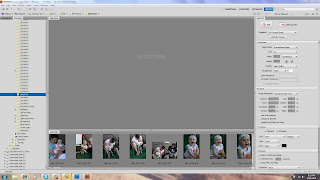
1. Open Bridge. Along the top menu bar, select "WINDOW", then "WORKSPACE", then "OUTPUT". Then select a file you want to create index prints for. If you want to makes prints of photos in multiple files it's probably easiest to save them all to one file first. This is what your screen will look like at this point.

2. Go ahead and select the photos you want to use so that they show up in the large window. Press control when you click to select multiple photos. Then you want to select your output options in the window on the right. You can see what I set mine to. Choose "PDF file" and 5*8 contact sheet in the template menu.

3. Hit "refresh preview" to see what you've created. You'll see that the files you selected in step #2 are now mini index prints set on a A4 sized paper. (8.5x11) That's the default sizing and if you like that....you are good to scroll down to the bottom of the right bar and find that little save button. Just save and print.

4. However, if you'd like to create index print sheets that would fit into the CD/DVD case the files are actually saved on, you need to change a few of the default settings. In the "Document" section in the bar on the right, choose custom for your size and enter 12.2 cm by 12.2 cm for the dimensions. (See my screen shot below). Then go down to the next section in the right side bar called "Layout" and enter 5 in the columns box and 7 in the rows box. Finally, make sure "auto spacing" and "rotate for best fit" are checked. Refresh preview again and viola! (Scroll all the way down to the bottom of the right bar to find that save button and save to print.)

Not too hard, right? :) Now, if you don't have Bridge or you'd rather do this in plain old Photoshop, you do the following:

1. In the "file" menu, select "AUTOMATE" and then "CONTACT SHEET II".

2. A box will pop up. This is where you select your file you want index prints from.

3. Also in this box you need to input your settings for the prints. Choose the size of paper (again, A4 is the default... if you want to fit the print inside the CD jewel box, change this to 12.2 cm x 12.2 cm), the orientation, the resolution (300 dpi is good for print) and the number of prints in each row and column. For the CD jewel box size, set column to 5 and row to 7 again.

4. Click OK and photoshop will go to work!

5. Print.

Hope this was helpful. Let me know if you have questions about this... I just learned it today myself and I'm no photoshop expert...but I will try to help!

August 18, 2010

Tutorial: Resizing Photos

Hey everyone! Susan here today with a tutorial on my photo resizing process.

A few of you mentioned that you'd like to know how to easily resize your photos to non-standard sizes for printing and use on layouts and projects. I frequently like to use what I call "mini-pics" on layouts as the supporting photos to my one main photo. OR - I'll just use a lot of mini pics to create one big photo collage page - as I did in this layout from the Summer Camp gallery last month.

The easiest (and probably cheapest) way to print these mini-pics is by getting a few pics onto one standard sized 4x6 print, and then having it printed at your regular photo printing lab/place.

For this tutorial I will show you how to crop and resize 2 seperate images to fit onto a 4x6 image. You can also apply these same principles to a 8x10 or 5x7 (like I did here) image if desired. >> I'm going to use a PC and Photoshop Elements 7.0 for my sample screenprints, since that seems to be what a majority of people use.

Start by opening up Photoshop and creating a blank 4x6 image. Go to FILE > NEW > BLANK FILE.


Then change the new file's parameters to "INCHES" in the drop down box next to the input fields. Type in 6 for the width inches, and 4 for the height inches. MAKE SURE that you select "WHITE" from the drop down box for BACKGROUND CONTENTS (this is what will make the nice white borders around your mini pics). ALSO make sure that you type in 300 for RESOLUTION (this means the image will be at 300 DPI).


You now have a blank white 4x6 print.


Open up the first photo in photoshop, that you want to make a mini-print out of, and select the crop tool. AT THE TOP of the screen, be sure to TYPE IN 300 next to 'Resolution'. If you know exactly what you'd like to crop your image to, input those parameters as well. Otherwise leave them blank, as I did, and we'll use the transform tool later on to adjust your image size to scale.


Drag the dotted line crop tool box around your image as you'd like it cropped. Once you have the box as you'd like, RIGHT click (on a PC) and select CROP.


Then (on a PC) hit "CONTROL + A" to select the entirety of your cropped image, and then "CONTROL + C" to copy your image.


Switch to your blank 4x6 white image and hit "CONTROL + V" to paste your cropped photo onto the white 4x6. Then hit "CONTROL + T" to use the transform tool to change the size of your image.


You want to make sure that you are keeping the correct scale dimensions on your cropped image when you use the transform tool - so in Photoshop Elements, you need to RIGHT CLICK on your photo and select SCALE to in order for the transform tool to keep the correct perspective dimensions.


Once the image is "transformed" to the size you'd like, click the green arrow on the photo. (If you change your mind on transforming or would like to start over simply click the red circle with the bar through it.)


Then use the "MOVE" tool - the four arrowed button in the upper left corner of your tool bar, to move your image to one side of the 4x6 print, to make room for a second mini-pic.


Open up your second image and repeat the process cropping, cutting & pasting, & transforming to add your second mini-pic to the 4x6 print.


Once your second mini-pic is in place, you'll need to flatten all of the layers that you created to prepare the 4x6 for printing. Go to LAYER > FLATTEN IMAGE to do this, and then save your 4x6.


You now have a 4x6 image ready to print that will yield you two mini-pics (with white borders if you want them!).


August 14, 2010

Tutorial: making your own page protectors

Hi everyone! I'm back with a quick tutorial :)

When I started this mini [using Documentary] I wanted to use page protectors for my pictures but couldn't find anything that fit (the album size is ~3.5 x 4.75)


so i made my own :)

[supplies: 8.5 x 11 page protectors, paper trimmer, hole punch, scissors, ruler, pen, 1" loose-leaf rings]
  • start with a regular 8.5x11 page protector
  • measure your album cover
  • mark the sheet protector (so you know where to sew ;))
  • sew 2 vertical lines (3.5" wide each) to create the pockets
  • cut out the pockets. for this particular album you'll end up with 2 double pockets
  • punch holes and add them to your album
And that's it. Please let me know if you have any questions and have a great weekend.

August 7, 2010

Blended Ink Tutorial

For my August Summer Camp gallery, I made a layout about bread in Switzerland. The journaling block is created using the blending tool by Tim Holtz and a bunch of Distress Inks. It's a pretty easy technique, one that takes a bit of practice, but can be easily mastered in just a few tries. I've put together a video tutorial to help show you how to do the technique on your own projects.


supplies used: blending tool, foam blenders, faded jeans, peeled paint,
and mustard seed distress inks (any distress inks can be used for this project).

Here's a close up of the technique.


I would love to see how you interpret this in your own layouts, it's really fun to see the unique results after each attempt. If you don't own the blending tool yet, it's very reasonable to purchase, and you can use the foam blenders for numerous applications if you stamp it off well.

July 31, 2010

Tutorial: Misting Masks

Hello there! Today I want to show you a few ways to create your own templates/masks for misting. There's many ways to use mist and so many items to use them with... here's a few of my favorite:
On this page from the Continental gallery, I colored the inside of the mini starburst with mists by creating a template using the same stamp.

1. Stamp the starburst on a scrap piece of paper
2. With a craft knife cut the inside of the stamp
3. Layer the template on your page and mist with gold
4. When it dries, stamp on top of the image with distressed inks (i used wild honey)

  • Use Patterned Paper
Here, I used the Scattered Clouds paper from Adirondak both as a design element and a tool.


1. With a craft knife cut out one of the clouds (the big one)
2. Layer it on top of the paper (cover the area around it with a paper bag)
3. Mist with buttermilk or cream
4. Sew around it for more definition

  • Use Packaging
This is one of my first (and fave) misting layouts. I made it with Playground. Remember Playground? I still love that kit! Anyway, for the background I used the JBS chipboard buttons packaging from Soda Fountain. I just placed it on top of the blue paper and sprayed with orange mist.

You can also use the negative space by tracing and cutting out the shape. I did that on my class clown layout from the Joyland